Here are the news in version 2.7.0
Would you like to find out more about TAG Application and have more information?

Tasks – Fast and integrated print sharing
Generate convenient PDF files and share them via email directly in the TAG Application?
With the new version, this is also possible!
In fact, by performing any type of print, whether it is single from the task details or multiple from the various modules that offer this possibility, you can generate a print preview with various integrated features. Among these, the one related to quick sharing undoubtedly stands out.
By clicking the classic icon to share, a popup will appear allowing you to share the generated document, enabling you to specify among the recipients specific users of the system and/or other external email addresses.
This will trigger the instant sending of an email message containing the generated document, so that the users/email addresses indicated as recipients can immediately receive the communication.
(fig 1.0)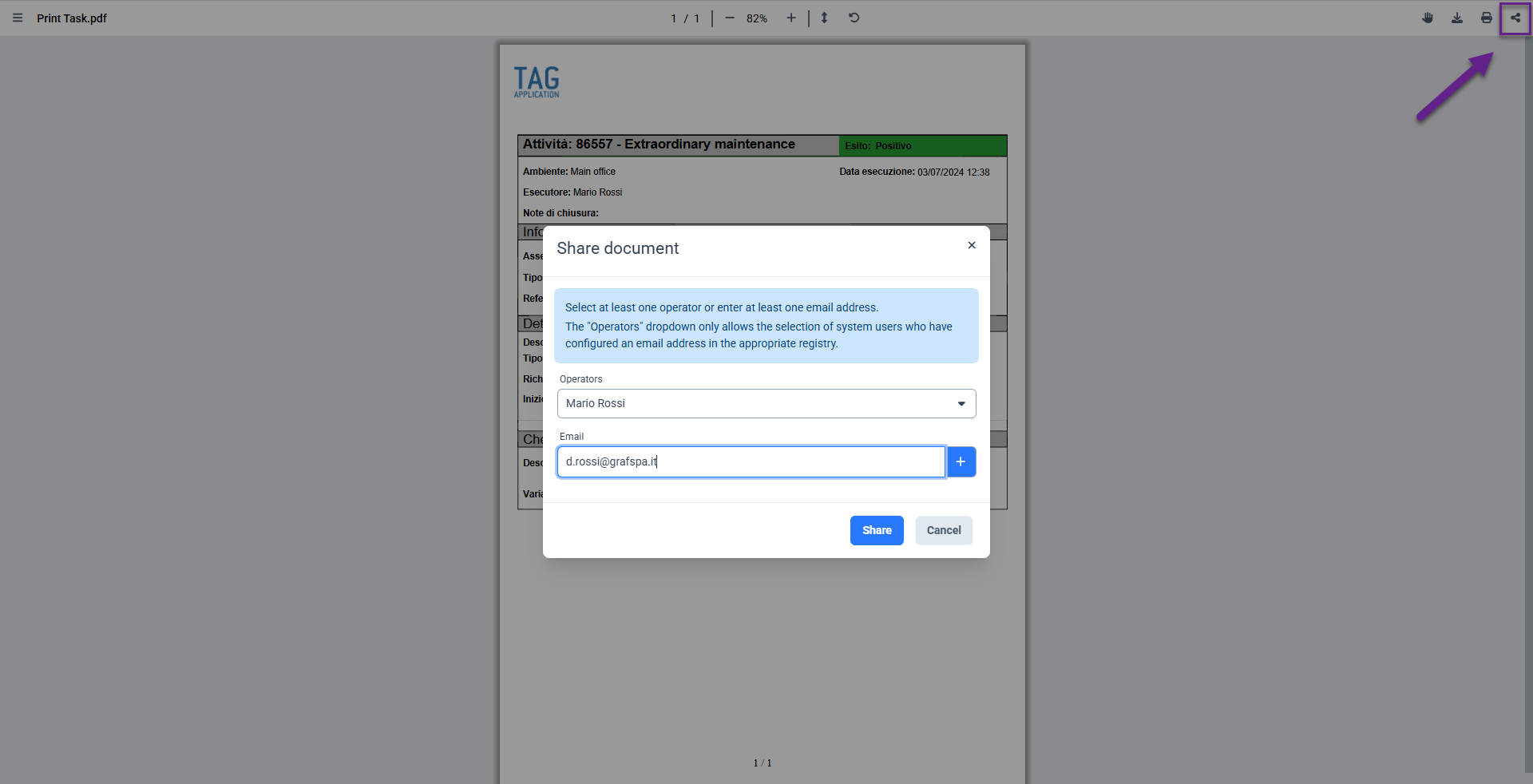

Calendar – New print panel for the task plan
The task plan is such a convenient tool that you might want to share it with your colleagues or perhaps print it out to hang it on your department’s bulletin board?
It’s no longer a novelty… this can now be done too… and, starting from this version, also thanks to a brand-new panel with additional integrated features!
Accessing the task plan from the calendar and clicking on “Print” will take you to a revamped interface where you can not only give a title to the printout and decide the date range to include, as was already possible before, but also specify which print to generate via the “Available prints” dropdown and how to group it using the “Group by” option.
Additionally, to keep the user informed and make every operation easier, a preview of what will be printed will also be available. In the bottom right of the panel, there will be a thumbnail of the print, which, when clicked, will allow you to view an example of the print you’re about to generate in a dedicated preview.
(fig 2.0)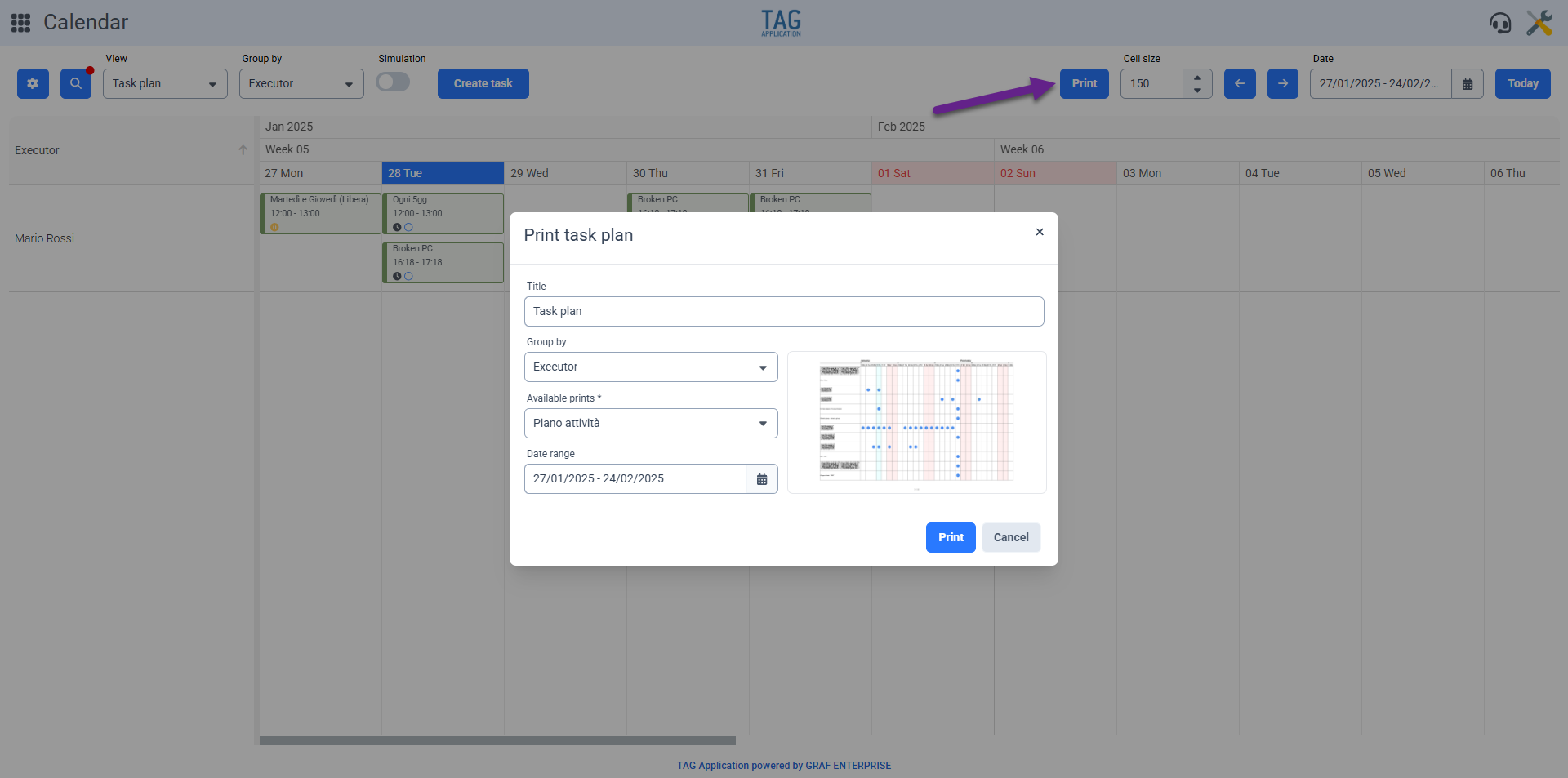
Calendar – “Hide task content” in the plan
The task plan is now a powerful tool: view, manage, and simulate all tasks in the way that suits you best, in the most suitable way for your needs.
For this reason, with the upcoming update, new preferences are coming!
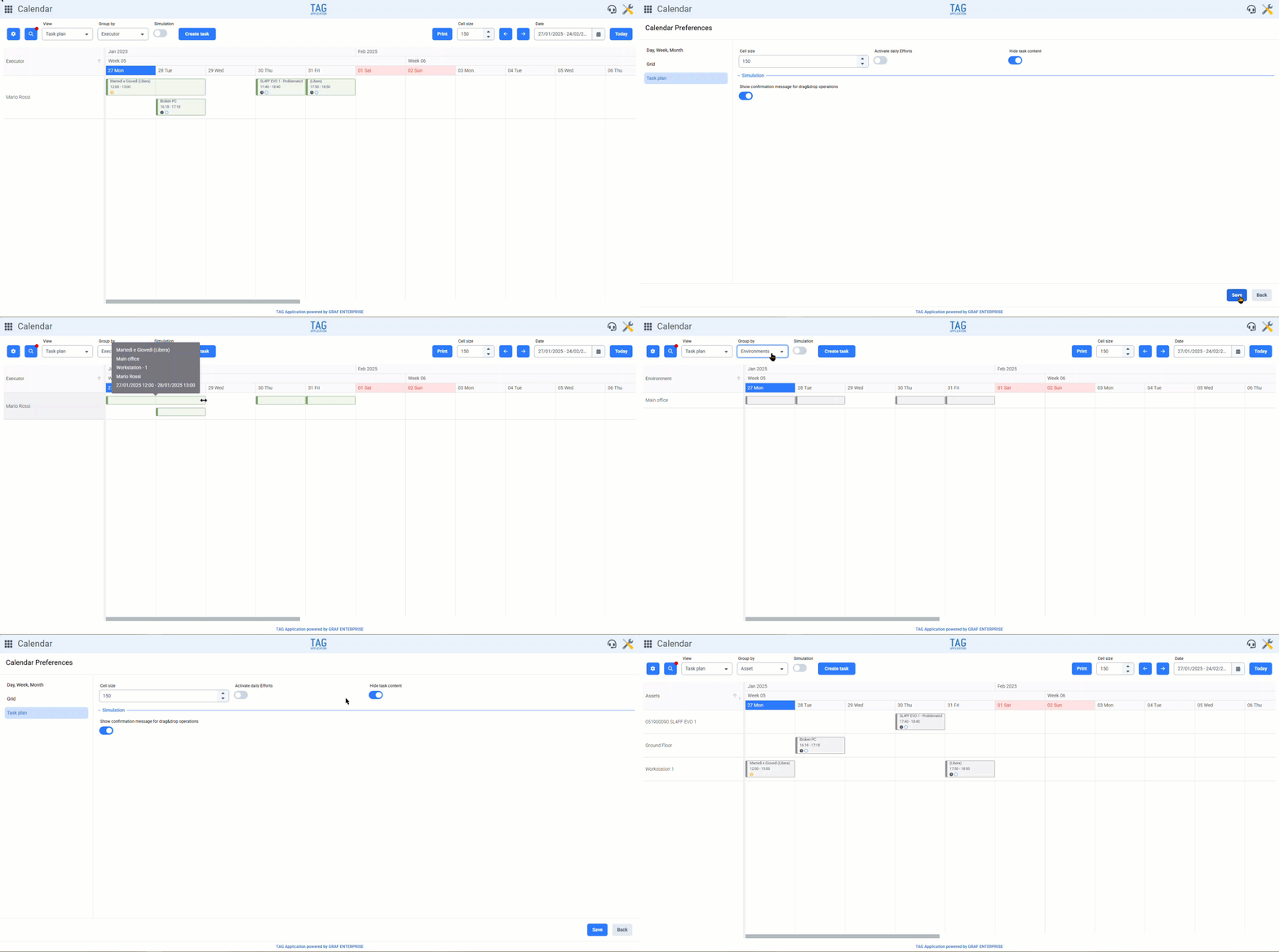
By accessing the Calendar preferences from the specific icon, under the “Task Plan” section, you will find the new option “Hide task content,” which is disabled by default. This will allow for a “compact” view of the tasks in the plan.
This view mode will hide all task information on the corresponding tiles, allowing you to save a lot of space on the plan, but without sacrificing any functionality!
By hovering over any tile, the title, environment, asset, executor, start date, and end date of the task will always be shown.
Additionally, the click (to view additional information and access the full details of the task) and drag&drop (for making potential time adjustments) functions will remain available.
Once set, this preference will be saved and applied every time you access the plan.
Of course, being a “user” preference, this will only be valid for the logged-in user and can be updated at any time through the Calendar preferences panel.
Calendar – Show confirmation message for moving simulated tasks
Are you using the task plan and moving tasks in simulation mode?
Then you may have noticed that by using the convenient “Drag&Drop” function, you are asked to confirm each time you move a task. This method is certainly less prone to accidental errors, but at the same time, it significantly slows down the planning of tasks…
So, what to do? Show the confirmation message every time for greater awareness of the operations being performed, or not show it, benefiting from speed?
Well, it depends… the choice is not obvious and can often be subjective!
For this reason, with the new version, the user is free to choose independently!
By accessing the preferences section of the Calendar module, in the “Task Plan” section, under the “Simulation” line, you can enable/disable the toggle called “Show confirmation message for drag&drop operations” (enabled by default).
Once set, this preference will be saved and applied every time you access the plan.
In this way, if the confirmation message is disabled, when moving tasks scheduled with active simulation mode, the following actions will automatically occur:
-
– Unlink the actual tasks and create exceptions for moved tasks generated by schedules with repetition from “Planned Date” or “Free” scheduling.
– Reschedule all subsequent simulated tasks for moved tasks generated by schedules with repetition from “Execution Date” or on operating parameters.
Of course, being a “user” preference, this will only be valid for the logged-in user and can be updated at any time through the Calendar preferences panel.
(fig 4.0)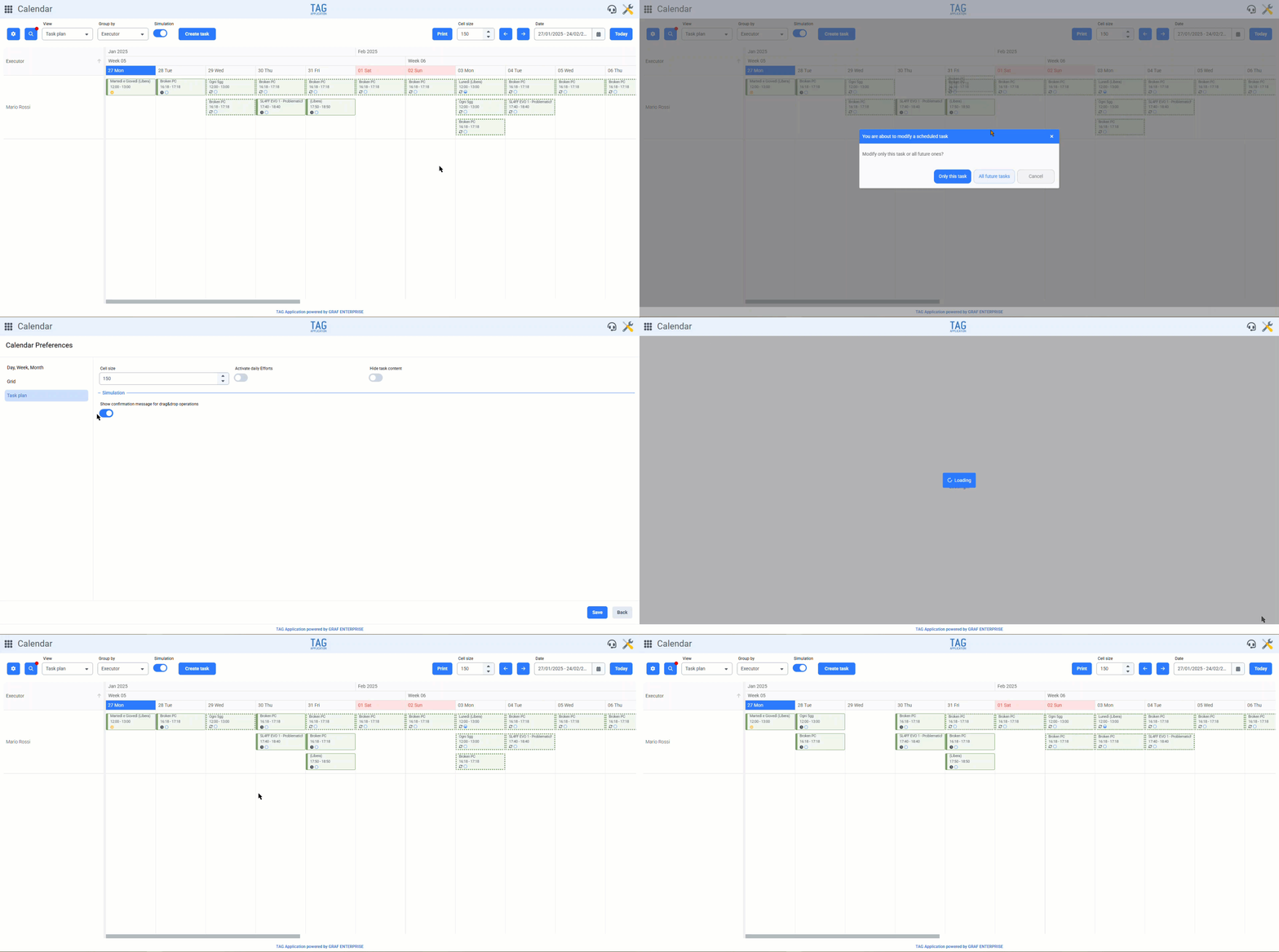

Ticket – Default preference for “Replies” or “Internal Comments”
More options to configure the system based on your needs?
Here are some more preferences… even for the ticket module!
By accessing the ticket preferences panel, it will now be possible to control the section (regarding replies and internal comments) where requests and reports will open by default.
When opening the detail of any ticket, each user will now be able to decide whether the system automatically positions them in the replies section or the internal comments section.
Additionally, to make the concept of “Replies” and “Internal Comments” even clearer and more direct, the respective areas to write will always indicate who will be able to view that message.
(fig 5.0)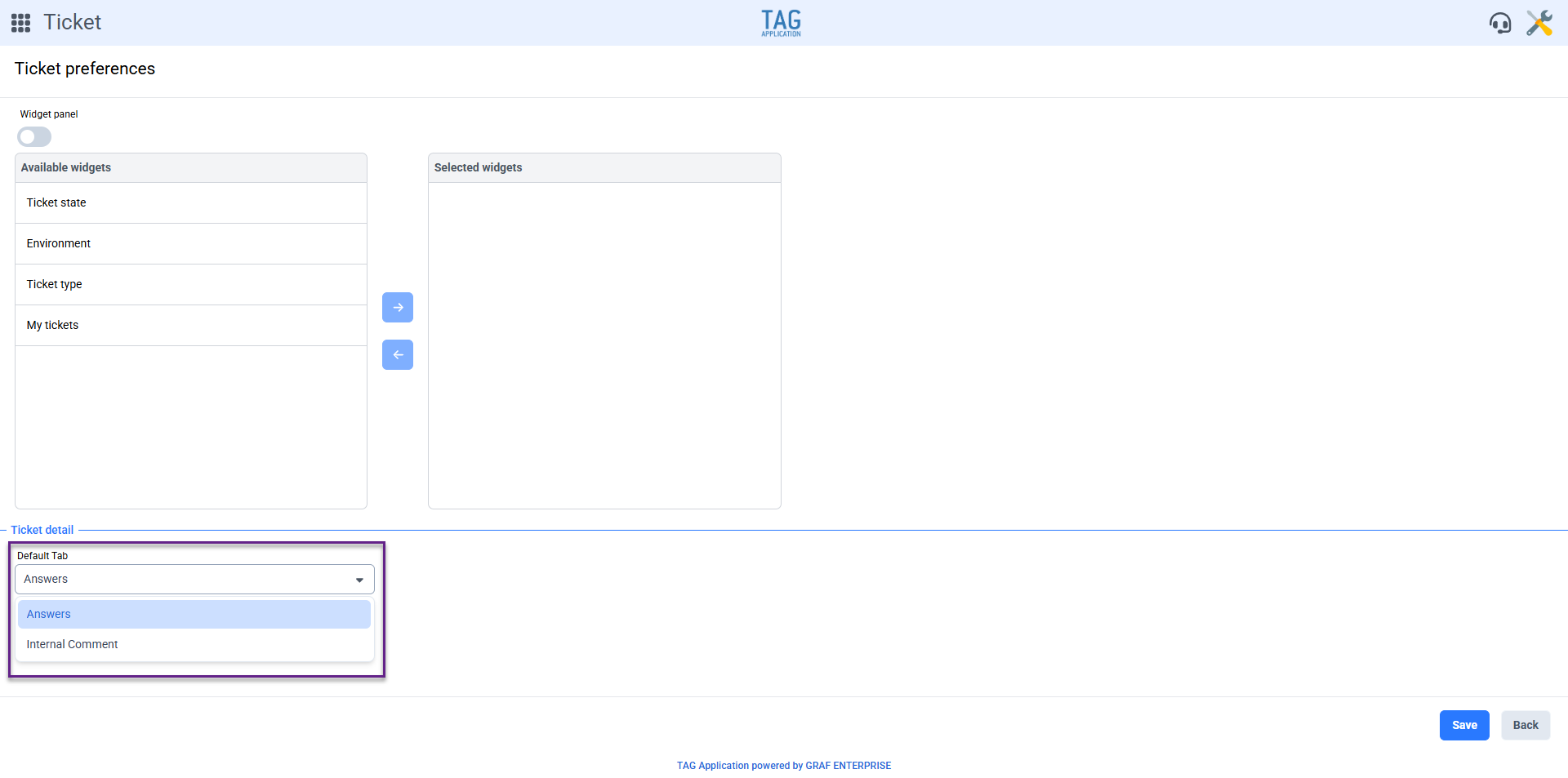

Graphic Refactoring of the Entire System
An important step to keep up with technological evolution is to ensure an increasingly simple and enjoyable experience!
For this reason, TAG Application is being refreshed with a graphic refactoring designed to align with the latest trends.
The interface has been completely revamped to offer a more intuitive and fluid user experience, while still maintaining the functionality and reliability that distinguish the software.