Here are the new features in version 2.17.0.
Would you like to learn more about TAG Application and get additional information?

Whole system – New business partner module
Manage all business partners in a fully dedicated module? Now you can!
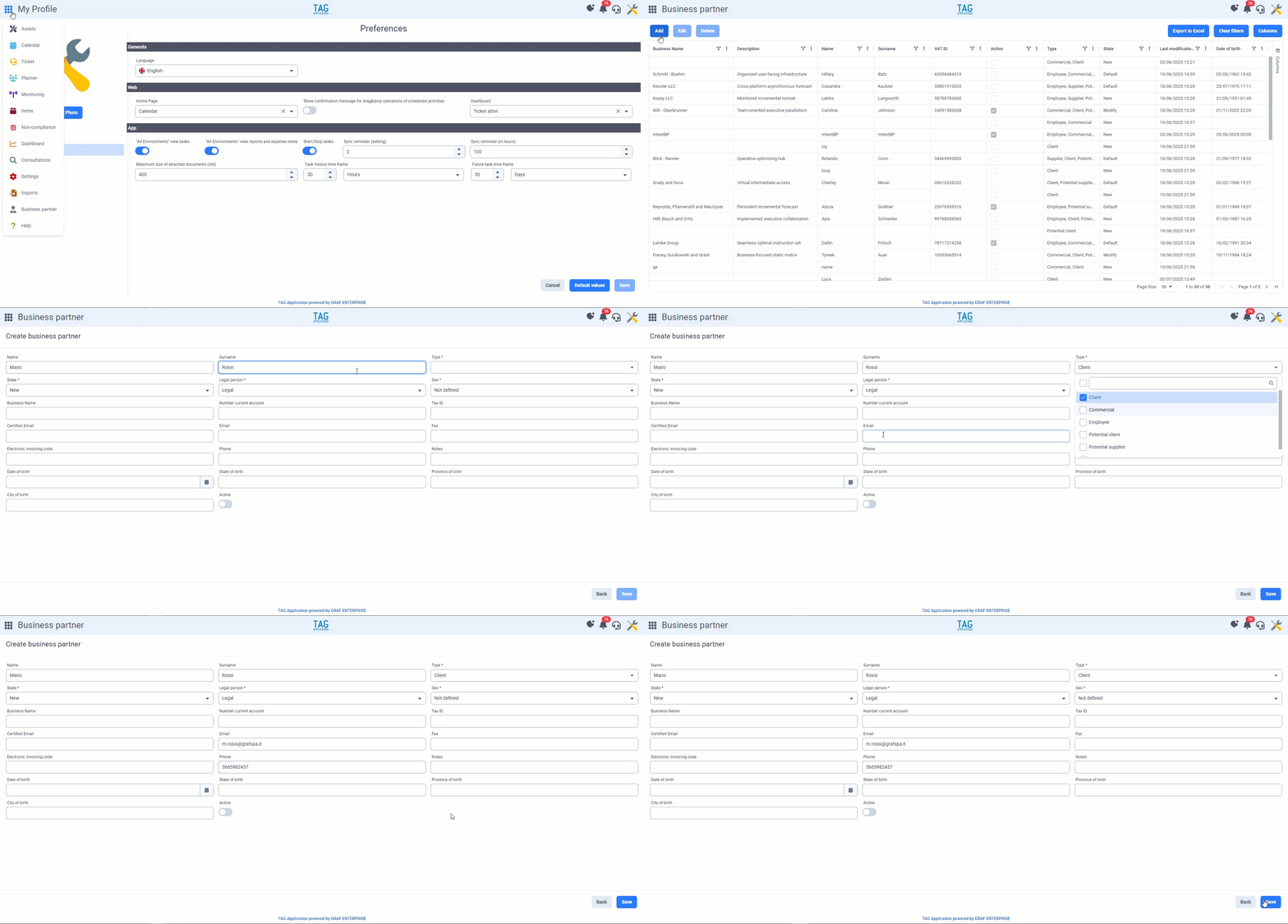
With the upcoming update, the first version of the new “Business partner” module is arriving—a handy registry for easily managing all collaborators.
Here you will see all registered business partners in a tabular format, and adding new ones, modifying, or deleting existing ones will be extremely simple.
(fig 1.0)

Schedules and Templates – Mandatory custom data only in tasks
When talking about granularity and configuration flexibility, custom data always comes to mind.
This is because it’s a unique feature, extremely useful for setting up specific fields of various types on any entity; from text to numeric fields, from read-only to required ones.
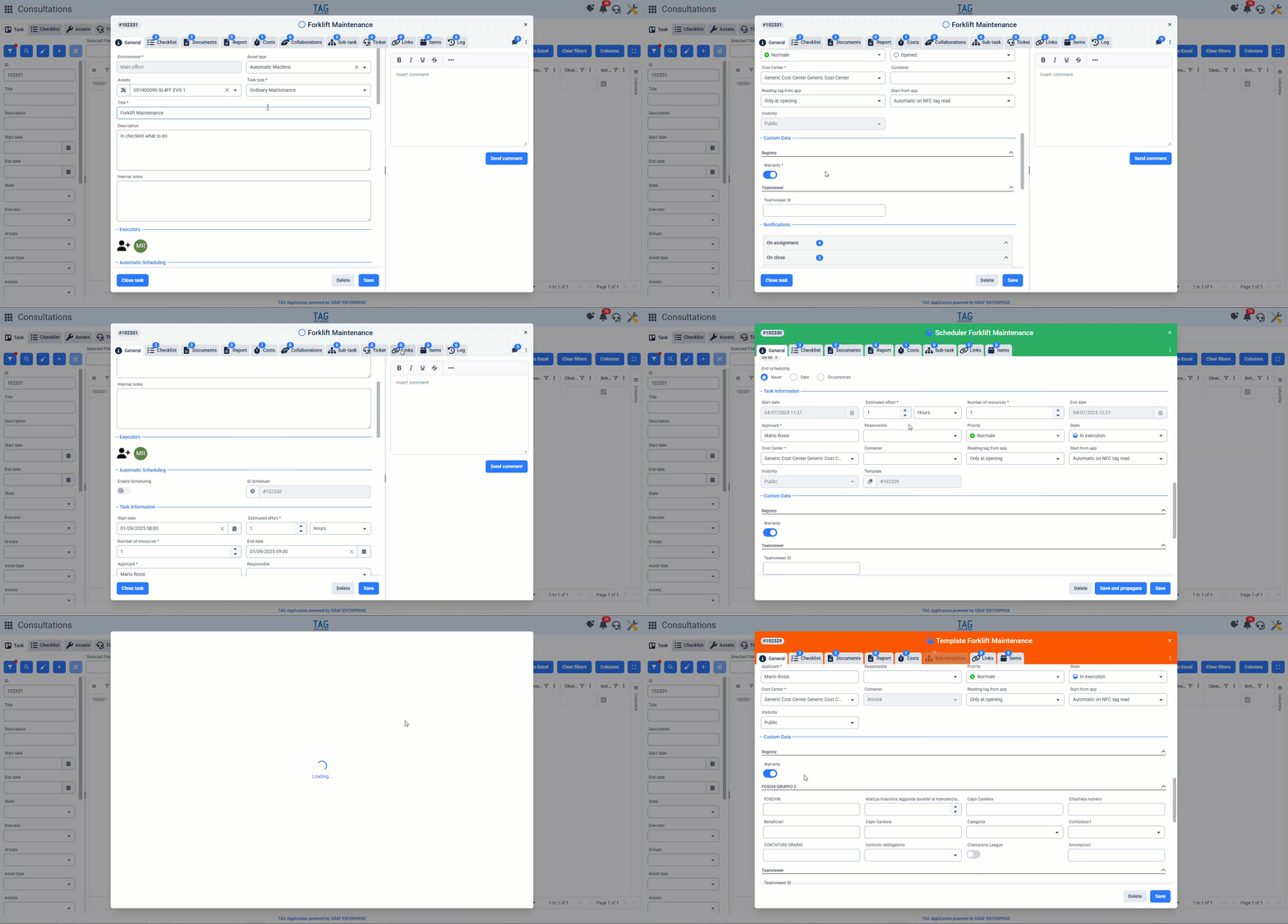
Speaking of mandatory custom data, an important update is coming. Now, when configuring a series of mandatory custom fields on templates and schedules, these fields will not necessarily have to be filled during the creation or modification of those entities. They will only become mandatory in the tasks generated from them.
This allows the person doing the configuration to leave those fields blank, essentially creating only the data “template”. Those who are assigned the actual tasks generated from them, if mandatory fields were configured, will be required to fill them in before completing or modifying the task.
(fig 2.0)
Whole system – Enhanced notification panel
The last version was just a taste of the brand-new web push notifications…now things are getting serious!
The new update brings several enhancements, both graphical and logical, to the reception and management of web push notifications through the dedicated panel.
Main new features include:
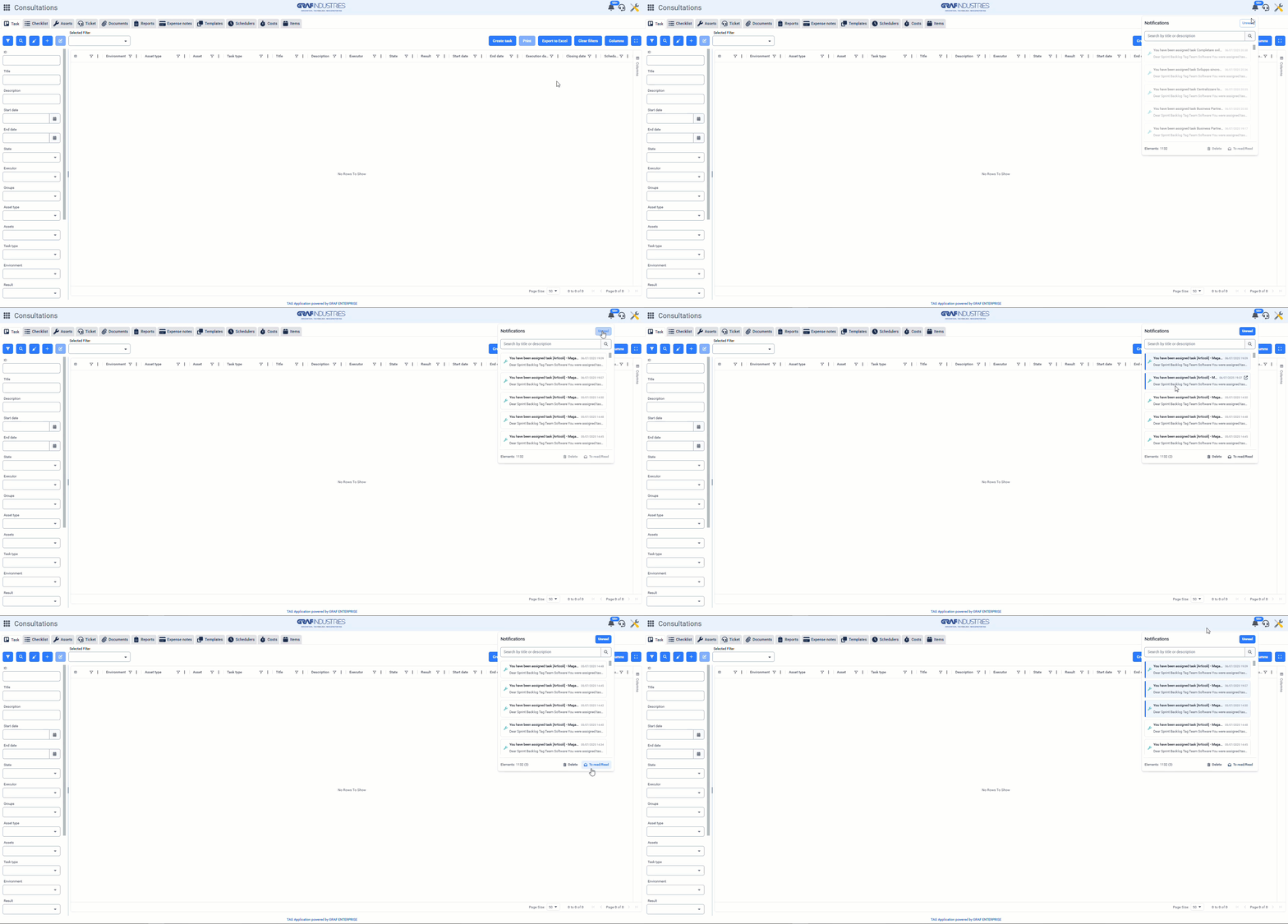
– Introduction of a counter on the notification panel icon (it will show the number of notifications in the panel. Red if there are new ones, otherwise blue. If more than 99 notifications exist, it will display 99+, with the exact number in a tooltip on hover).
– Centralization of notifications in a single section, with access to “Unread” via the top-right button. “Read” notifications will now differ from “Unread” ones based on background color; light for read, darker and more prominent for unread.
– Change in behavior when clicking a notification. Previously, clicking opened the related entity. Now, clicking selects one or more notifications, allowing you to delete them or mark them as read/unread with dedicated buttons. To access the linked entity, simply hover the tile and click the icon at the top right.
(fig 3.0)