Here are the news in version 2.6.0
Would you like to find out more about TAG Application and have more information?

Task – New “Ticket” section
The link between tasks and tickets has always existed… the system has in fact always allowed the connection of multiple tasks to a ticket, keeping the reference visible and offering the possibility of using very convenient automation.
What has never been possible until now, however, is linking multiple tickets to a single task… But don’t worry, with the new version, this option will also be made available!
Thanks to the new update, each task will not only be able to be linked to more than one ticket, but within each one, a new section (called “ticket”) will be integrated, allowing you to quickly consult the main information of the linked reports, and, if necessary, access the full details.
(fig 1.0)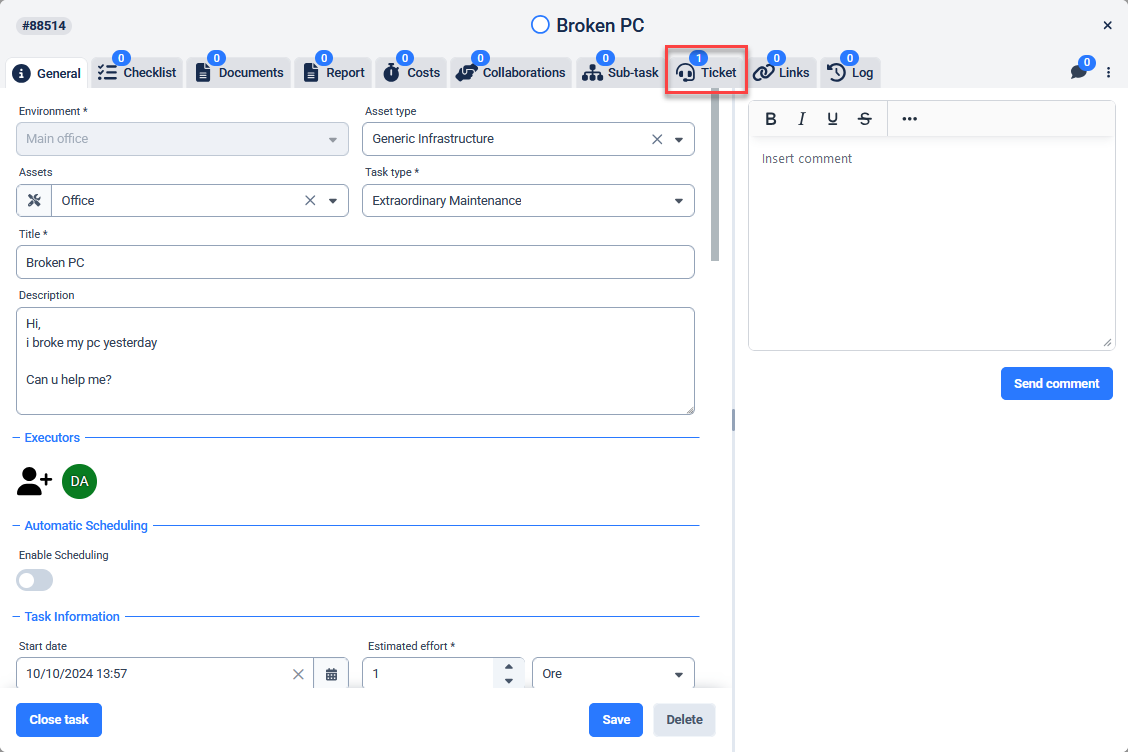
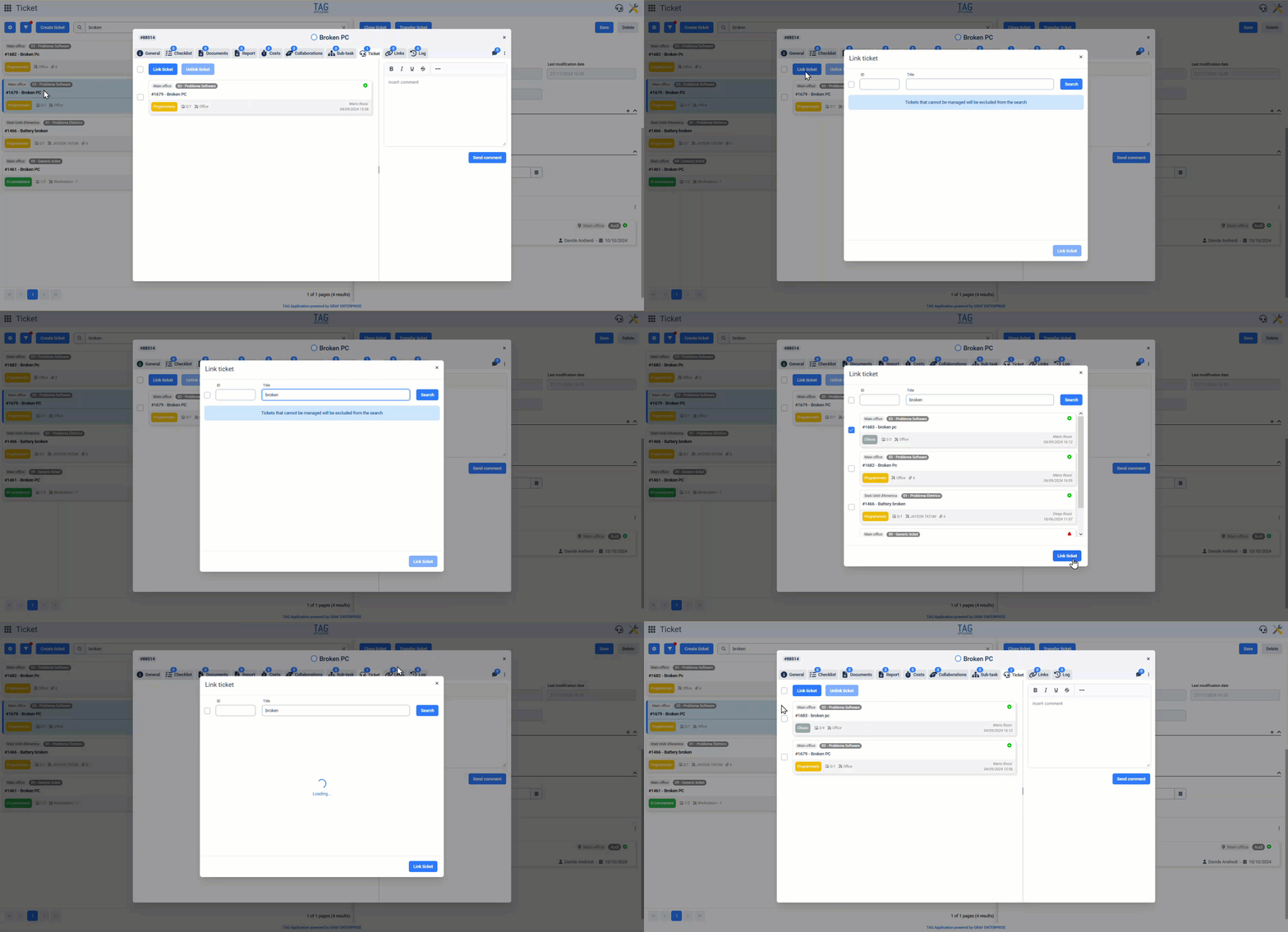
Through this new feature, tasks will be able to:
– link one or more tickets by searching them by ID or Title– consult the linked tickets by viewing the main information from the tile or accessing the full details by clicking on it
– unlink the linked tickets by selecting all or just some of them using the appropriate checkboxes
(fig 1.1)
In the same way but in reverse, in addition to creating tasks, from tickets, you will be able to:
– link one or more tasks by searching them by ID or Title*– consult the linked tasks by viewing the main information from the tile or accessing the full details by clicking on it
– unlink the linked tasks by selecting all or just some of them using the appropriate checkboxes*
(fig 1.2)
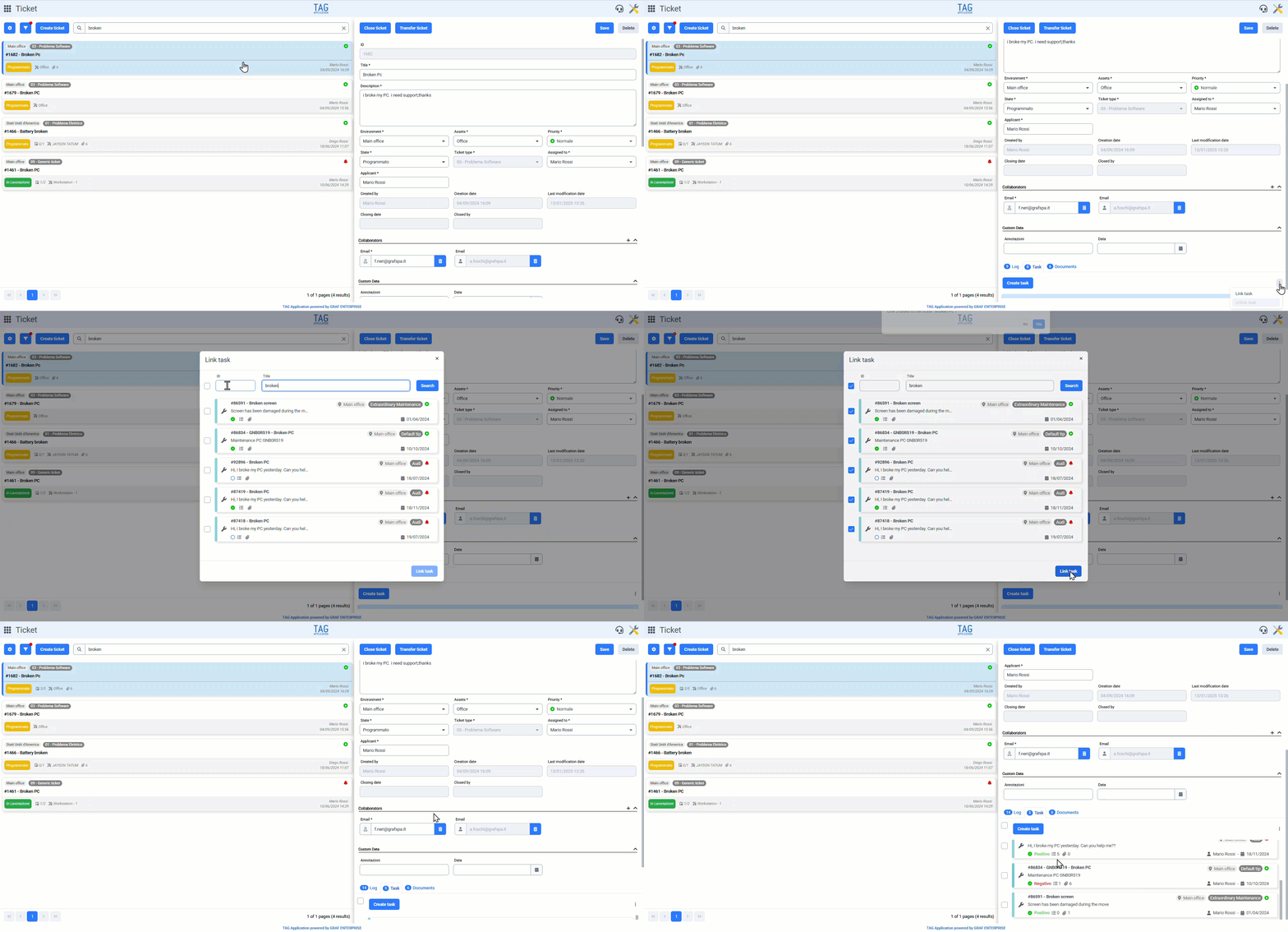
*To perform these actions, it is necessary to access the contextual menu of the tasks section.
This will allow those working in customer care to operate even more efficiently: by keeping requests and reports better monitored, grouping them under individual tasks, and seeing the progress status automatically updated.

Settings – Propagation and Quick Import of Custom Data
One of the standout features of TAG Application is the custom data, which are fully customizable fields that can be associated with any type of entity.
In this way, the system easily adapts to any type of need, allowing the user to configure these custom data as preferred, directly from the graphical interface.
Speaking of configurations, starting from this version, the new features “Propagate Custom Data” and “Import Custom Data” will be introduced.
Thanks to these shortcuts, accessible by selecting an entity type (from the specific section in the Settings module) and clicking the contextual menu, it will be possible to choose whether to:
– Propagate the custom data of the selected type to other types– Inherit the custom data from one type and apply it to the selected type
(fig 2.0)
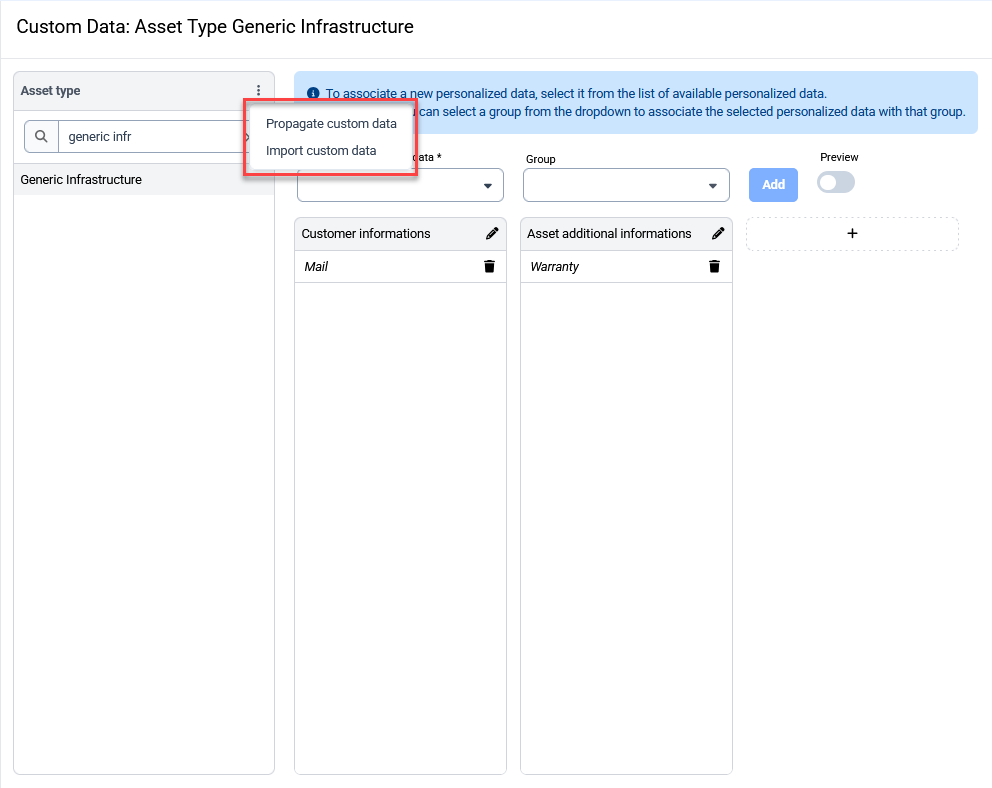
These operations, always guided by a convenient popup, offer the possibility to speed up the configuration of custom data significantly, greatly simplifying the user’s work.
(fig 2.1)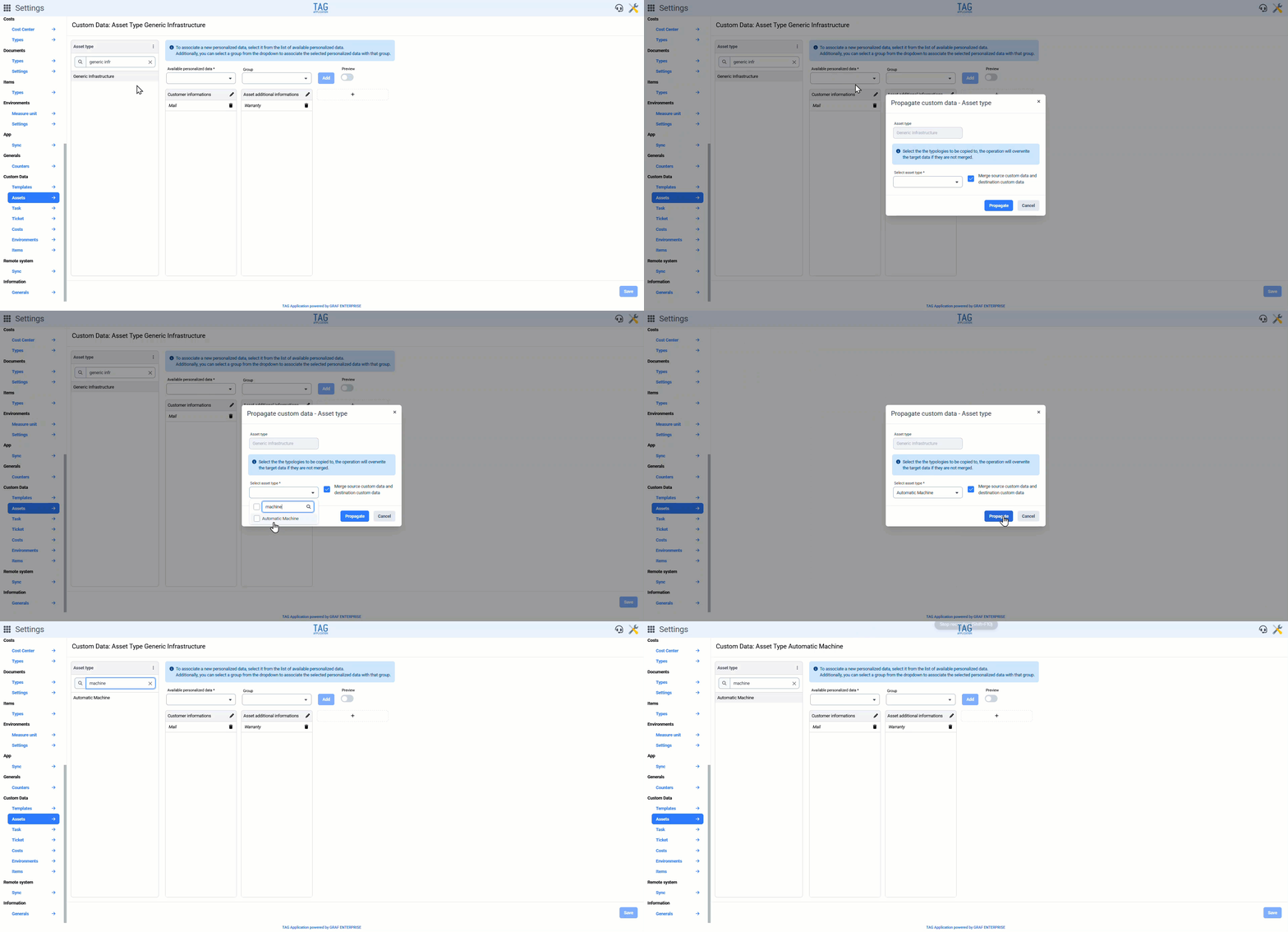
Attention! When performing propagations or imports, by default, the system merges the source and destination custom data. If you intend to permanently replace the custom data of a type, it is necessary to uncheck the box “Merge source and destination custom data.” This way, the original custom data you are working on will be permanently overwritten.

Monitoring – New “Name” Column in the Reading Tables
To improve ease of understanding when consulting the reading history of one or more variables in the monitoring, the new version has integrated the new “Name” column.
This column will be displayed, regardless of the selected data source, in all tables where the readings are shown, and it will of course contain the name of the variable for which the reading was entered or (if an alias was provided) the respective “alias”.
(fig 3.0)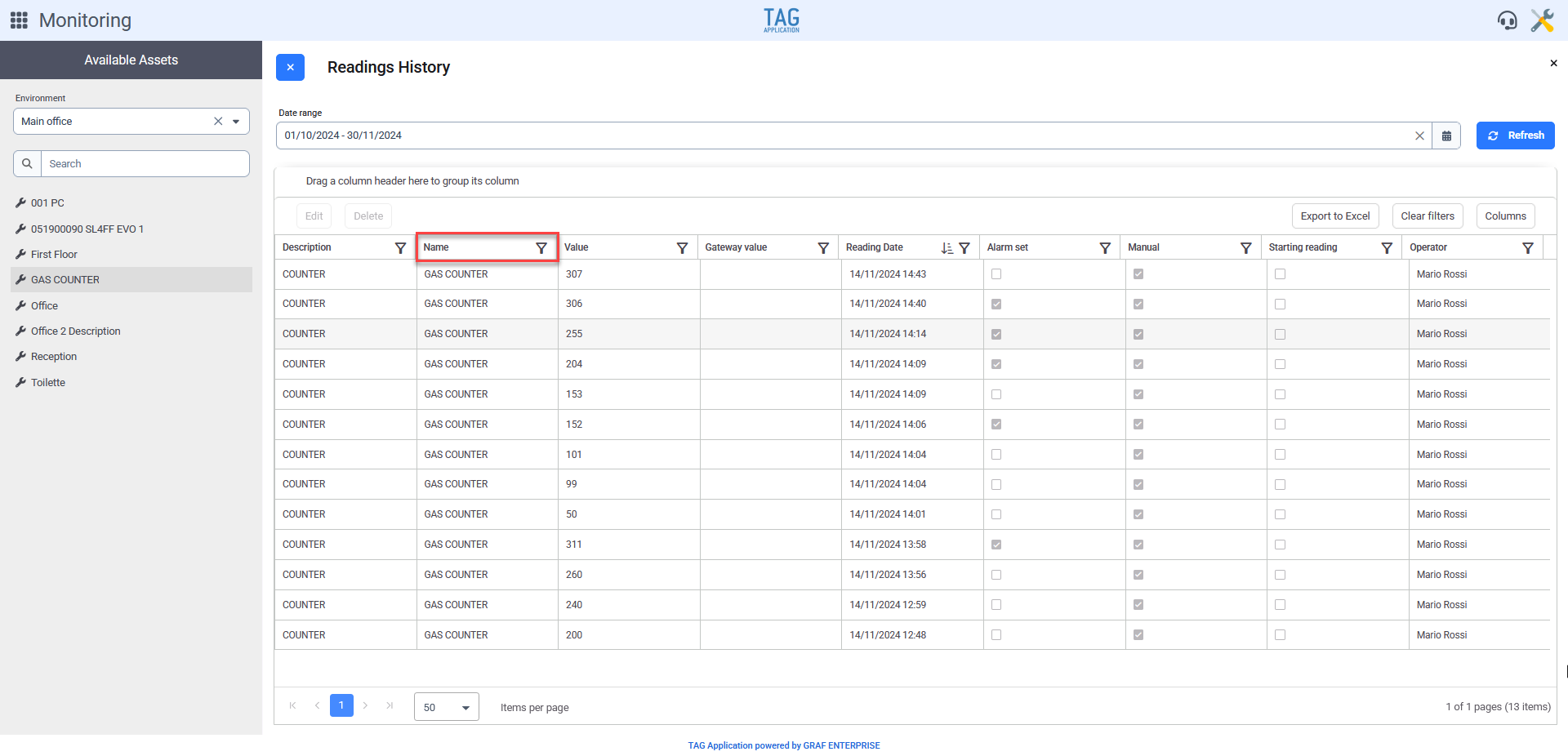
Tasks – New “Ticket” Section
With the new update, it will also be possible to view the different tickets linked to a single task on the mobile app.
This means that within the task details, all linked tickets will always be displayed.