Here are the news in version 2.5.0
Would you like to find out more about TAG Application and have more information?

Calendar – Moving simulated tasks
The “Task Plan” view is now known… it’s one of the most powerful tools in TAG Application!
Plan, manage and move any tasks… from this version also in the future!
If it was possible to “only” simulate the tasks that a scheduling would generate, now it is also possible to manage them, making them fully effective “concrete activities”.
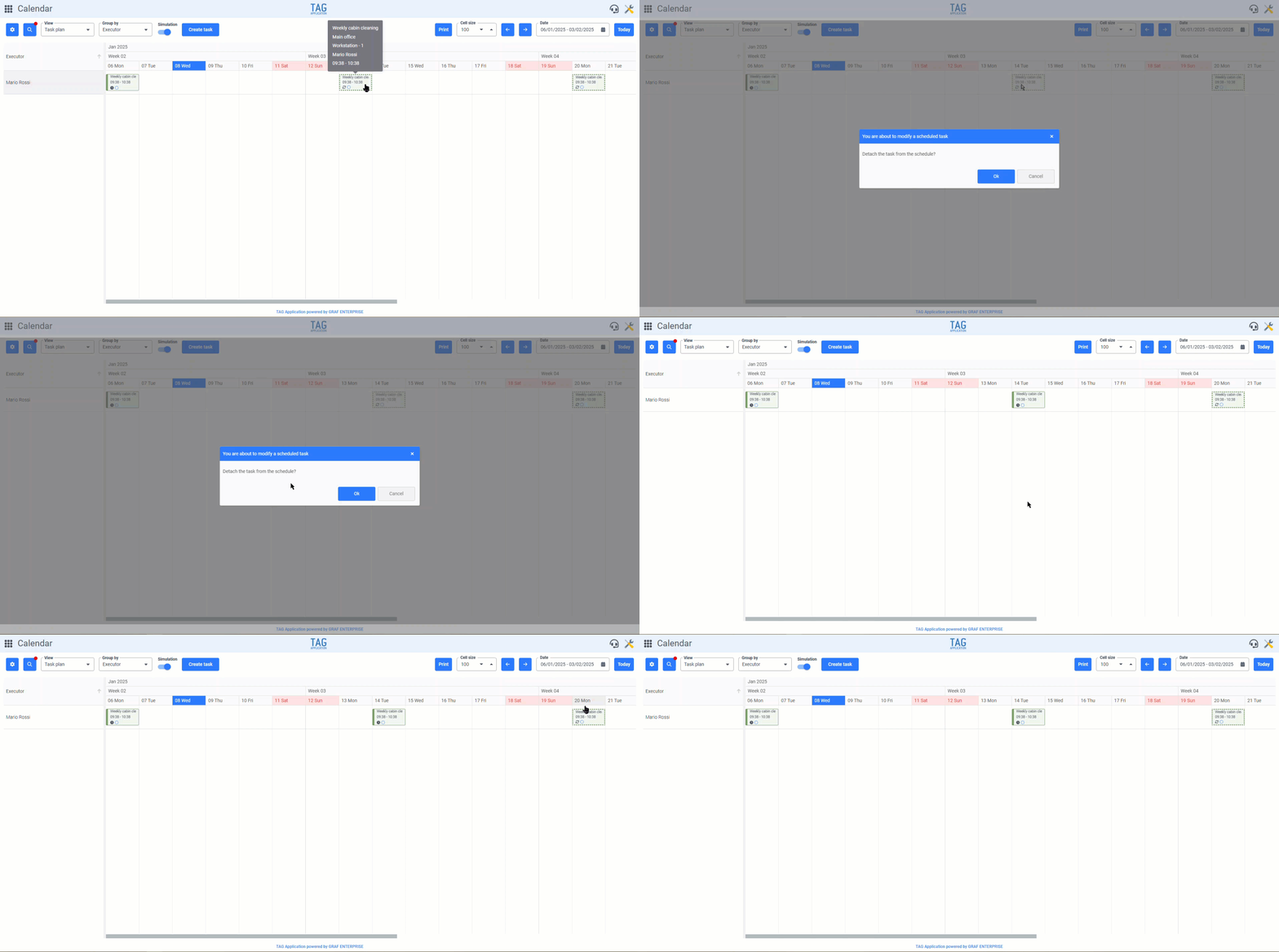
Accessing the “Task plan” view from the Calendar module and activating the “Simulation mode”, all future occurrences will be displayed, identified by a dotted tile.
In case these tasks are “children” of schedules with repetition from “Execution date“, dragging one forward or backward in time, you will be asked if you want to move only the single task or even all future ones. If you want to move only the single, it will be disconnected from the schedule, going to create an exception and immediately generating the next occurrence as per periodicity set in the scheduler. If you want to change the periodicity of all future tasks, after expressing this choice from the confirmation popup, it will always be created the exception disconnected by the schedule and generated immediately the next occurrence, with the difference that all subsequent simulated tasks will be “slid” forward or backward in time depending on where the exception has been moved.
(fig 1.0)
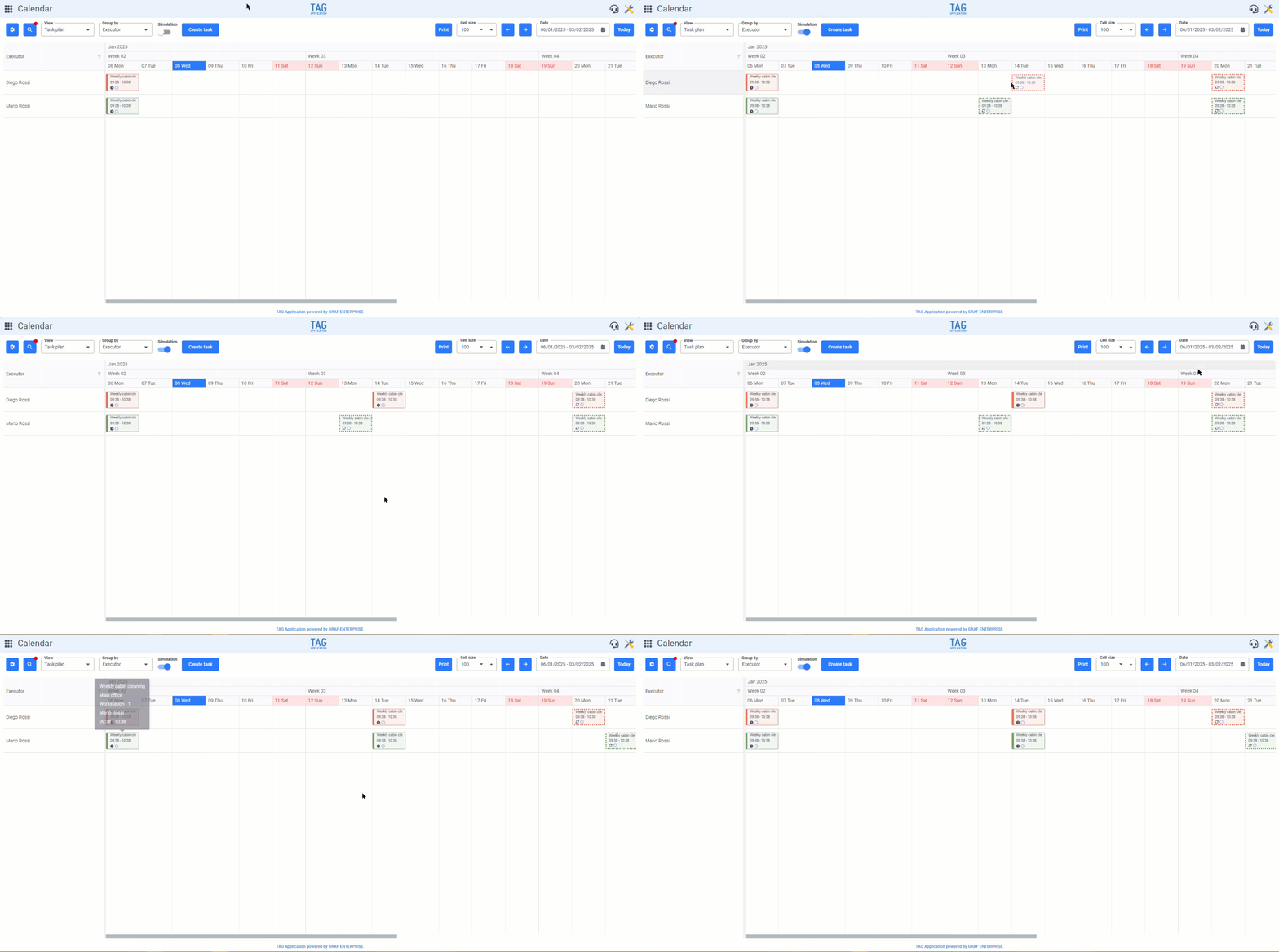
In cases where the tasks to be moved are instead “children” of schedules with repetition from “Scheduled date” or “Free“, dragging one forward or backward in time, will be requested only if you actually want to disconnect the selected task from the schedule. If it is confirmed, the exception will be immediately created and the next occurrence generated, while the subsequent simulated tasks will always maintain the periodicity established in the scheduler.
This new feature, especially useful for those who have specific maintenance plans already pre-established also in the medium/ long term, will allow even more flexibility and maneuverability, Organizing the activities in the future even if they are not yet actually generated by the system, forcing their creation in their own calendar. (fig 2.0)
Calendar – Workload in the task plan
The new features of the task plan? End here? Nothing at all!
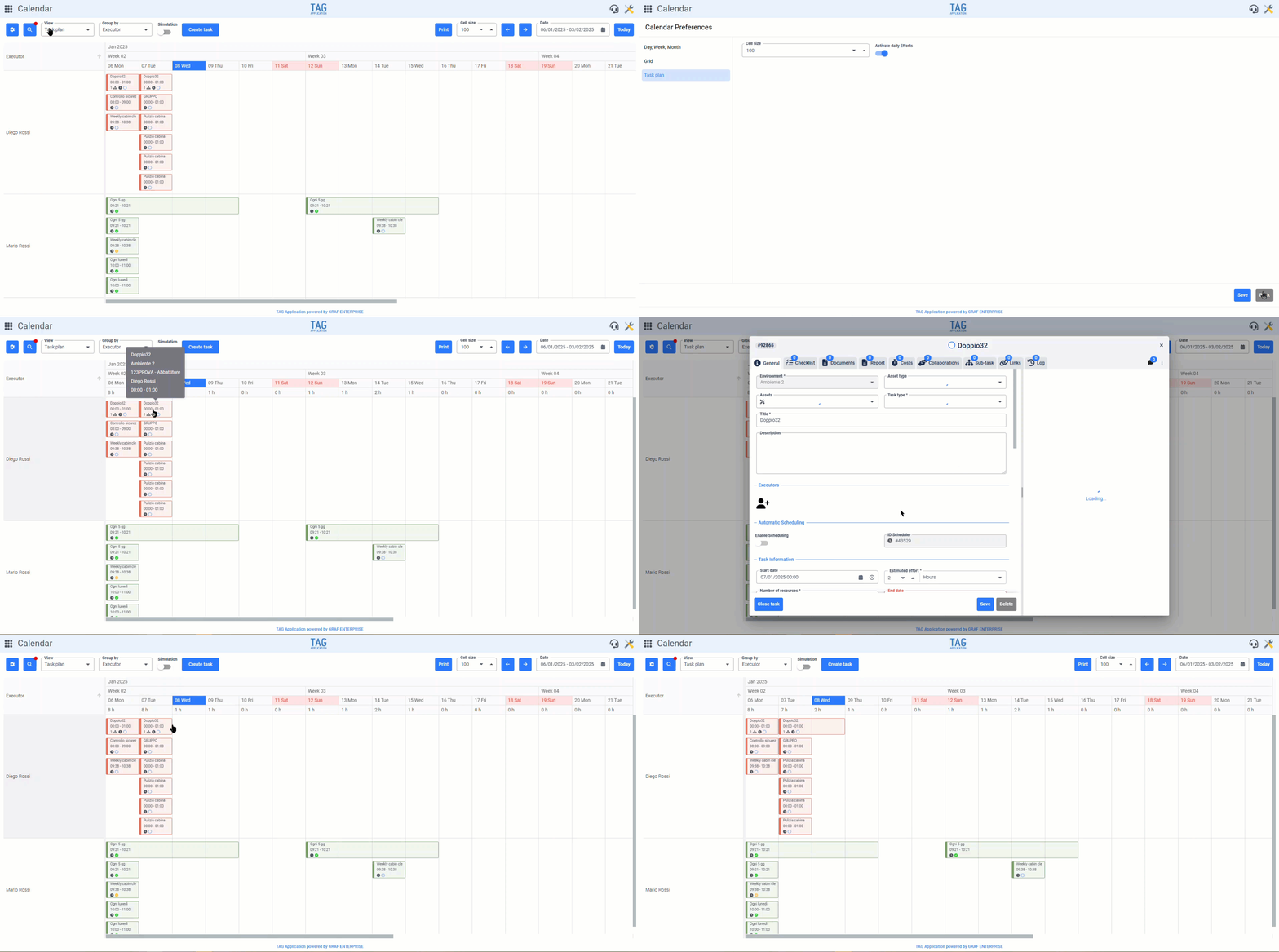
With the new version is coming workload, very useful to understand precisely in a moment what is the daily workload for an performer, a machine or anything you want to keep under control.
By accessing the “Task Plan” view from the Calendar module and selecting the gear icon in the upper left, you can switch on the “Activate working hours load“.
Once this preference has been saved, and the workload for each day can be displayed at the top (just below the dates).
This value, expressed in hours, is given by the sum of the fields “Estimated duration” of all the tasks planned for the day being considered. The load cell is completely dynamic; automatically updated according to the tasks being displayed (therefore controllable by filters) and the movement/lengthening of these tasks within the plan.
This allows those who must manage the tasks to always have in sight the exact daily work forecast, allowing to “saturate” or “lighten” it if necessary, by convenient Drag&Drop of tiles in the plan.
(fig 3.0)

Tasks – New printing with images documents and checklists
Generating a convenient PDF containing one or more tasks is one of the most appreciated features of the system: you can get files that are saved, shared and printed with a simple click.
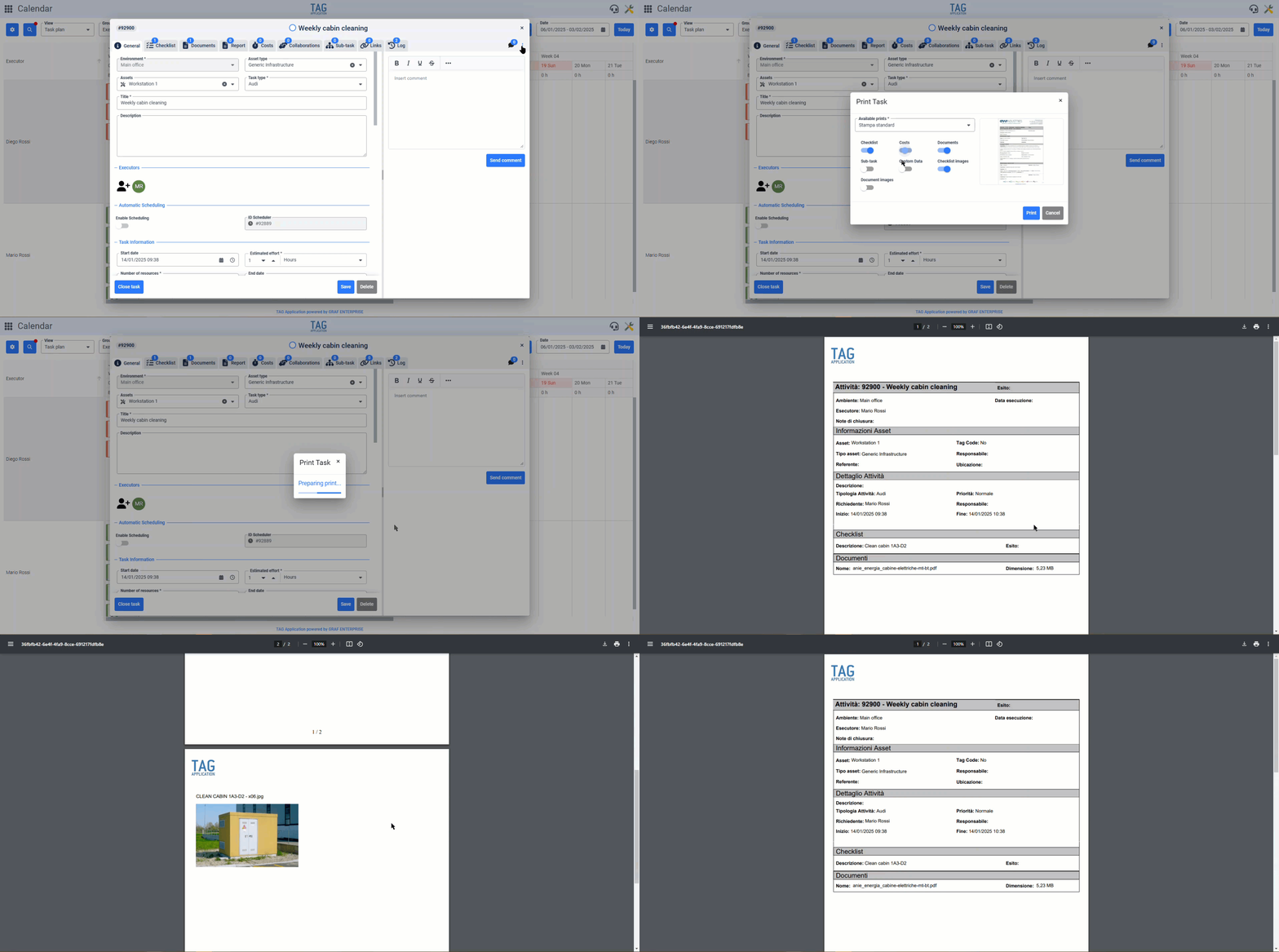
From this version, however, the printouts of the tasks become even more powerful, allowing you to include not only text details but also the inserted images.
Entering the print panel, both single and multiple, you will notice two new flags, called “Images documents” and “Images checklist“. Activating them and starting the printing procedure, if the task/tasks in question have one, will also be inserted into the generated file images related to the uploaded documents, either in the specific section of the task generic documents or in the specific section for each checklist.
If the corresponding switches are activated, these images will be shown at the bottom of all information about the task, with the header of each checklist description to which they refer + document title in case of images uploaded into checklists, whereas only with document title in the case of images uploaded directly into the appropriate section of the task.
(fig 4.0)

Settings – New interface for variable notifications
Making system configurations easier and more user-friendly, è one of the key objectives of TAG Application.
For this reason, with the upcoming version, the interface related to variables is enriched, at the same time becoming simpler.
Now, by accessing the “Monitoring-Variables” section from the Settings module, selecting and editing a variable or creating a new one will display:
- in header “Create/Edit variable:” + “Variable name” + “Asset: associated asset name”
- information about the selected variable
- a section “Notifiche”, in which you can activate/deactivate both mail and push notifications
- a section “Recipients”, where you specify who should receive the notifications
- a section “At what stage”, where you specify when notifications should arrive to the configured recipients
In this way, it will be first of all intuitively understood which variable is being referred to, which asset is possibly è associated and what are its characteristics.
Then, through the new interface entirely dedicated to notifications, new fields will be unlocked only with active notifications, which will therefore allow you to specify not only the recipients of communications, but also to decide whether to get them only when a certain threshold is reached, to exceed a delta or to vary by any value.
All this is facilitated by comfortable blue color tips, to allow each user to make the necessary configurations step by step in complete autonomy.
(fig 5.0)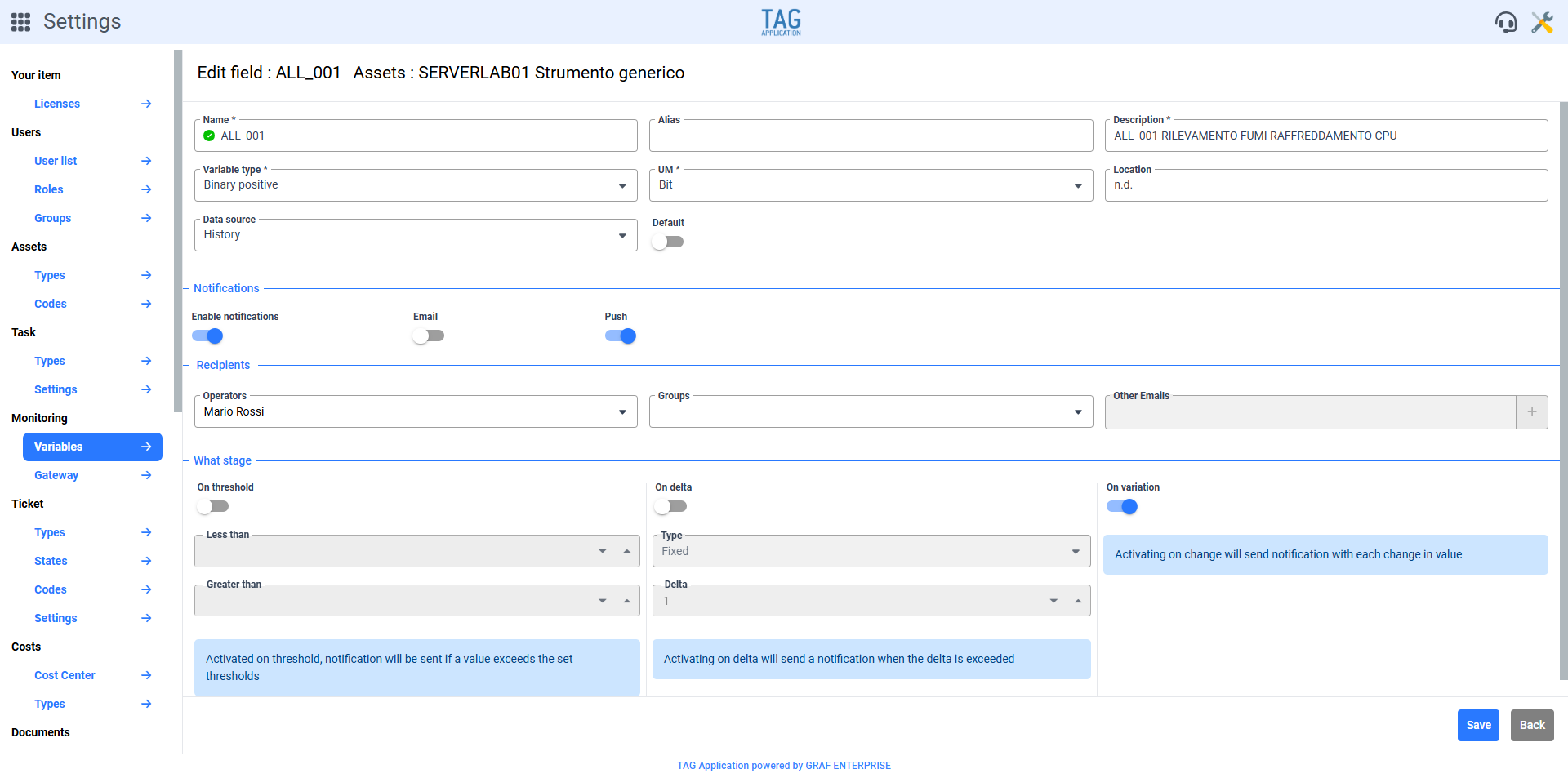
Task – New fields in the “New block for task” email notification
A not very well known feature in TAG Application is the “Block task“
This, although not among the most high-sounding, is a fundamental action to prevent the modification of tasks that must be “Blocked”, as the details already fixed and established.
Of course, when you block a task, it is necessary that the performer be aware of the blocking…
How? Simply with a notification both mail and push, which allows to warn the user within moments after the block.
As with all notifications, this one must clearly be immediate and clear so that the necessary information can be immediately received to proceed, even without going into the details of the activity.
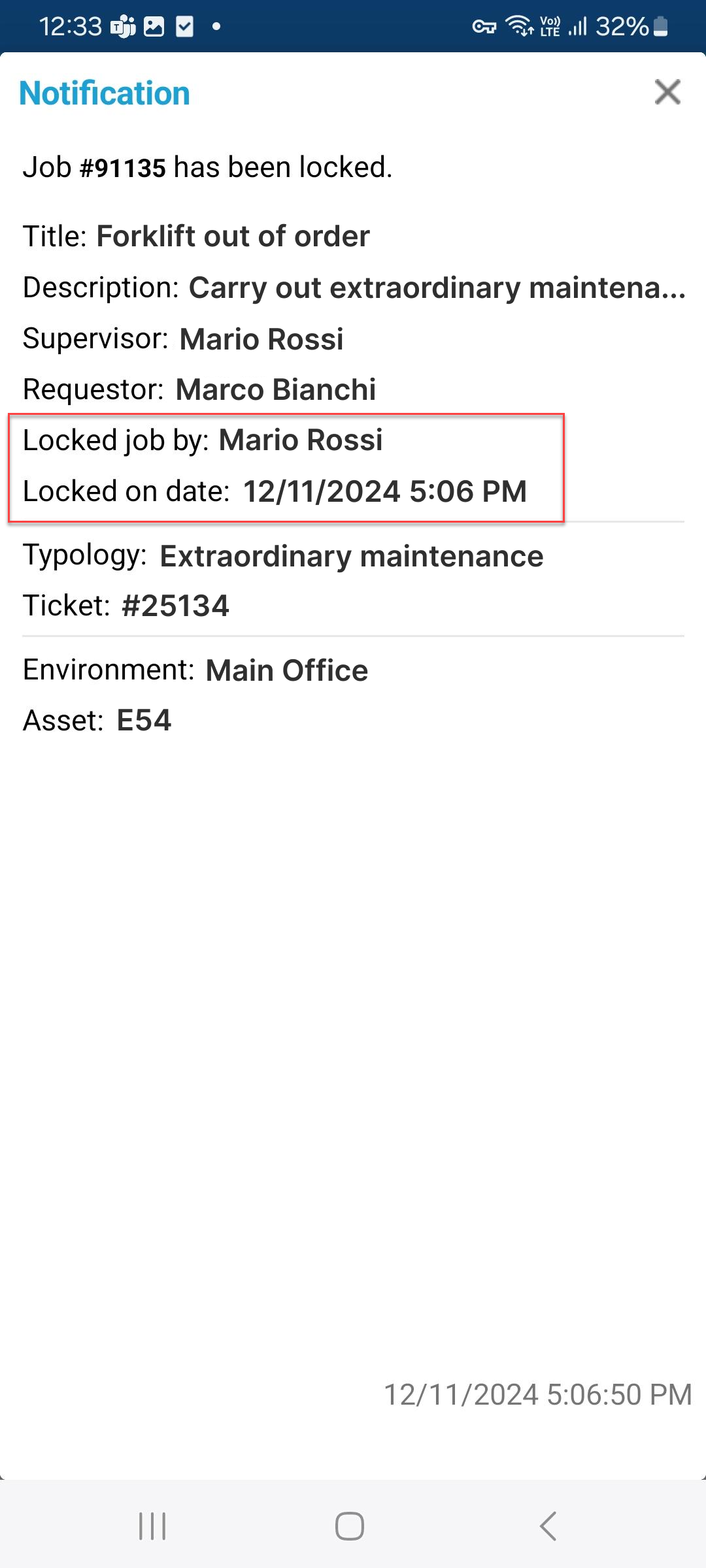
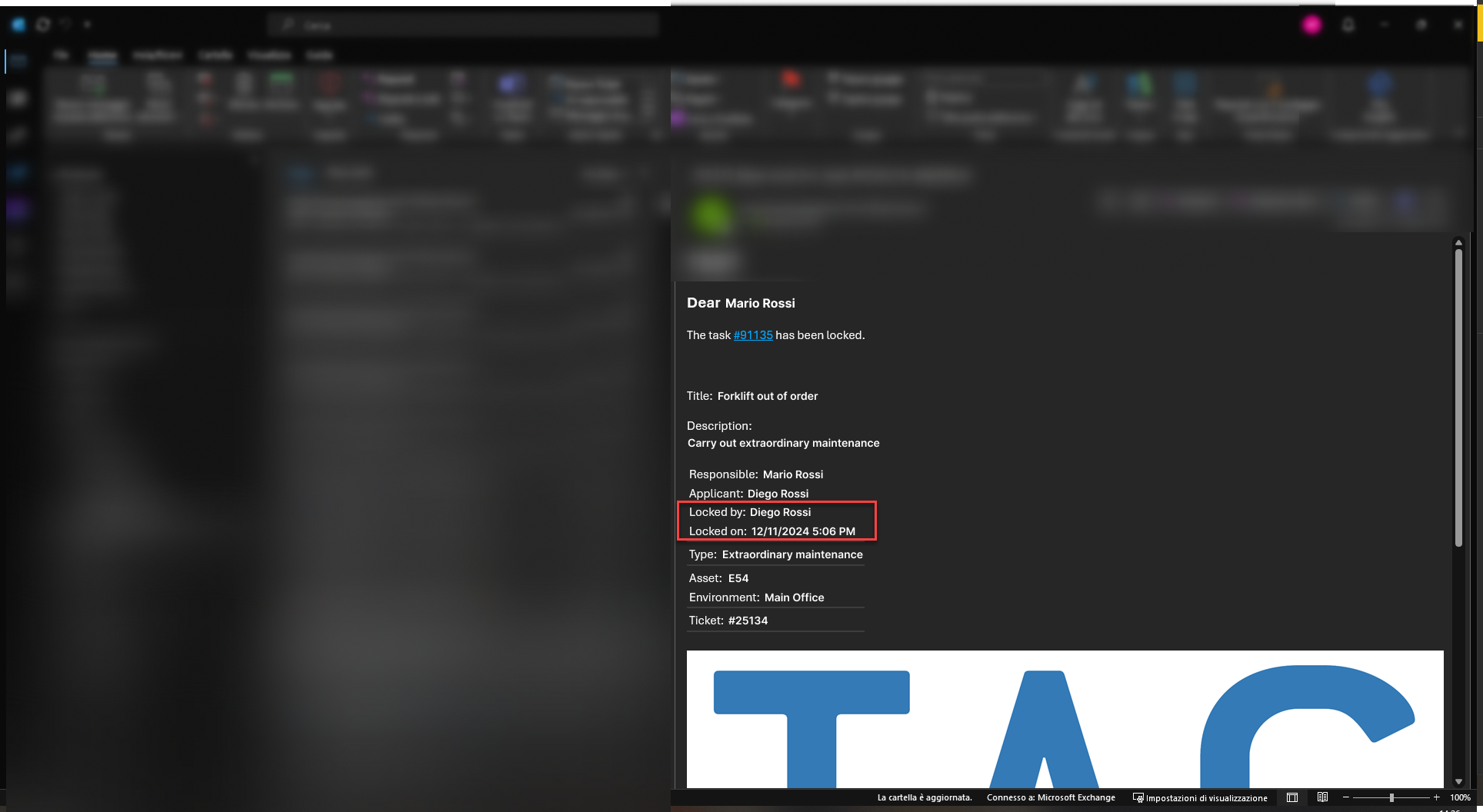
Thus, with this update, the notification for the task block has been updated, enriched by two new fields that allow you to understand who and when blocked the task in question.
In this way, in addition to the details already presented on the activity just blocked, The recipient of this notification will be able to understand in a moment both the time of the blocking and who to contact if you need clarification on this.
(fig 6.0)
Task – New fields in the “New block for task” push notification
As with the corresponding email notifications, push notifications will also inherit the update for adding new fields “Blocked by” and “Blocked in date”
Obviously, the app will also receive a timely communication in case an task of which you are the executor is blocked, so that all useful information can be immediately received.
(fig 7.0)