Here are the news in version 2.2
Would you like to find out more about TAG Application and have more information?

Imports – New module
Would it be helpful to bulk import different types of data into TAG Application?
Perhaps a simple Excel file provided by the system?
Now it’s possible to do all this… quickly and easily… from a dedicated module!
This update brings the “Imports” module, designed to import large amounts of data, by compiling automatically generated files and finding the information recorded in the system within a few seconds.
(fig 1.0)
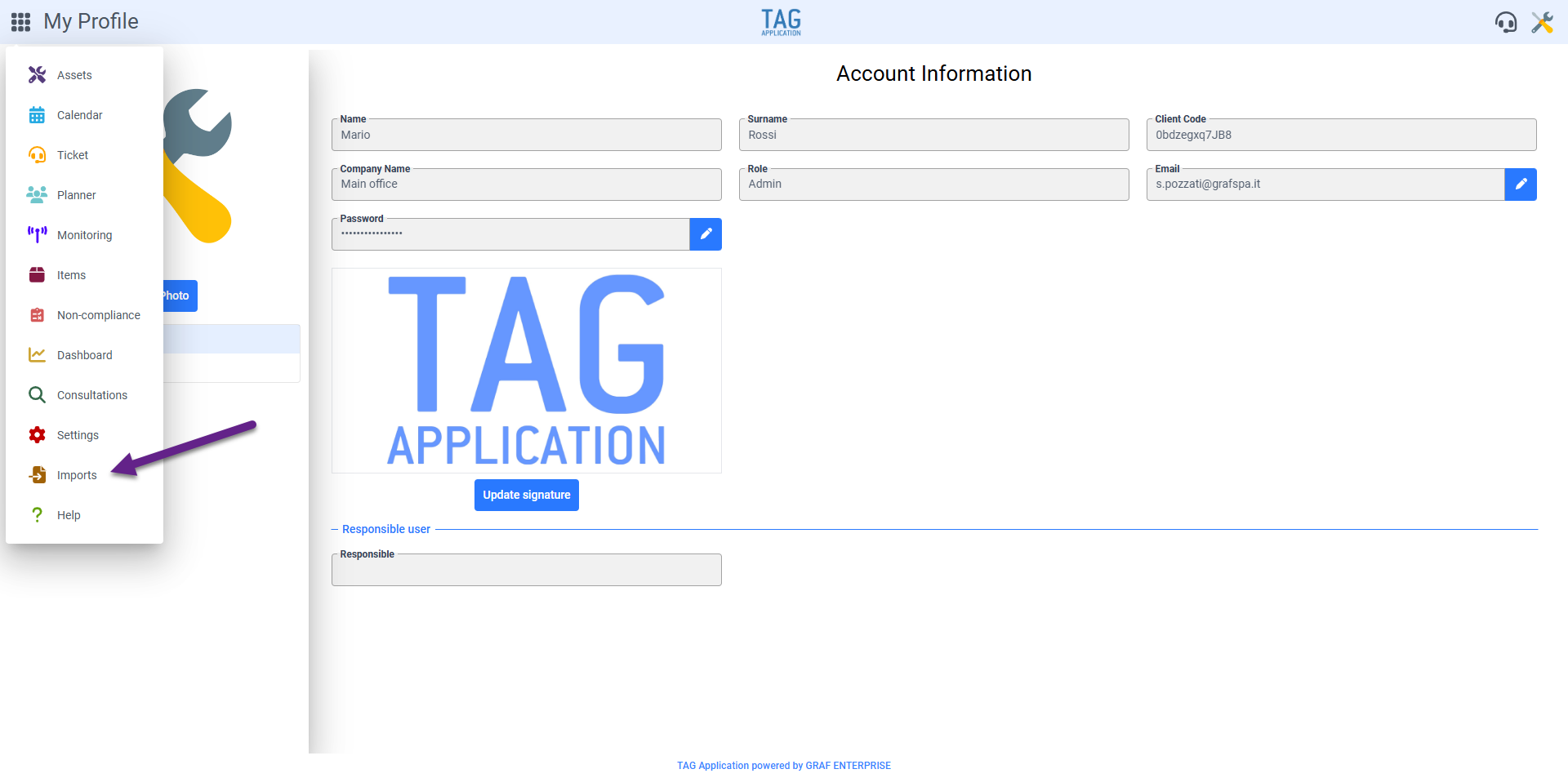
To start a new data import, simply open the form and enter the section dedicated to loading the information you want to import*. *In this first development phase, only articles
are imported At this point, entered the section “Import” and selected at least one type, you can choose if:
– Download the Excel file to be compiled via the “Download track” button
– Load the Excel file containing the data to be imported via the “Upload path” button
(fig 1.1)
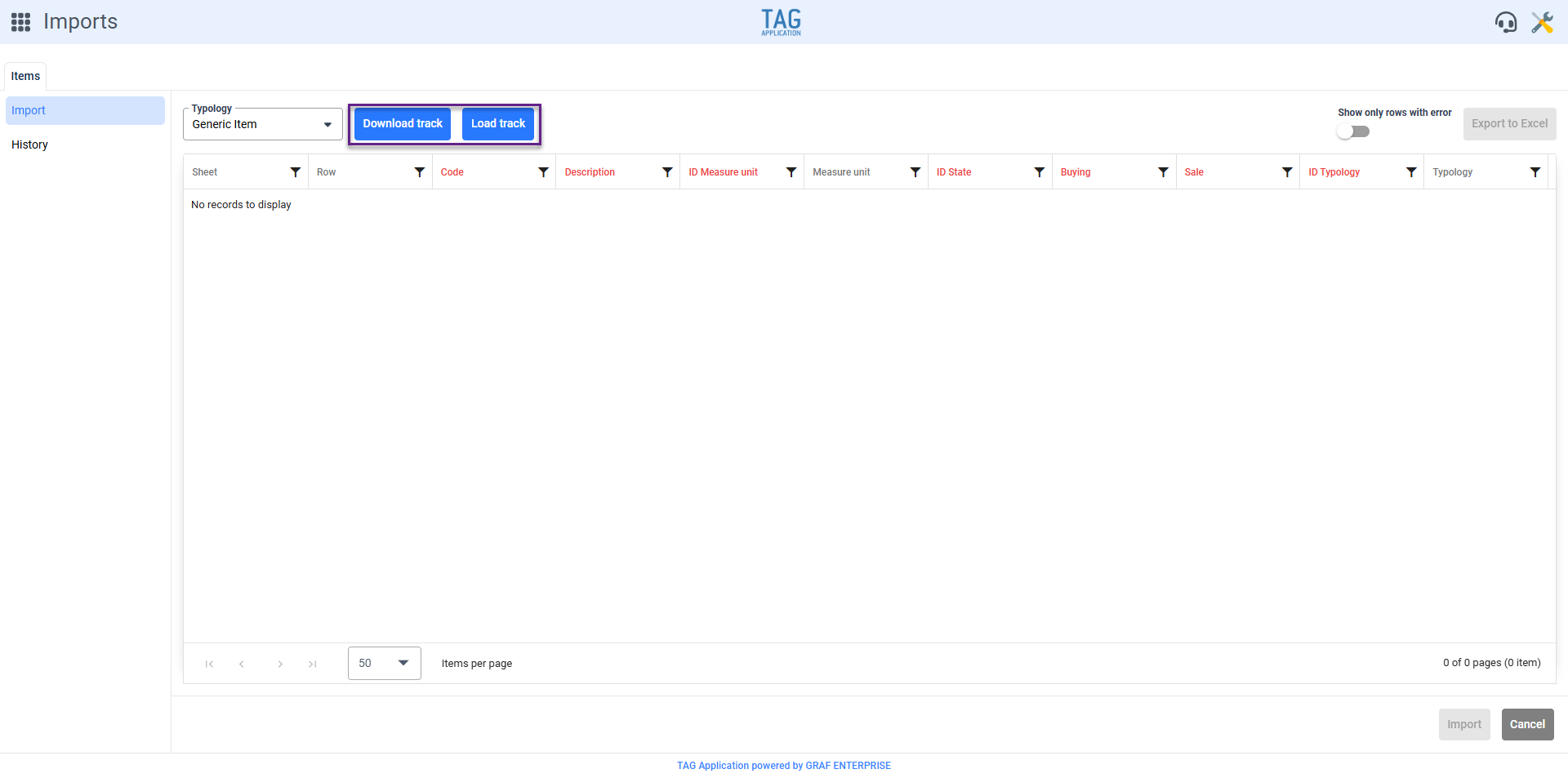
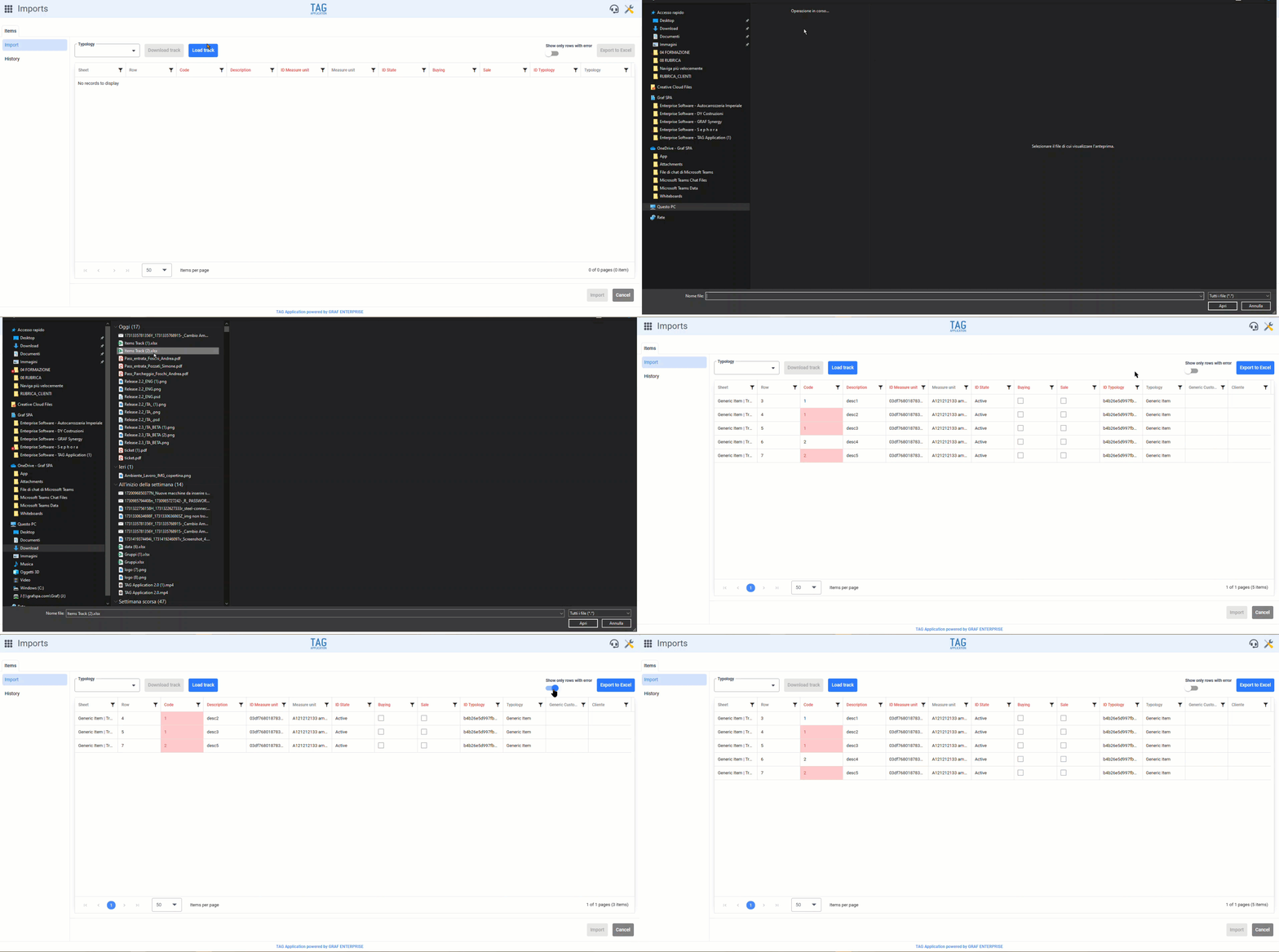
Once the path is loaded in the dedicated section, it will be shown as a table.
The table will show the data entered in the path, highlighting in red the cells containing any errors to be corrected*. To fix the wrong cells you will need to double click on them, changing their value.
*In case you are uploading very long files it may not be easy to find the wrong cells and to simplify this operation you can activate the selector “Show only rows with errors”. Another interesting feature is the partial export of the loaded path which is useful especially if you have only corrected some wrong cells, suspending the import momentarily. In this case you can save all changes via the button “Export to Excel” located at the top right, allowing you to continue with the import of data later.
Once the incorrect values are corrected, the button at the bottom “Import” is activated and you can proceed with the actual import of the data.
To view imports already made, in progress or for some reason not successful, you must go to the section “History”.
(fig 1.2)
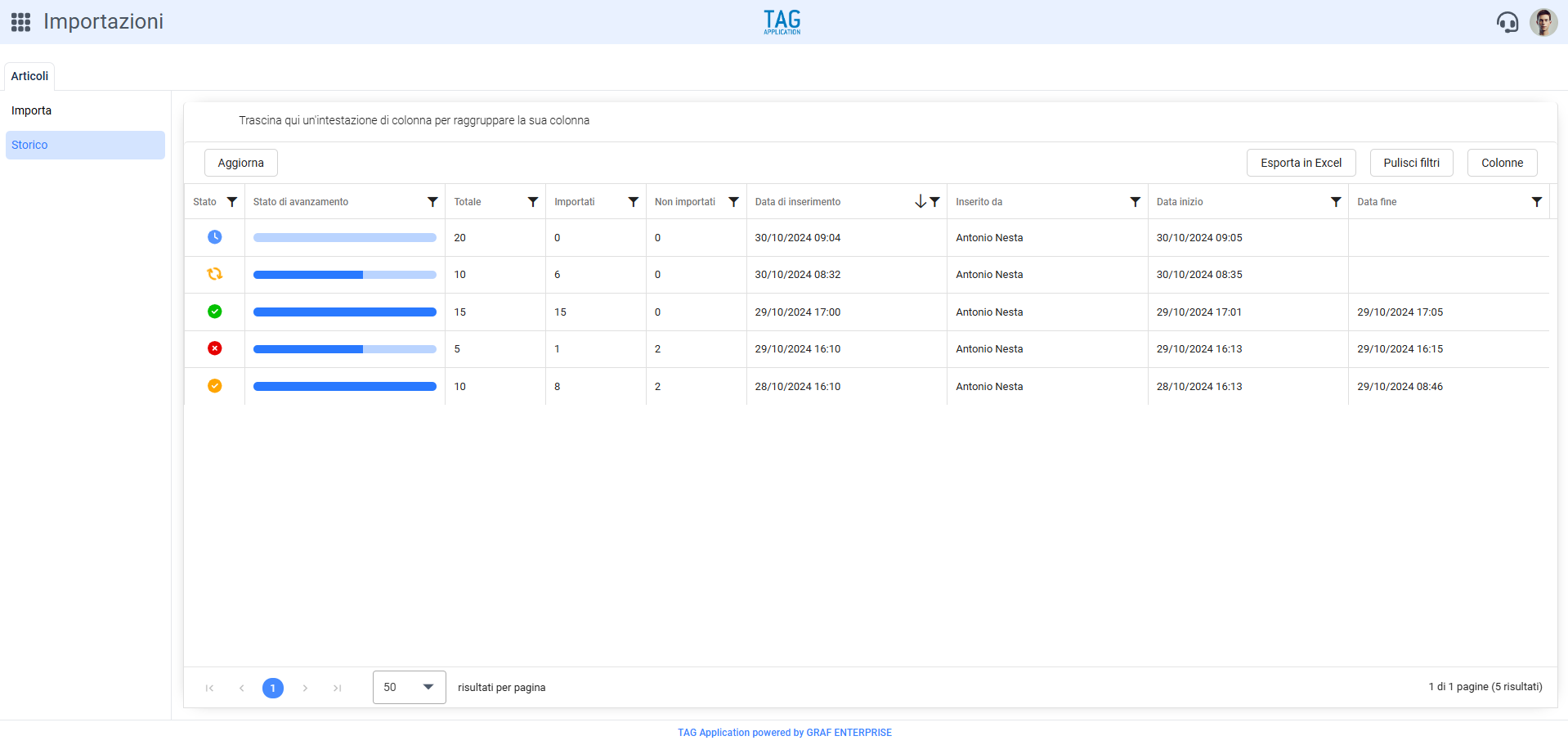
Here you can see the details of all imports, showing all the details in real time. (fig 1.3)

Calendar – Saving preferences
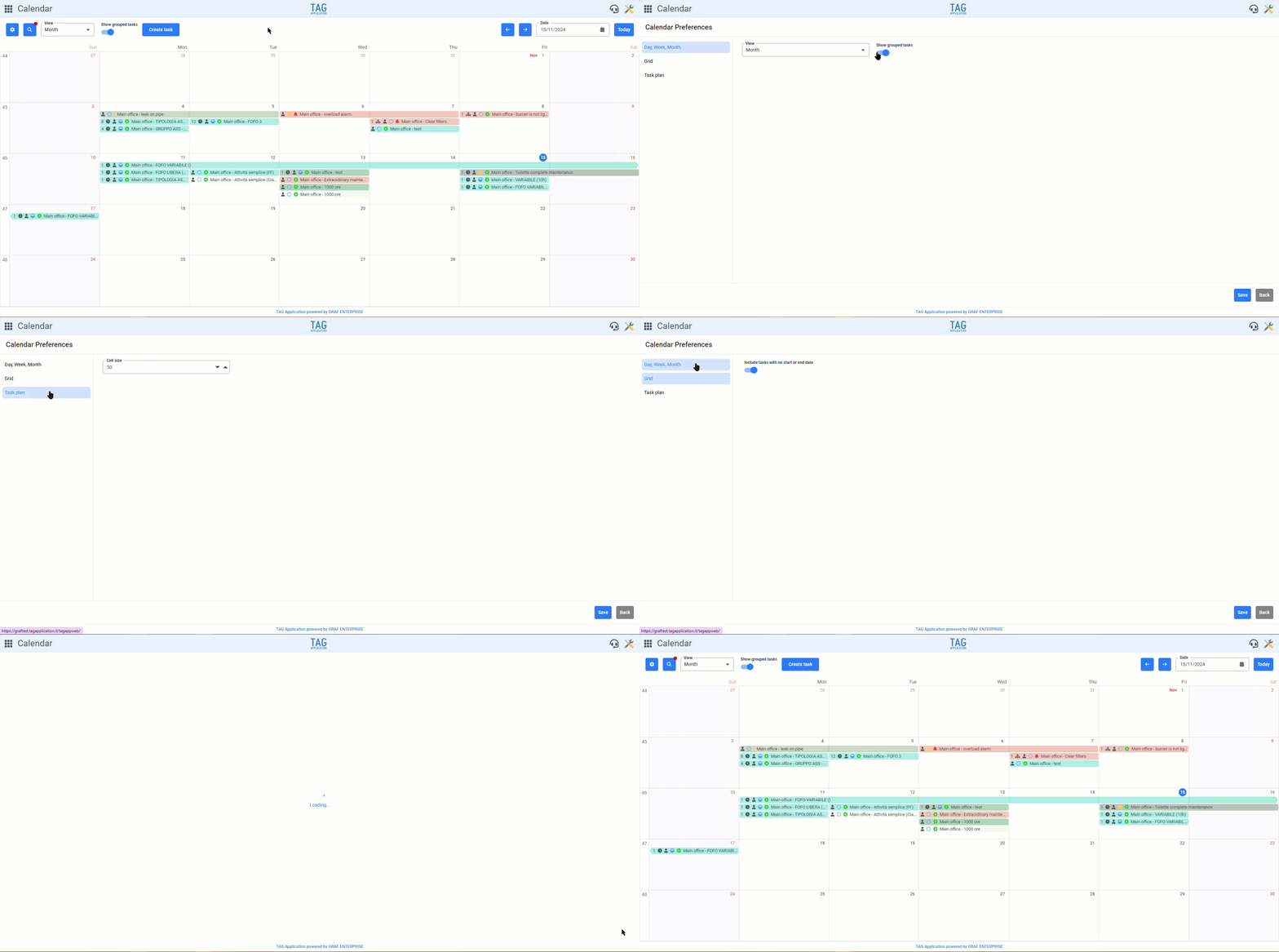
To make the life of users of the system easier and faster, from this version will be available a new feature useful to save personal preferences of each user within the calendar module.
Through the gear icon located in the upper left, you can access the page “Calendar Preferences”, including sections “Day, Week, Month”, “Grid” and “Activity plan”.
In the section “Day, Week, Month” you will have the possibility to choose which of the 3 views are loaded by default and whether or not to show the grouped activities.
In the “Grid” it will be possible to specify if also tasks without start or end date are included in the table, while in the “Task plan” only the preferred cell size.
Once you have set up the preferences for each view, these will be persisted and always loaded on the first login of each user.
Of course, since these are simple preferences, you can change both the views shown and the default settings at any time.
(fig 2.0)

Consultations – Filters by outcome and checklists
Having a wide range of filters and selections to search for any entity is essential when you want to make specific queries
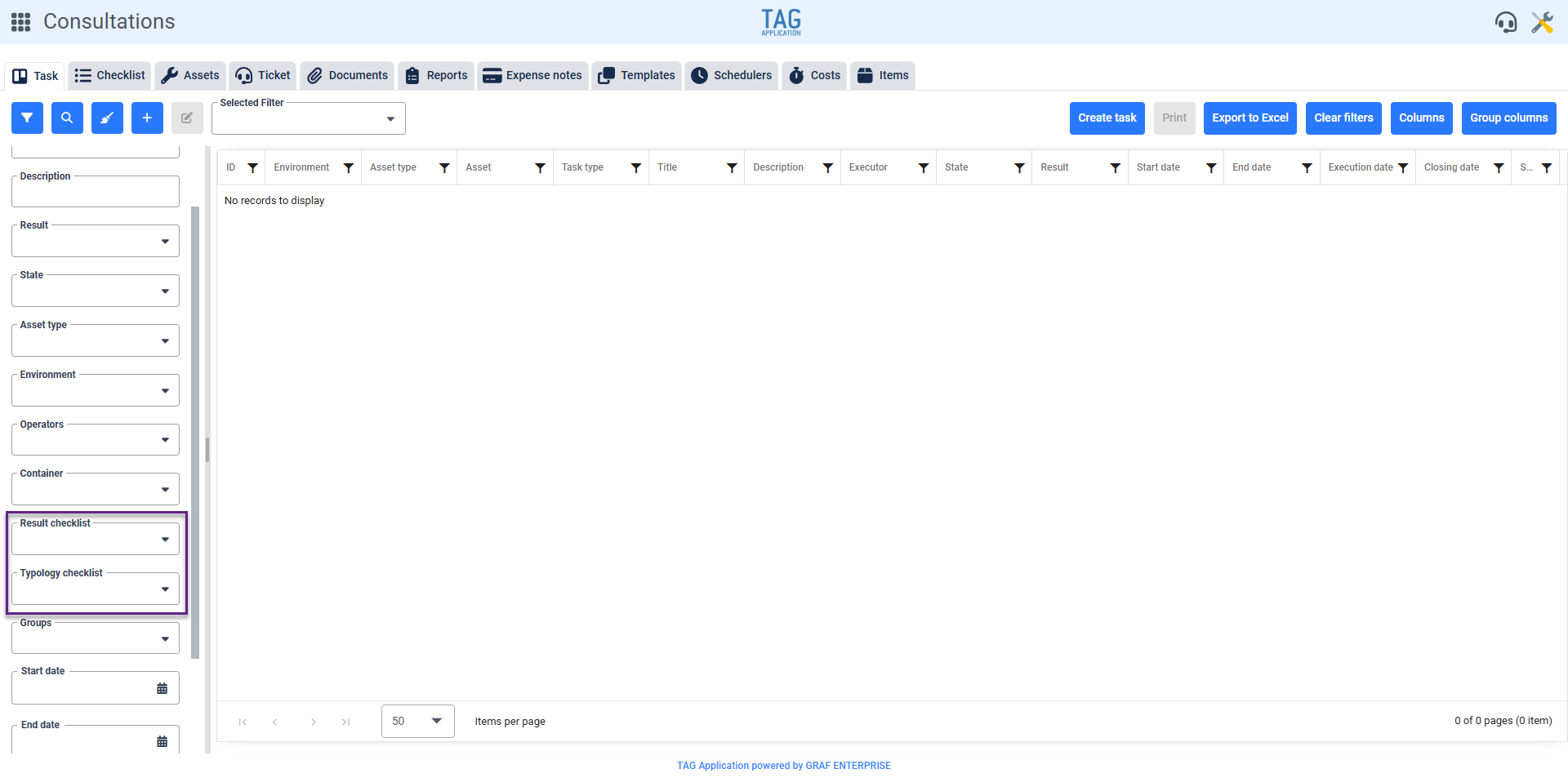
For this, from the module Consultations in the section dedicated to activities, starting with this release will be implemented the quick filters “Result checklist” and “Typology checklist”, easily used by the classic search panel located on the left.
These tabs will allow you to search for all the activities that contain at least one checklist with the selected result/results or, if you have gone to action on the “Checklist typology”, with the selected typology/types.
This way finding what you are looking for will be much more convenient and fast, allowing the user to perform searches even more punctual saving precious time.
(fig 3.0)
Consultations – New ticket columns and scheduled date
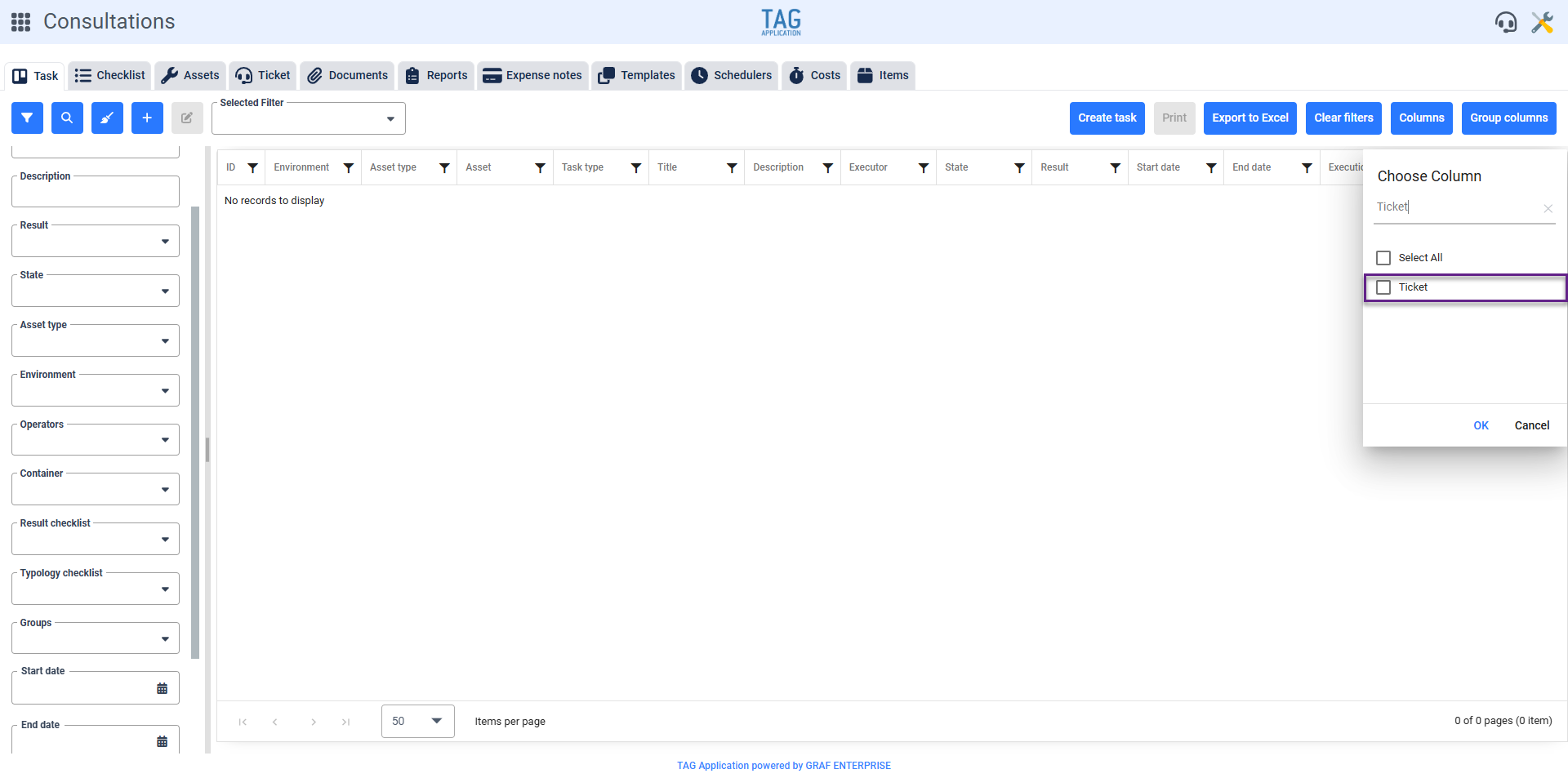
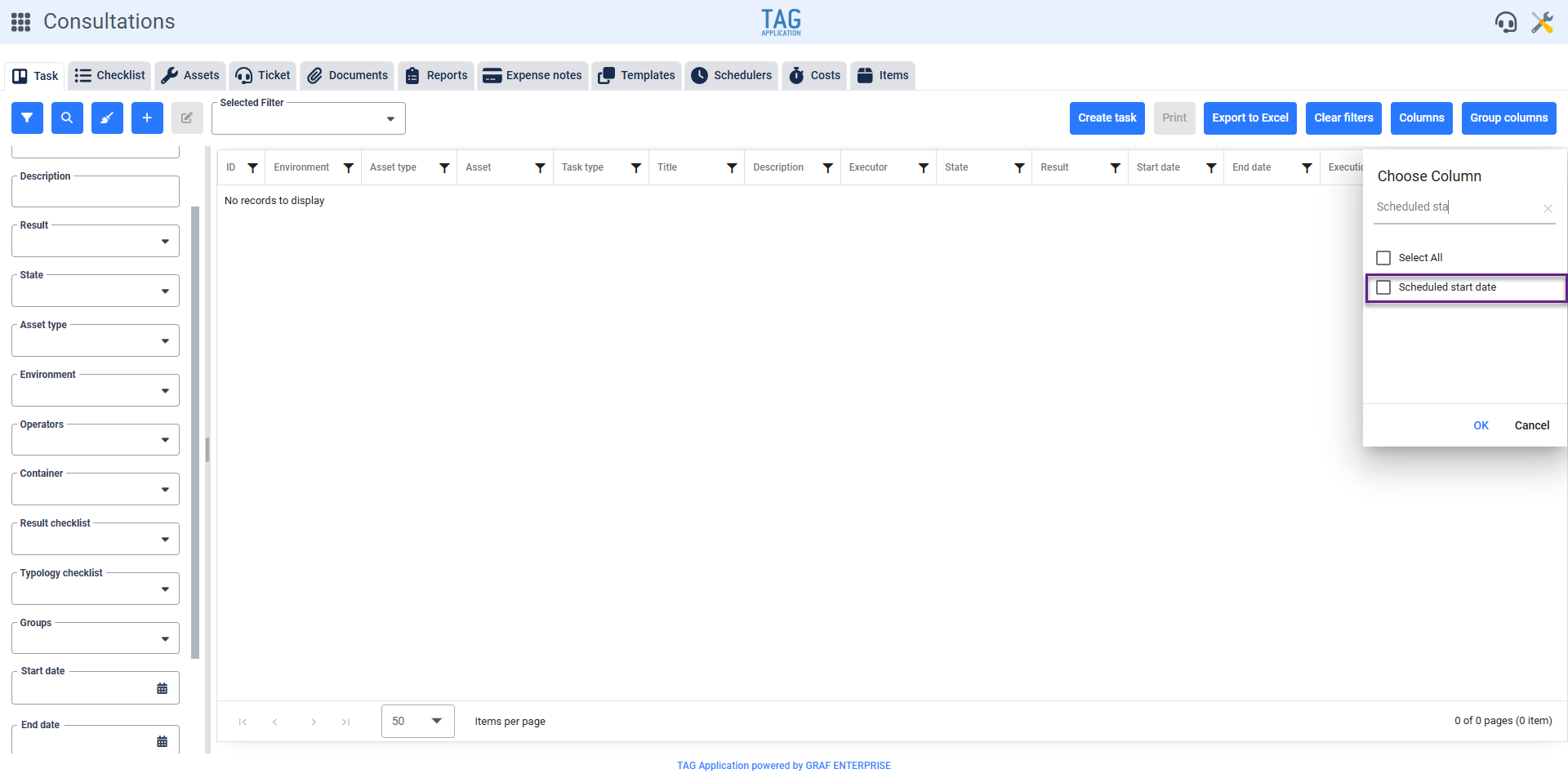
Also in the module Consultations, section Activities, two additional columns will be integrated.
These columns (“Ticket” and “Scheduled date”), also useful for search and consultation purposes, are in addition to the many already present, allowing you to quickly view the original scheduled date of any activity (if generated by a schedule) and, if present, the ticket associated with it.
(fig 4.0 – 4.1)