Here are the news in version 1.91.0
Would you like to find out more about TAG Application and have more information?

The whole system – Migration to a new technology
After a great collective effort we are happy to announce that from the next update the system will be fully migrated to a brand new technology!
The recently completed migration will not only provide a optimized system, extremely fluid, fast and intuitive, but also a fresh revisited graphics with the integration of useful new features!
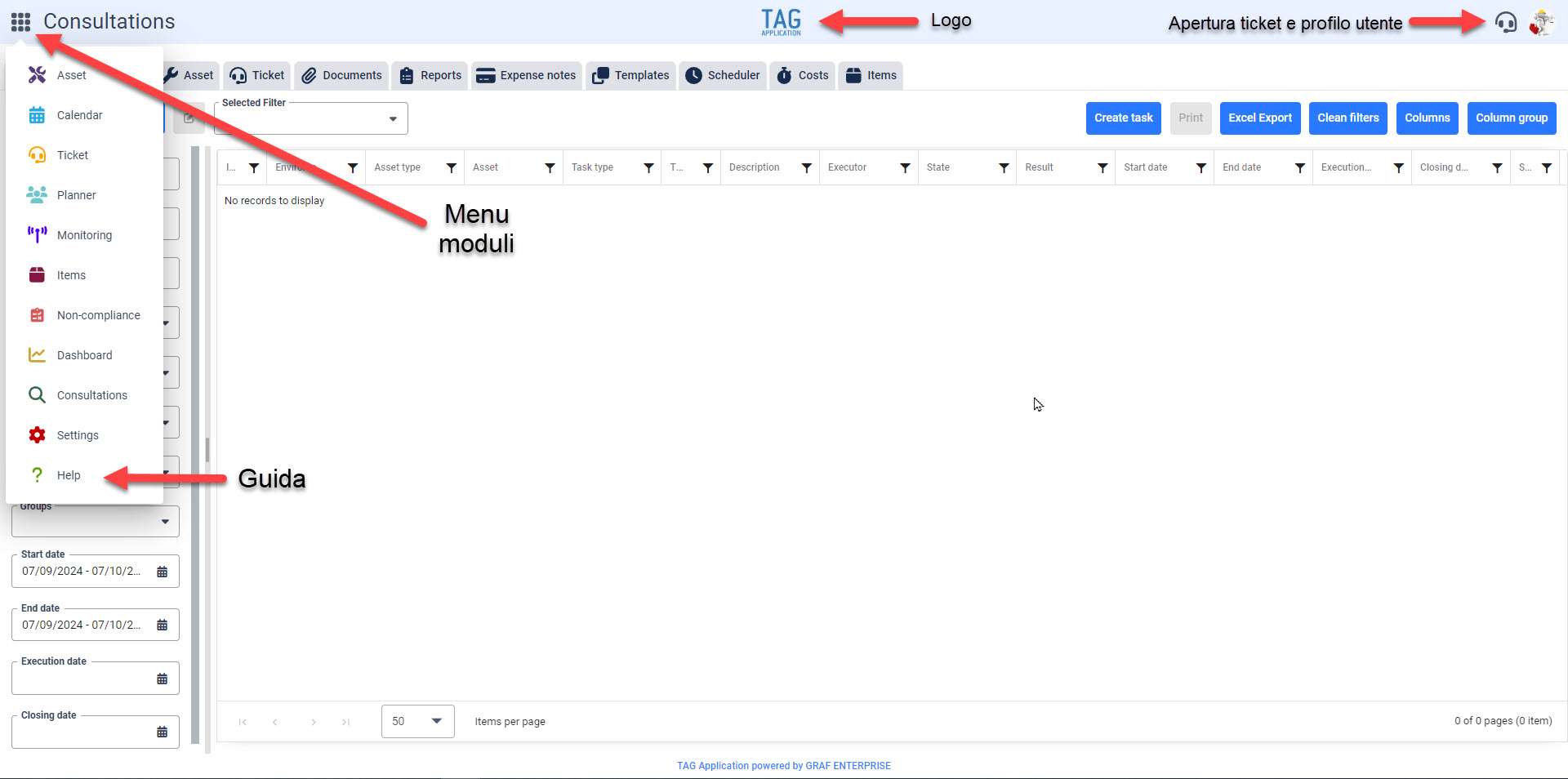
Regarding the graphics, just made the access you will immediately notice that:
• The header bar at the top will change from white to blue
• On the left there will no longer be the company logo (which will be moved to the center), but the new module menu
• On the right side, only the headset icon will remain to quickly open a ticket if you are not logged in and the profile photo of the logged in user, which you can click to access or log out of your profile.
In addition, as previously mentioned, other small innovations will also be implemented… Specifically:
• The system guide, which will open in a dedicated window of the browser you are using, will be integrated into the navigation menu between the other modules and will be characterized by a green question mark
• In all modules where there is no view on single environment the words “All environments” will be deleted. In the asset module, where the view is only on single environment, it will now be possible to access without specifying an environment, this selection will then be required once inside the module.
• Whenever a new version is released for which a page reload is required, the user will be notified by a blue popup indicating what to do.
• If it is convenient to download TAG Application as a desktop application, you can now do so by using the browser command “Download Tag Application” located at the top right of the screen.
(fig 1.0)

Monitoring – Enhancing gateway notification configurations
After the development that finally gave the possibility to temporarily deactivate notifications of a gateway, the new update will further expand and enhance this functionality.
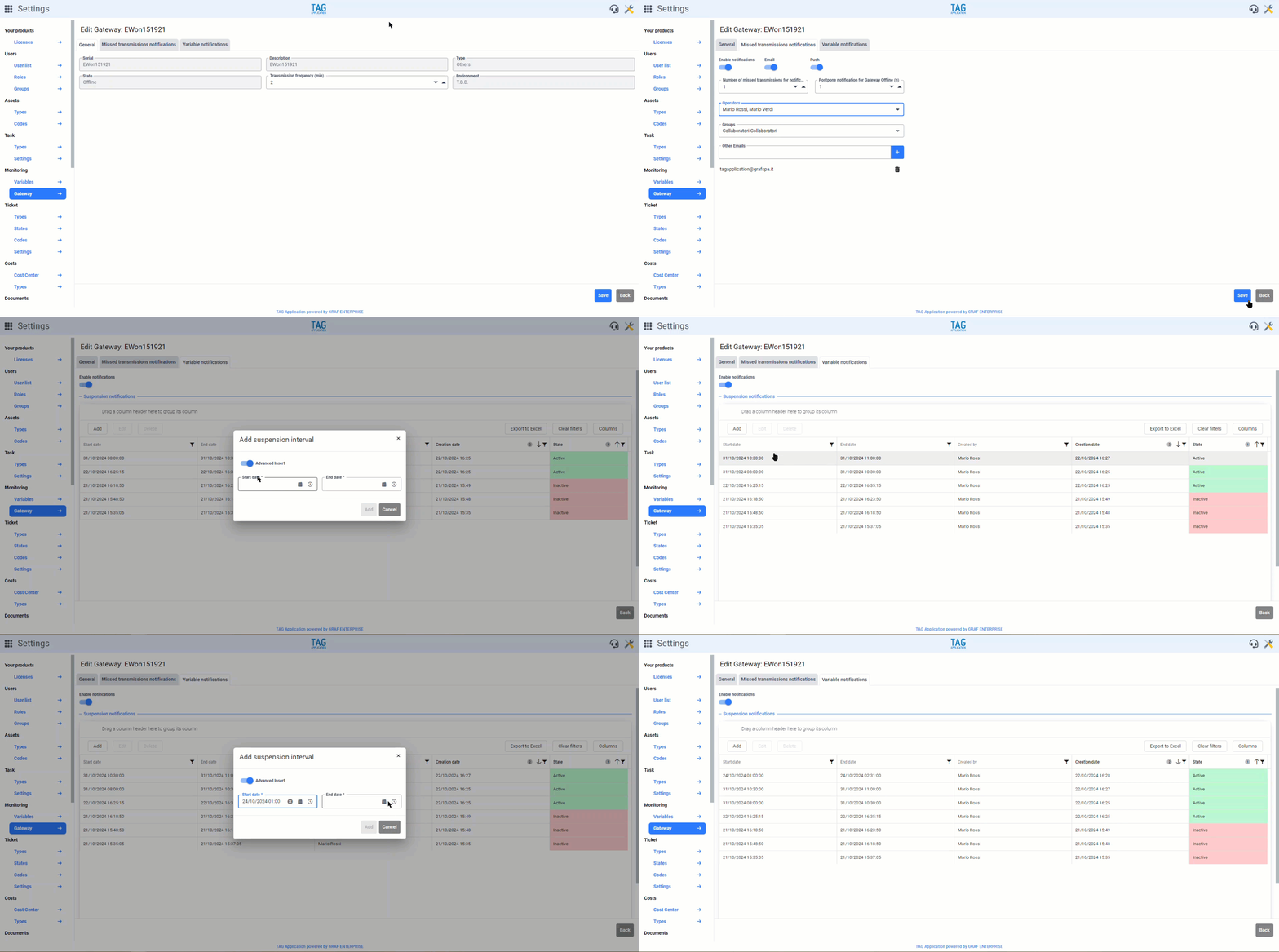
Thus, if you go to the section dedicated to gateways (in the module Settings, Monitoring – Gateway), after selecting the chosen one, you will notice that the three subsections of the page have been renamed:
• General
• Missed notifications
• Variable notifications
The “General” section will remain as is, while those that in the previous version were called “Gateway notifications” and “Linked variable notifications”, besides changing their name, will undergo the following changes:
regarding “Notifications missed transmissions”, in addition to the already present fields to indicate number of missed transmissions for notification and time value of delayed notifications when the gateway goes offline, a generic switch “Activate notifications” will be integrated, which will enable or disable notifications about the status of the gateway, also controlling the possibility to fill in or not the corresponding fields below.
If the hours indicated in the field are past, the gateway will still be offline, also according to the value entered in “Number of missed transmissions for notification”, the system will send a new notification of failure to transmit and, After that, it will resume counting the time value in which to silence.
In the last section, from this update renamed to “Variable notifications”, the mode of insertion and display of the suspension intervals related to the variables connected to the selected gateway will be changed.
Under the “Suspension notifications“, in fact, you can specify time ranges within which, precisely, to suspend the sending of notifications specially configured in the dedicated section of each variable.
Pause intervals can be configured by simple insertion or advanced insertion (proposed by default). By activating or deactivating the “Advanced insertion” flag, it will be possible to control the insertion mode:
– By activating the flag, and then choosing the “advanced insertion” mode, you can specify a suspension range using the fields “Start date” and “End date”
– By disabling the flag, and thus opting for a simple entry, it will be possible to specify a number of minutes for which to suspend notifications from the current time* through a simple numeric field
*If you have already entered suspension intervals, this suspension range will start from the end date of the last configured interval
By filling in the fields and pressing “Add” a line will be displayed in the table, obviously related to the suspension period, with the following filterable details:
• Start date
• End date
• Created by
• Date of creation
• Status
Clearly it will not be possible to enter neither past time ranges nor already entered time ranges.
After the default sleep interval, in addition to automatic reactivation of notifications, the line showing the interval will change from “active*” status (with green column) to “inactive” (with corresponding red column), as it is inactive and no longer in the program.
*Another great feature of this release is the ability to change any paused interval, even if it’s active.
The past suspensions will be displayed as “inactive”, always in the form of rows with all the details, with the only difference obviously that, being historical must remain track, it will not be possible to eliminate them in any way.
(fig 2.0)

Asset – Suspension variable notifications
In parallel with the functionality related to the suspension of notifications of a gateway in the Settings, a new section has been developed also in the asset module.
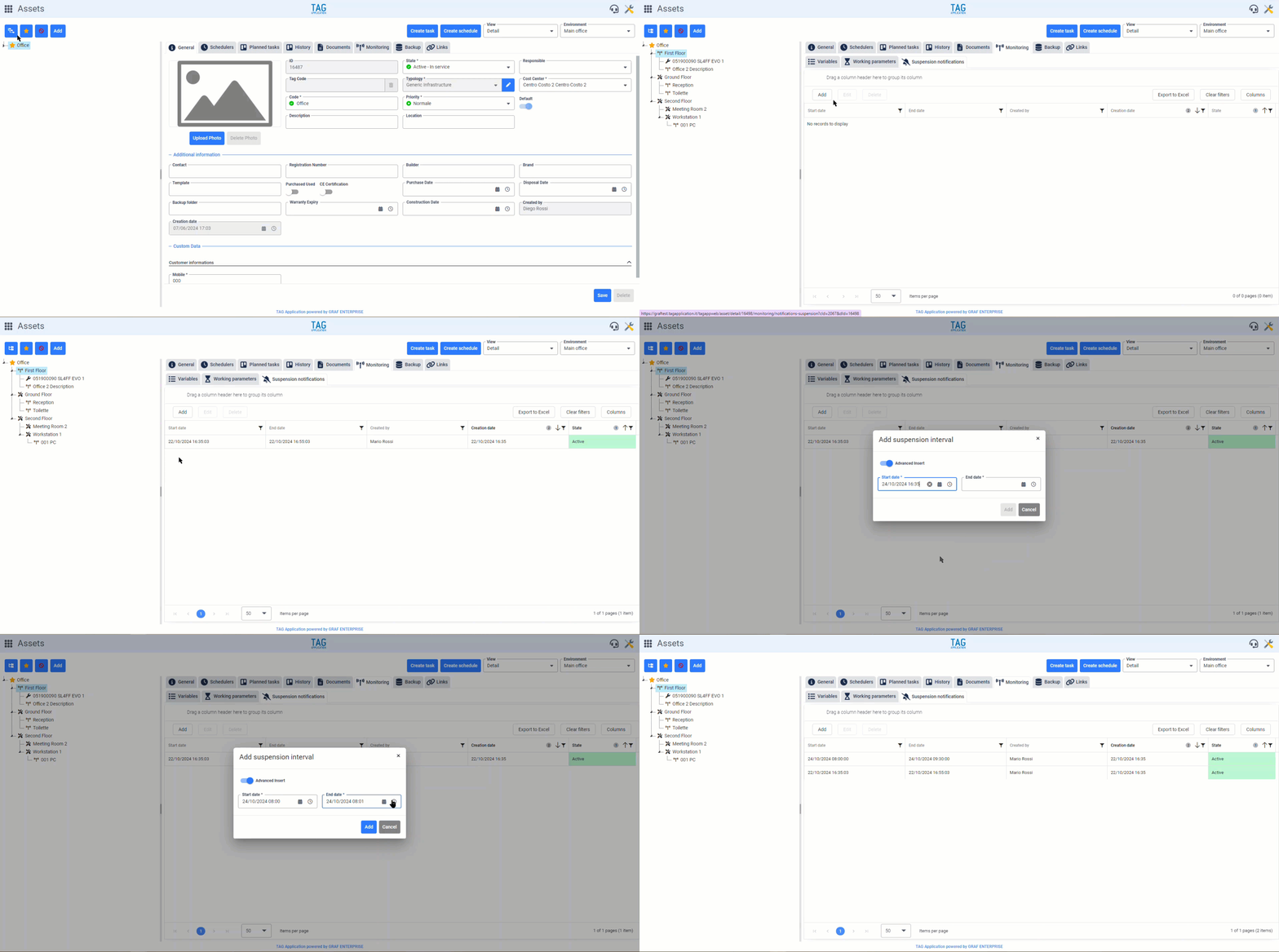
Accessing any asset from the relevant module, in fact, within the “Monitoring” tab, you will find the entry “Notifications suspension“: within this section you can enter and consult all the suspension intervals of notifications related to variables associated with the selected infrastructure.
Just like in the settings, also for individual assets from the dedicated module, the suspension intervals can be configured by simple insertion or an advanced insertion (proposed by default). By activating or deactivating the “Advanced insertion” flag, it will be possible to control the insertion mode:
– By activating the flag, and then choosing the “advanced insertion” mode, you can specify a suspension range using the fields “Start date” and “End date”
– By disabling the flag, and thus opting for a simple insertion, it will be possible to specify a number of minutes for which to suspend notifications from the current time* by means of a simple numeric field
*If you have already entered suspension intervals, this suspension range will start from the end date of the last configured interval
Once you have added at least one interval, you can view the picture of suspensions (past and current) through a convenient filterable table.
Clearly it will not be possible to enter either double time ranges or past time ranges. After the default sleep interval, in addition to automatic reactivation of notifications, the line showing the interval will change from “active*” status (with green column) to “inactive” (with corresponding red column), as it is inactive and no longer in the program.
*Also in the Asset module, with this release, it will be allowed to modify any paused interval, even ongoing, as long as active.
The past suspensions will be displayed as “inactive”, always in the form of rows with all the details, with the only difference obviously that, being historical must remain track, it will not be possible to eliminate them in any way.
(fig 3.0)

Ticket – “Link tasks” function moved to the context menu
The ticket and activity link will also be modified for a better user experience.
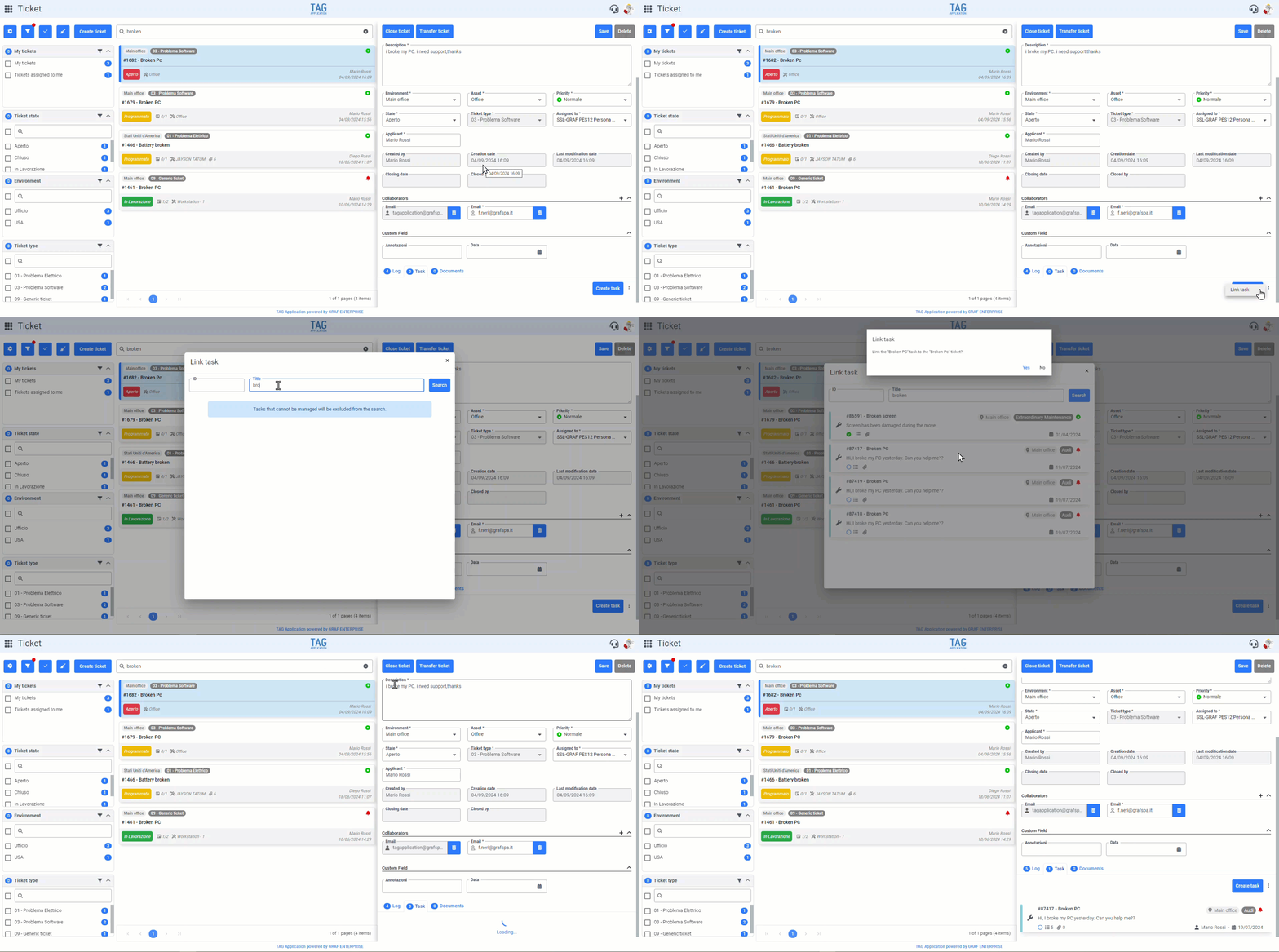
In addition to various performance enhancements (thanks to which the text filters will be optimized and consequently searches for entities to be linked faster), in tickets (activity section) will be released a new context menu placed next to the task creation button.
Within this menu which is designed to contain additional functions planned for the future, you will at the moment find the function “Link activities”.
(fig 4.0)
Ticket – New filter panel
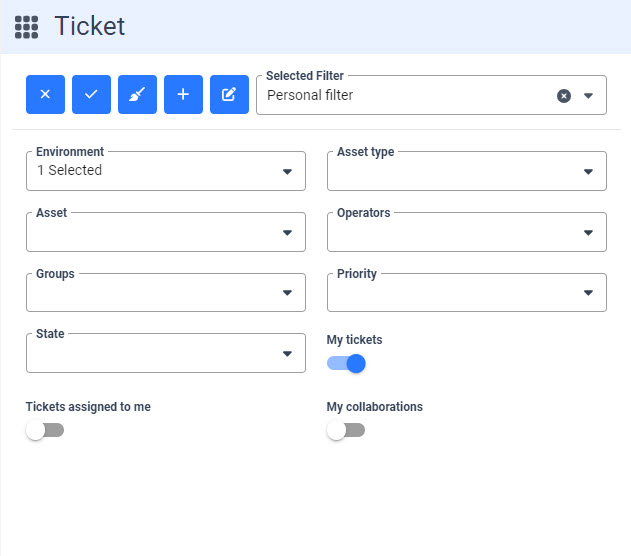
In order to standardize the system and facilitate the user in the daily use of TAG Application, with the release scheduled the “old” filter panel of the Ticket module will be replaced with a more intuitive and effective one already present in the other modules.
The graphics will now be aligned to the rest of the system and creating, saving and managing your own filters will be even easier and faster!
(fig 5.0)

Non-compliance – New filter panel
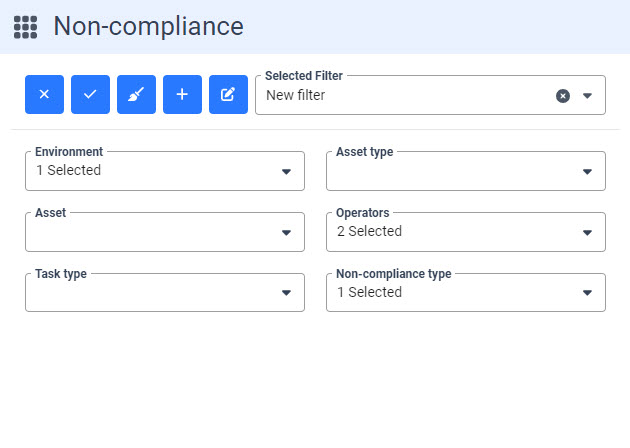
Quickly searching for negativity, distinguishing open from managed and closed ones, is critical for anyone tasked with corporate compliance.
Thus, just like for tickets, the new filter panel will be integrated in the Non-compliance module.
(fig 6.0)

Calendar, task plan – New grouping by tasks and “week by week” display
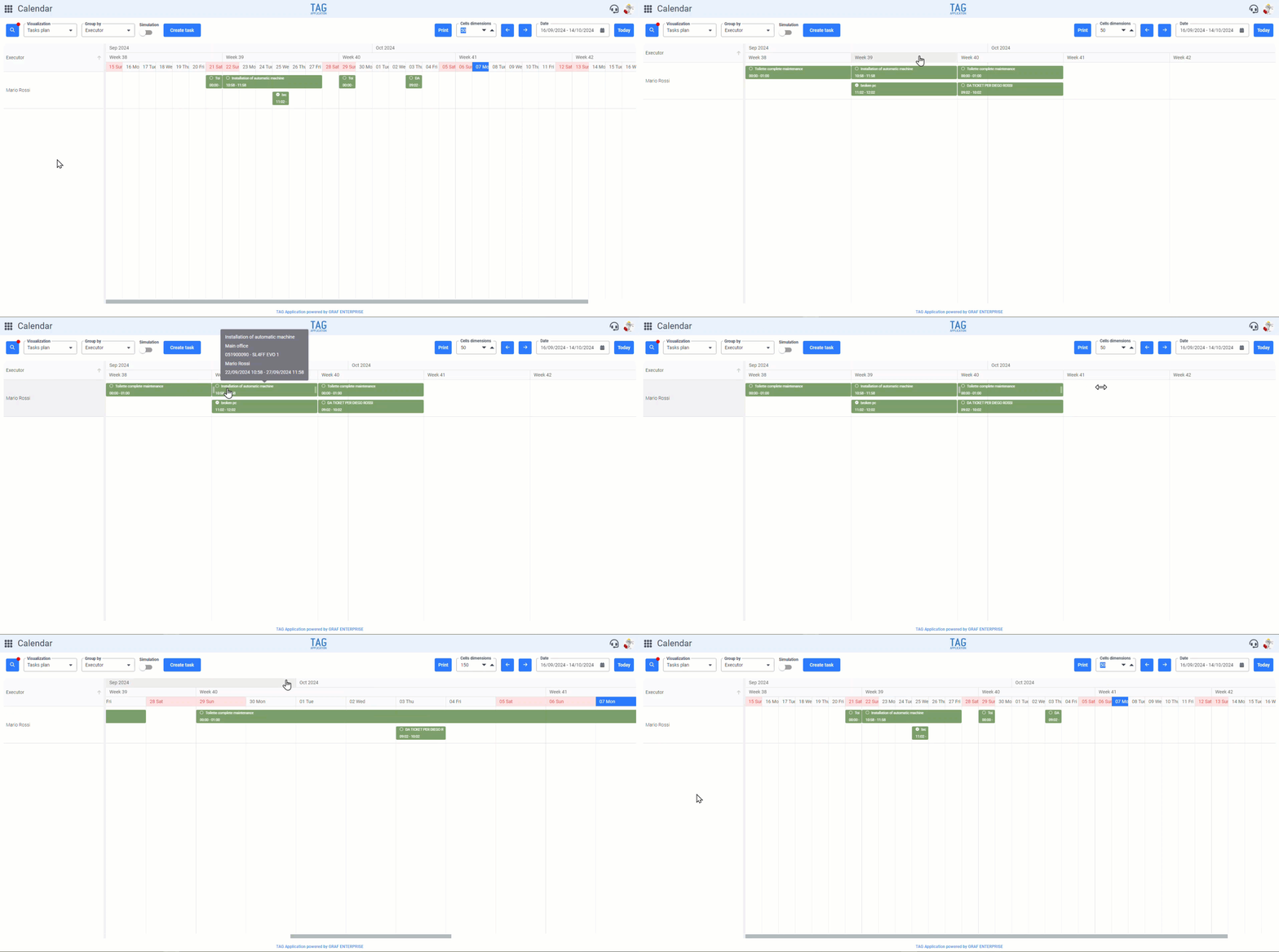
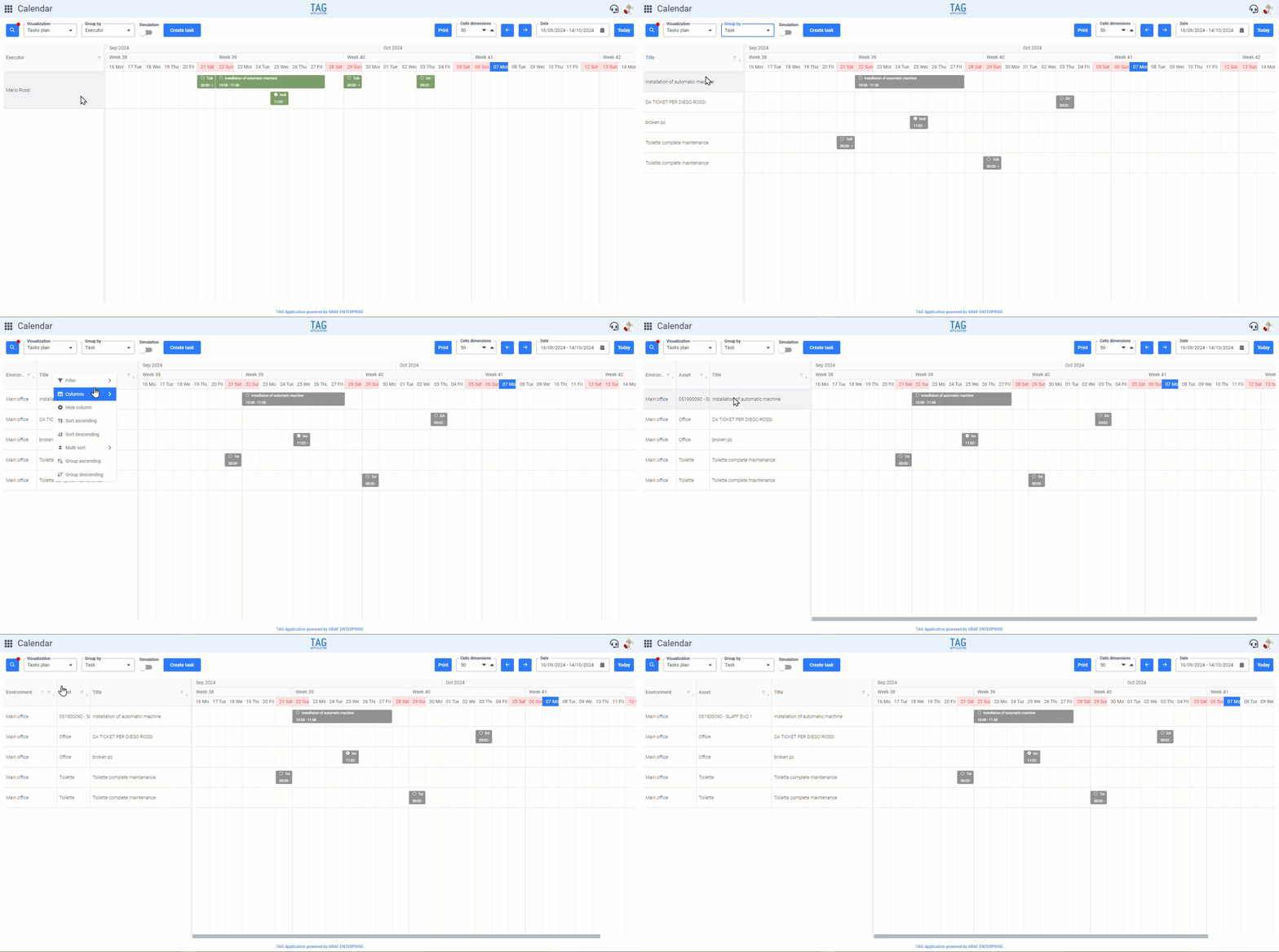
To ensure the user maximum flexibility in managing tasks, the calendar activity plan view is expanded… With the new update the grouping by activity and the new display mode “week by week” is coming.
Going to the calendar and selecting the “Activity plan” view, in the “Group by” tab, an option will be added that will allow you to see on the left (between the lines of the plan) first the titles of the scheduled activities, with the possibility of adding further details.
Specifically, in fact, by right-clicking on the header of the “Activities” column, you will open a menu with several additional functions; among these, accessing the “Columns”, you can also select “Environment” and “Assets” which will be added in the columns on the left.
This new feature will be very useful especially if you need more granularity of the information, allowing to view more details, grouped and easily filterable.
Another important development is the integration of a “week by week” display, which allows you to see in an instant which weeks are scheduled for the activities shown on the calendar.
To access this type of view, always from the “Activity plan” view, simply double-click on the tile for the week. Instead, to return to display all days of the week, you will need to double-click on the tile for the current month.
(fig 7.0), (fig 7.1)