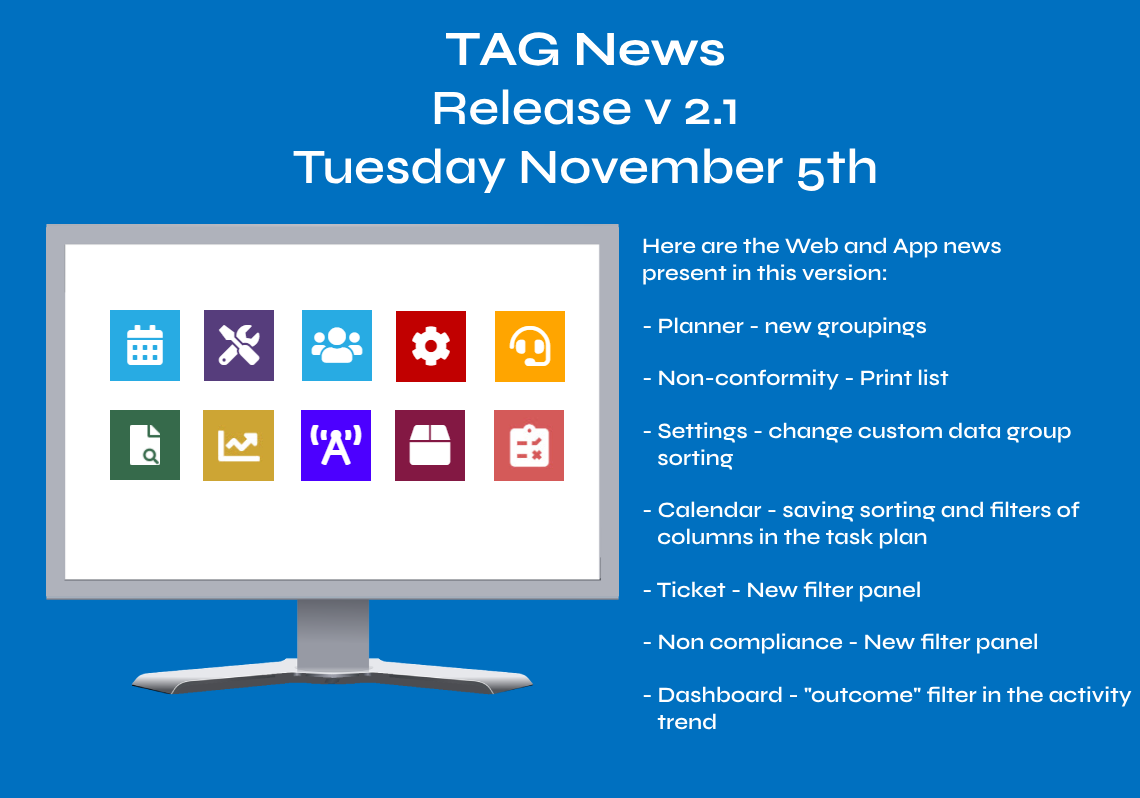
Here are the new features in version 2.1
Web Features[v. 2.1]

Managing workloads at 360 degrees?
Group tasks according to their main details?
Filter them and manage them in a moment by simple drag?
With the new update, all this becomes possible: the Planning module evolves, is enhanced and allows to take the management of tasks to a higher level!
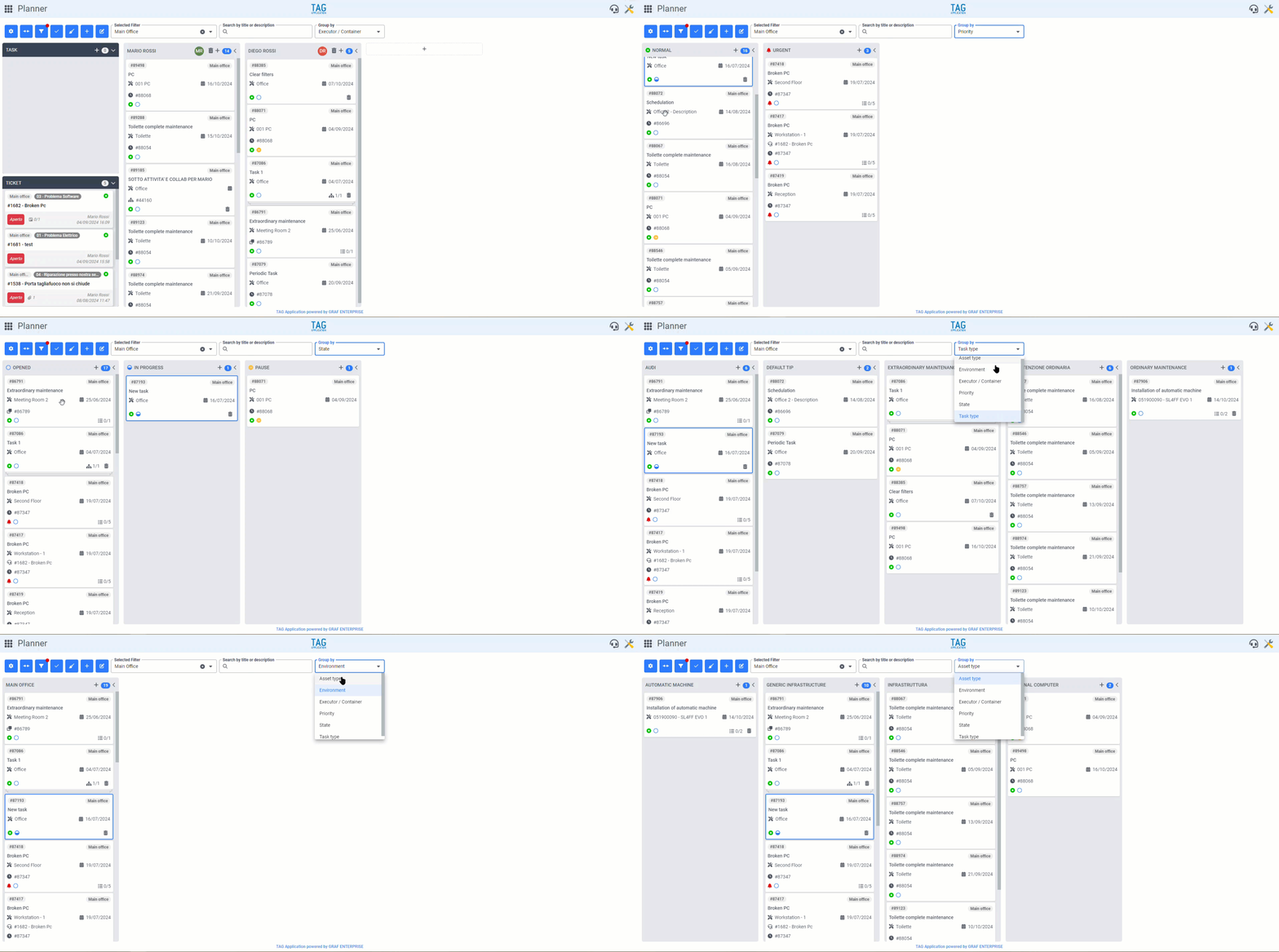
The new drop-down field “Group by“, always positioned prominently in the upper right of the screen, allows you to group tasks for:
– Executor/Container (default)
– Environment
– Priority
– State
– Asset type
– Task type
Just like for executors, by changing the grouping type, the displayed tasks are now divided into custom containers according to the specified selection.
Containers always show their name (that is, the feature for which the assets were grouped with that criterion) and the number of tasks they contain.
In this way, the manager of the tasks has always under control not only the workloads divided by operators, but also by environments, priorities, states and types; allowing a overall view of everything to be done in the company, with the ability to apply quick filters and access with a click to the detail of any activity, increasing flexibility and greatly facilitating planning.
It is good to specify that by dividing the tasks for a different grouping from “Executor/Container” obviously will not be shown neither the container dedicated to the tasks without performer nor the one dedicated to open tickets.
In addition, except for the groupings for “Environment”, “Asset type” and “Task type”, it will be possible to drag the tasks from one container to another to instantly change the feature for which you have chosen to group.
Example: Having applied a grouping for “State”, if you drag a task from the “In pause” container to the “In execution” container, the moved task will instantly change status accordingly.
(fig 1.0)

Would you like to have a summary of all the negatives found in a certain time range?
Magari solo di quelle che non sono state gestite da condividere con un fornitore?
Maybe only those that have not been managed to share with a supplier?
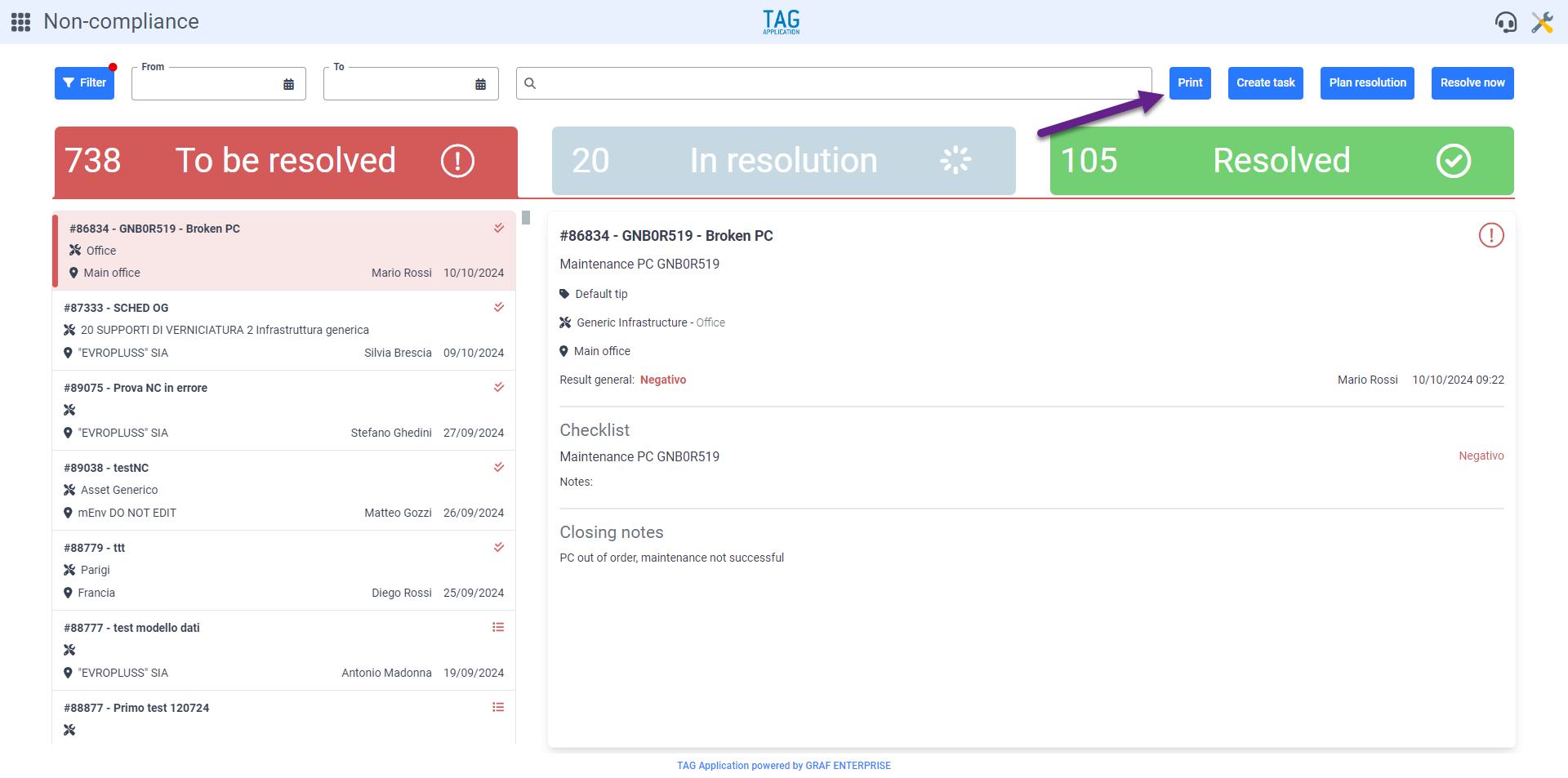
Now with the new print mode it becomes possible to do so: directly from the module of non-compliance applying specific filters and selecting only the details of interest!
By entering the “Non compliance” module, applying the desired filters and pressing the “Print” button, you will access a panel through which to select the print template to use and the details to be reported in it.
Once the selection is confirmed by clicking on the button, a convenient PDF file (downloadable, printable and shareable) is generated containing the complete list of filtered non compliances including the specified details.
(fig 2.0)

“Flexibility” is certaintly a keyword for TAG Application.
With the new version it becomes even easier to manage any type of entity thanks to personalized data that is even more adaptable, easily configurable for every type of need.
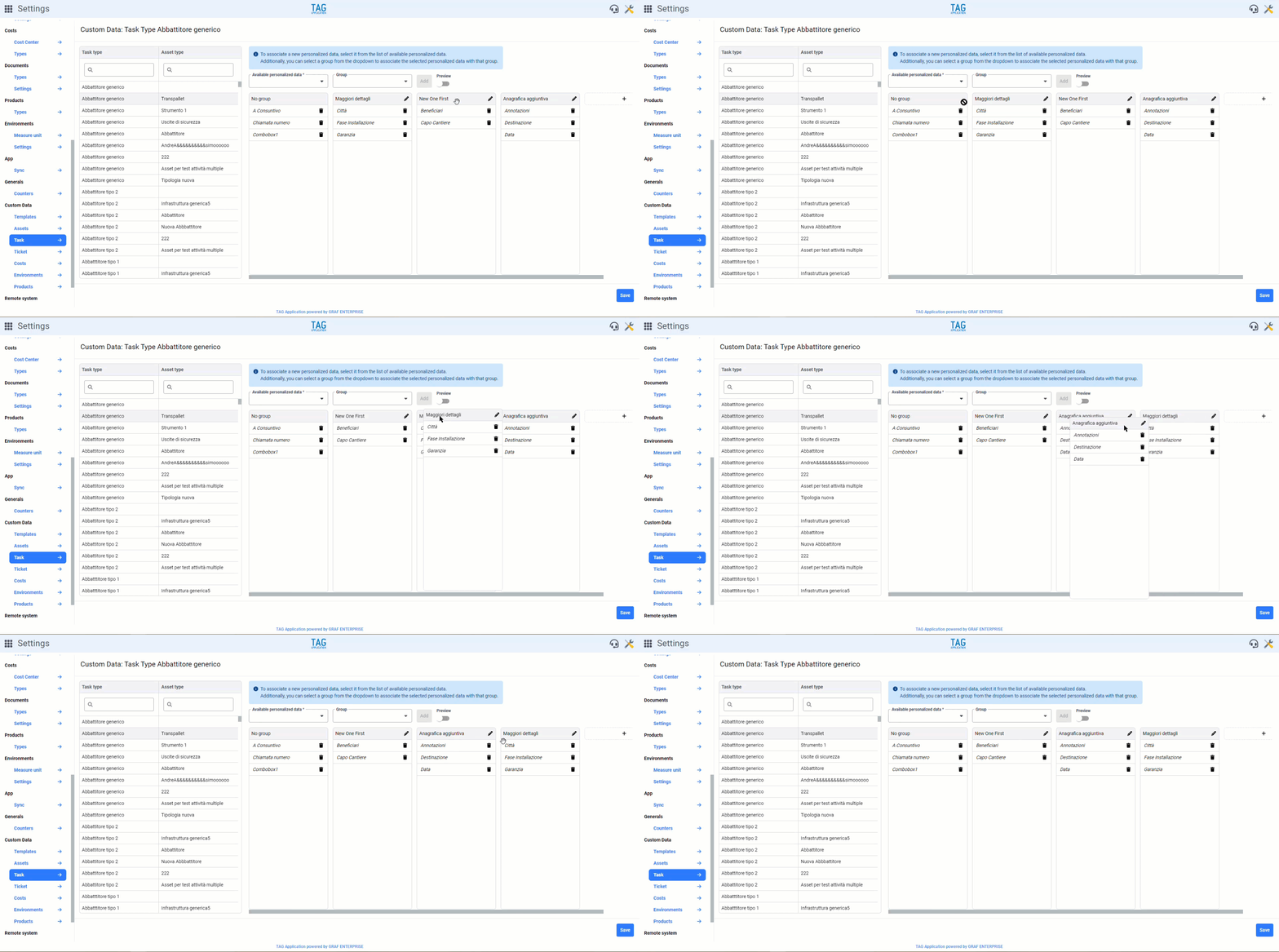
The customizable data settings are in fact extended, with the possibility of creating groups and modifying their order according to the entity for which they are configured, simply by dragging them.
Going to the type of entity you want to configure, from the Settings module under “Custom data” section, you can now do “Drag & Drop” of the created groups, dragging and dropping any group to the desired location.
Once the desired sorting is obtained and saved, it will be propagated and persisted on all entities for which the configuration has been made, allowing an even more flexible customization mode, able to meet even the most delicate needs.
(fig 3.0)

Also for the purpose of increased usability and speed of use, with this version also the “Task Plan” view of the calendar is significantly improved.
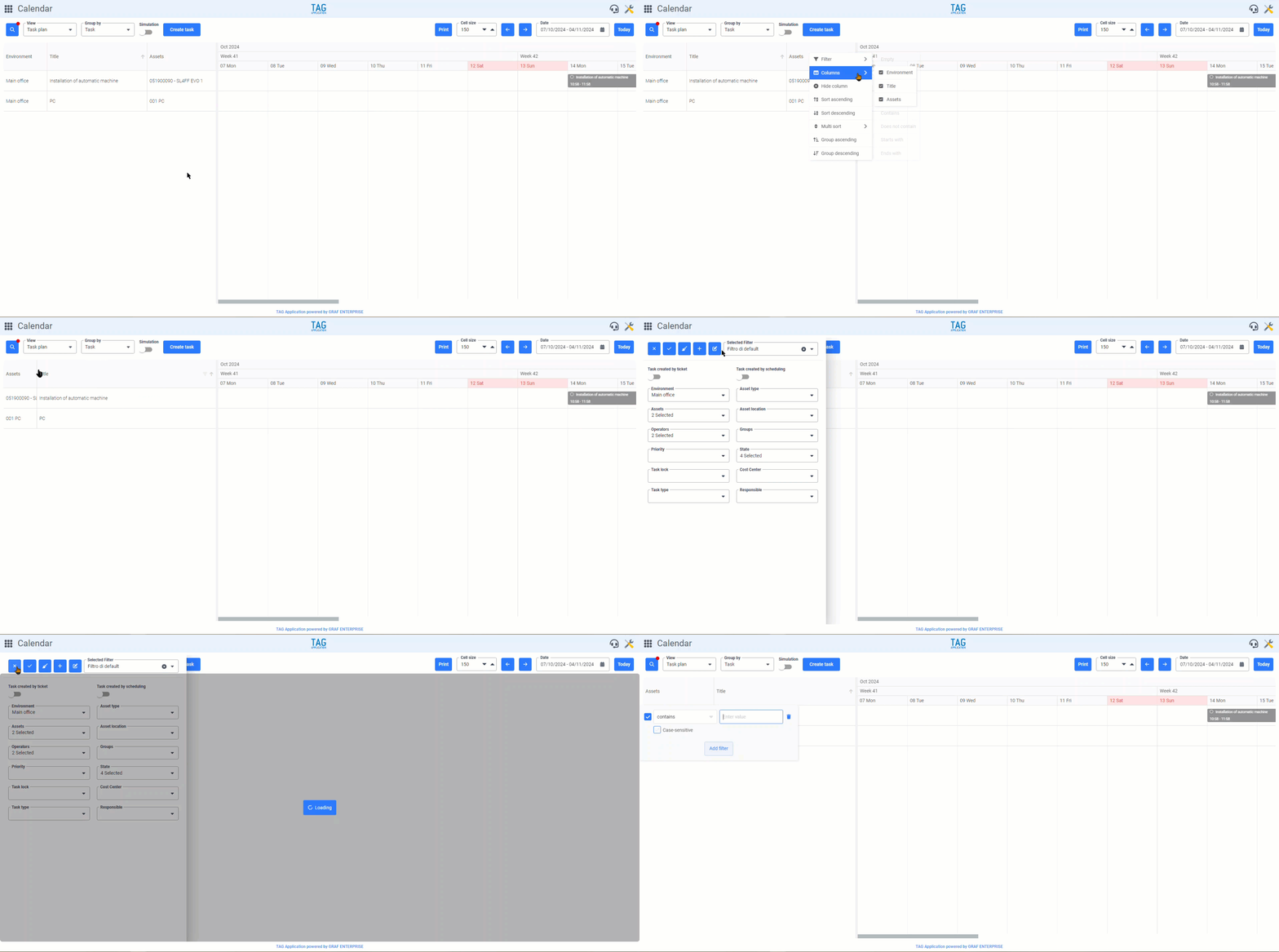
Once you have entered the view and selected your preferred grouping, if you go to reorder or filter the columns on the left, these preferences will be kept in memory by the system as long as you navigate within the module.
Changing view or grouping, therefore, if you return to “Task plan” and regroup by entity for which a specific sorting and/or filtering on the columns was made, this sorting and/or filtering will be automatically reapplied, Allowing the user to find the exact situation he had left.
When leaving the Calendar module, if not saved in a filter, these preferences will be lost and will eventually be re-made once returned to the specific grouping of the task plan.
In case you want to persist filters and sorting on columns even by stopping browsing the module, instead, it will be enough, just like for the filters contained in the panel, Press the magnifying glass icon and create a new filter or update an existing one.
In this way, whenever you select a specific grouping in the task plan, besides taking into account those contained in the panel, the system will keep in memory and eventually also apply the filters and the orders configured on the columns.
(fig 4.0)

Understand in a moment how are the tasks that interest you?
Maybe in a big screen? Which updates in real time?
TAG Application allows you to do this and, from this version, with even greater granularity and flexibility!
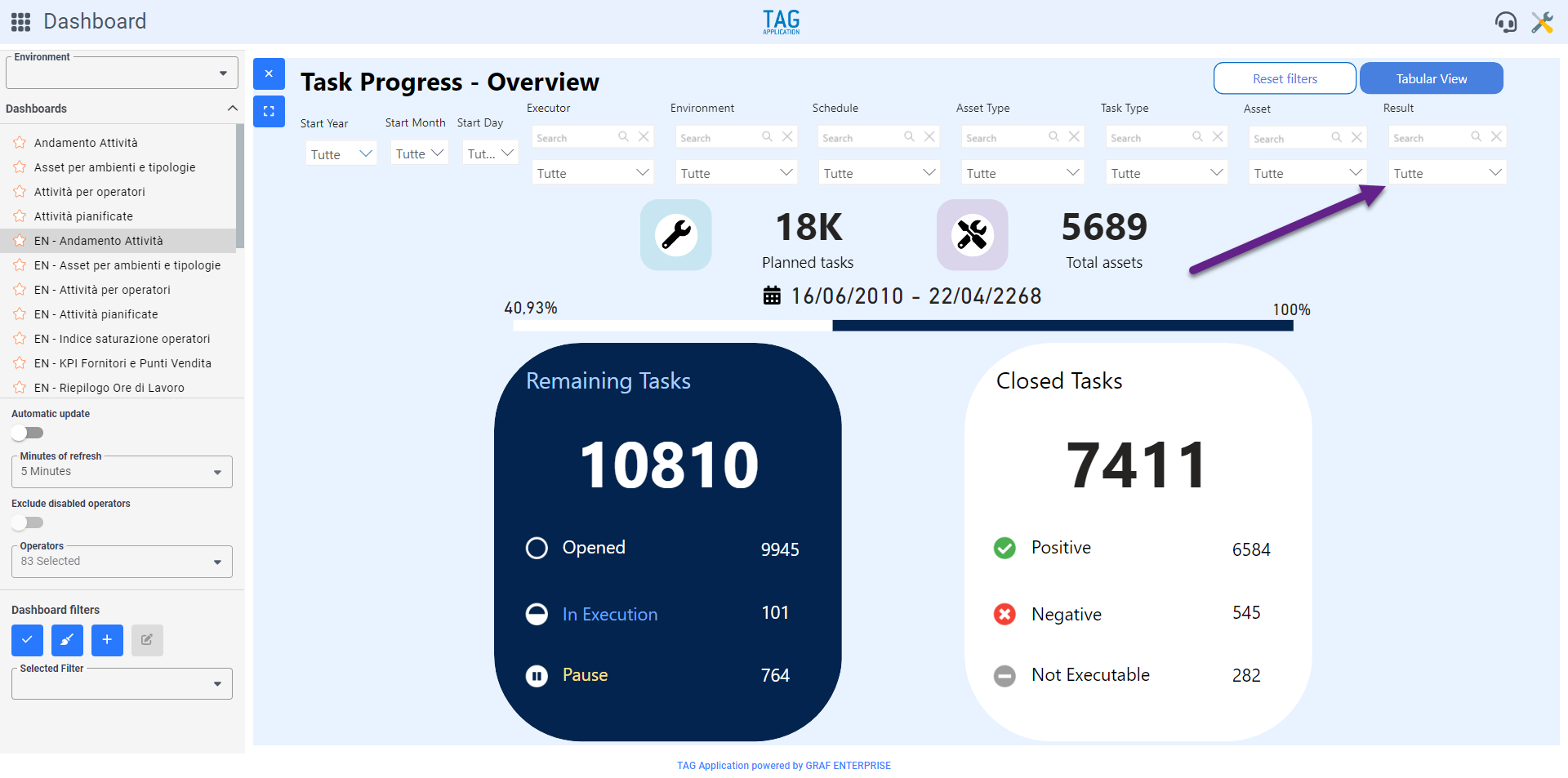
The dashboard “Task Progress“, which allows you to see exactly in real time the progress of the tasks of interest, is enriched with the new filter “Outcome”.
As the name suggests, it is now possible to filter the tasks shown in a convenient graphical view or even tabulate them according to their results, allowing you to focus only on a certain portion of the activity and monitor its progress in real time!
(fig 5.0)