Here are the news in version 1.82.0
Would you like to find out more about TAG Application and have more information?

Asset – Quick detail opening
Do you ever create or consult a task and want to check the details of the asset?
Or maybe you want to read some additional information just while you are doing specific searches from the Consultations?
This is the daily routine for TAG Application users!
The large moles of information contained in the system are a valuable resource and the ability to consult them at any time in a easy and fast is fundamental…
Great news are coming!
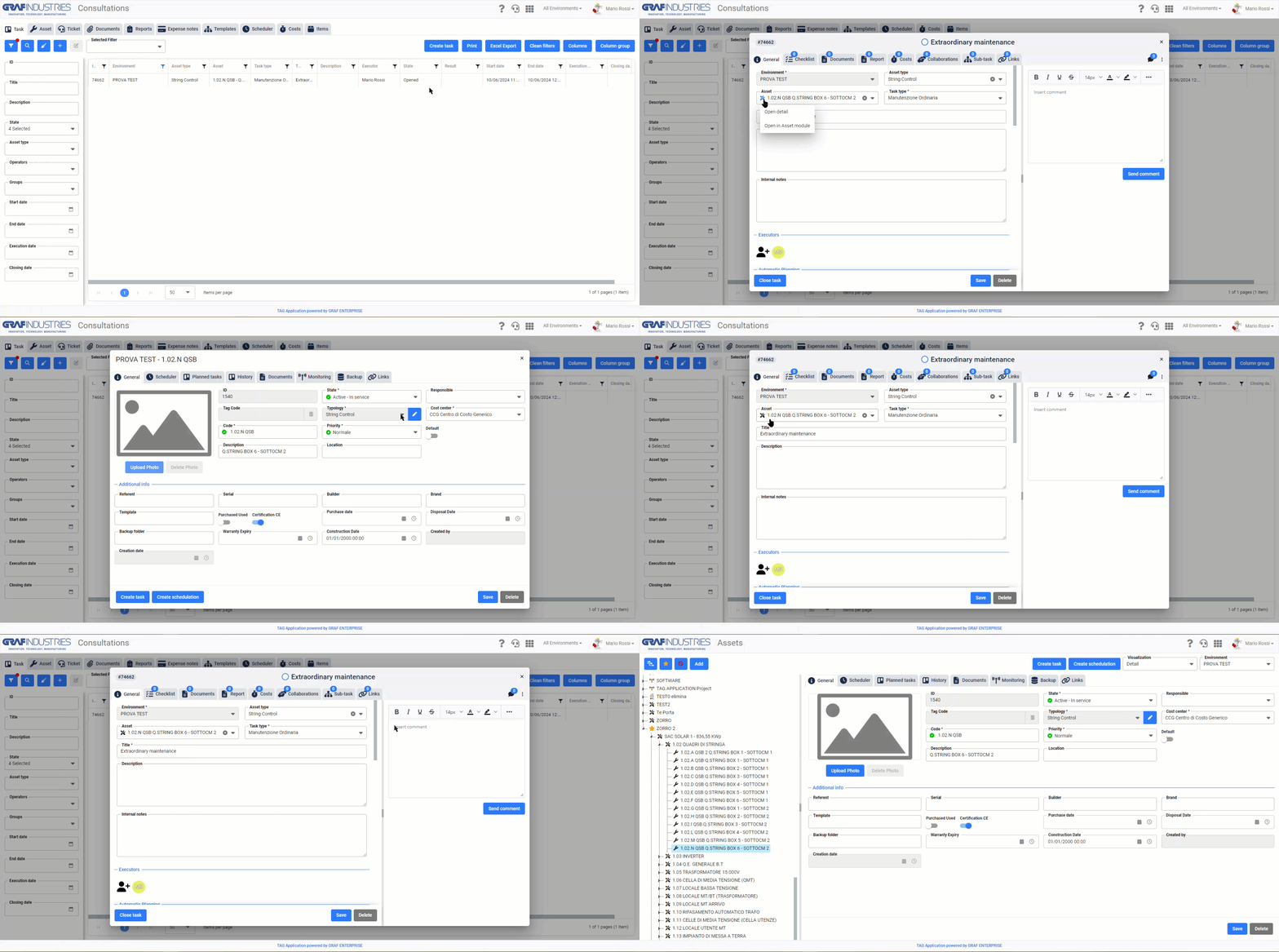
With the new version, in fact, it will finally be possible to access at any time the detail of the asset on which you are operating (during the creation or consultation of ) or that you are viewing (from the appropriate section of the module Consultations)without having to abandon what was being done.
After clicking on the task identification icon or the task line in the Consultations, you can choose to access the detail of the specific asset through two modes:
– “Open Detail” (New Mode)
– “Open in Asset module” (Classic mode)
Through the new entry “Open detail” you can then open the detail in the quick mode, which will allow you to access all the information of the selected asset in a dedicated popup, without changing form, always keeping the focus on what you were doing.
Clicking on “Open in the Asset module”, instead, will open the detail in the classic mode, that is the one that allows you to access all the information of the selected asset within the homonymous module.
(fig 1.0)

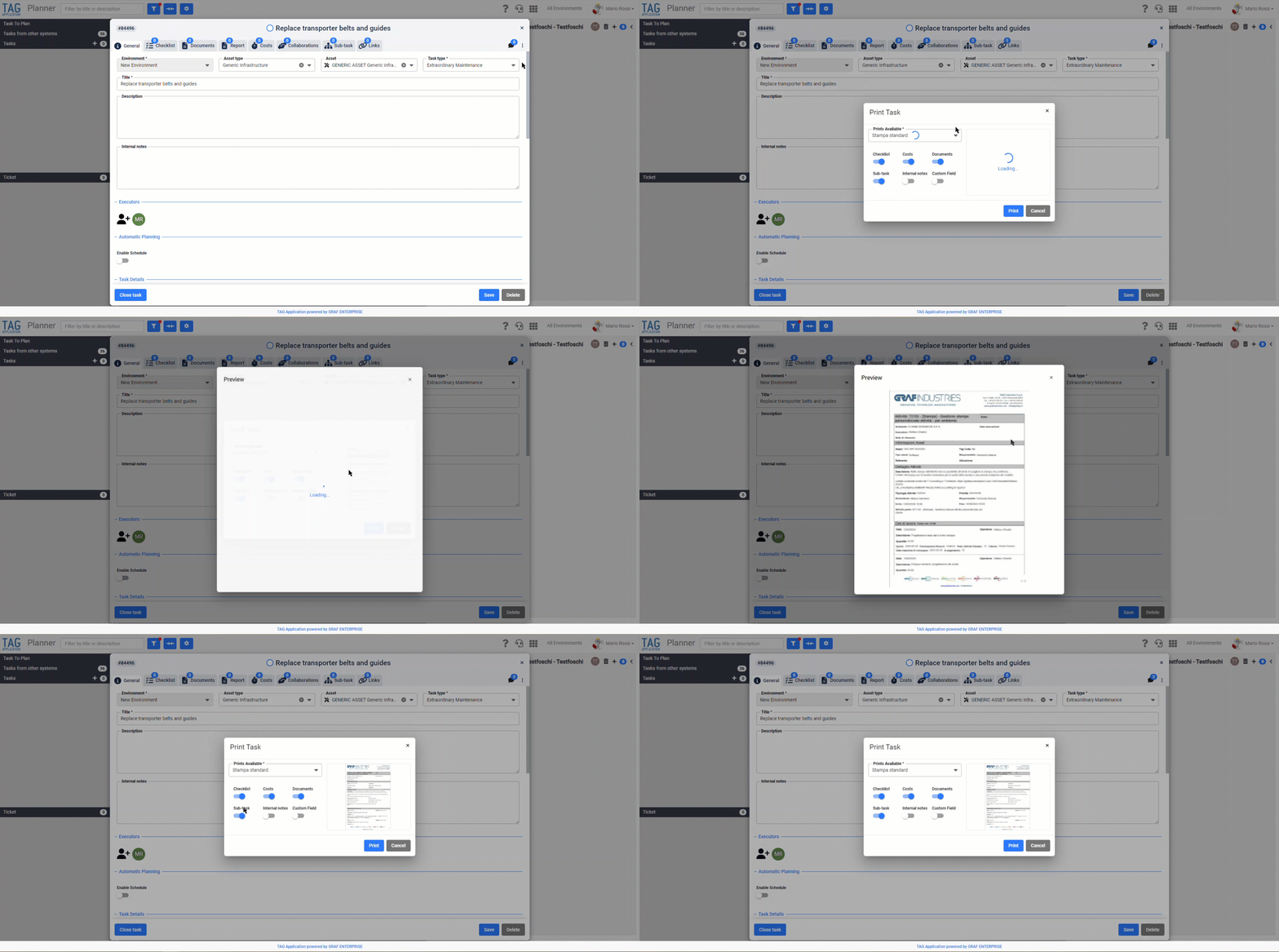
Task – New print panel
Would you like to print tasks in new custom layouts? Maybe displaying a quick preview to quickly understand what will be printed?
The new version of TAG Application will see the print panel undergo a major revisiting… just to meet these needs!
By accessing the context menu of a task and using the function “Print task” (or directly pressing the “Print” button from the appropriate section of the Consultations) the new panel dedicated to printing will be shown.
From here, in addition to always be able to decide what to include in the print and what not through the appropriate selectors, you will immediately find a drop down called “Available prints” (used precisely to choose which print layout to use among those available) and, just to the right, a sample preview of the selected print.
In this way you can request special printing formats according to your needs and, once developed, they will be selectable in a blink of an eye through the appropriate drop-down.
(fig 2.0)

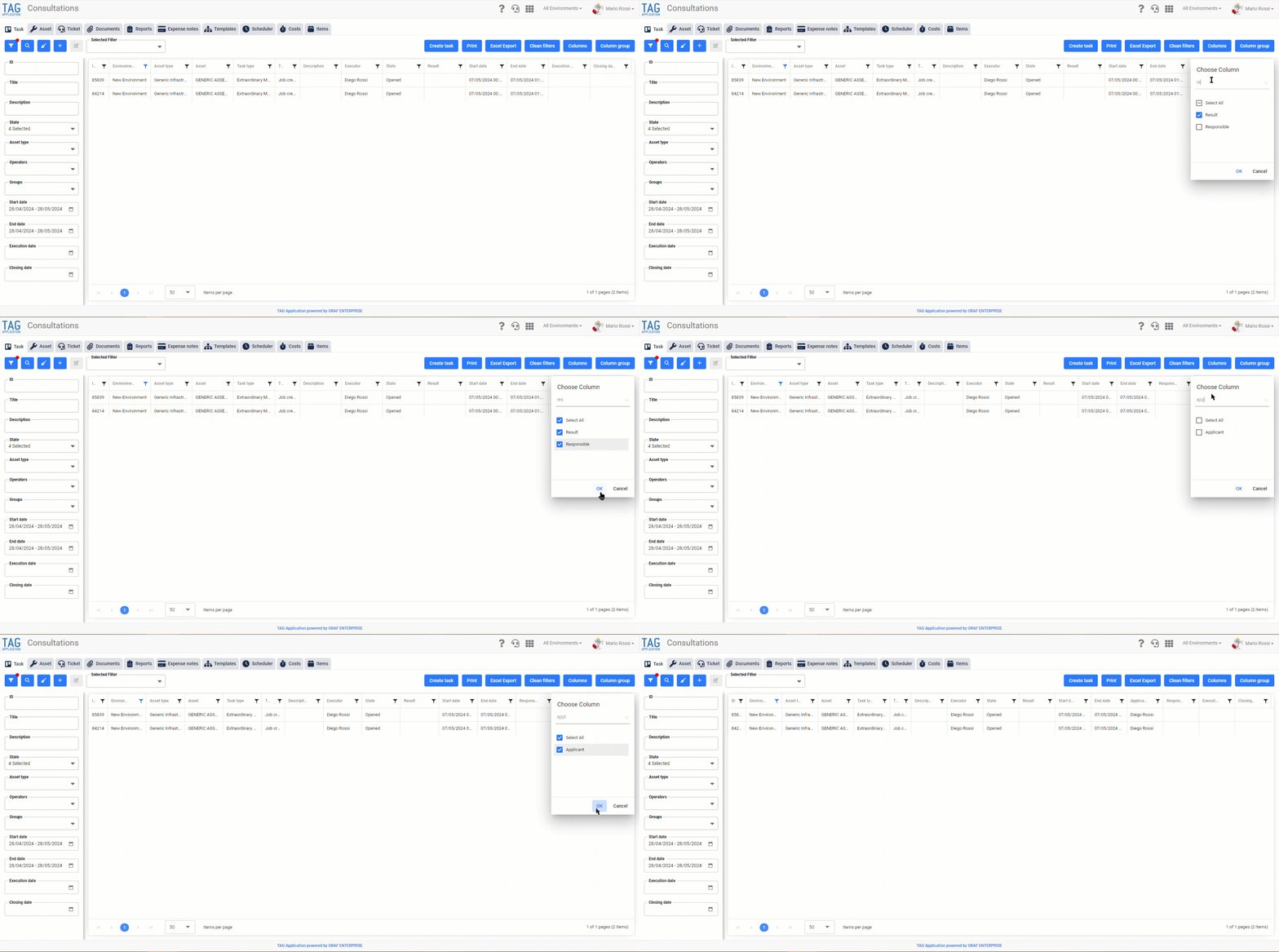
Consultations – New columns Responsible and Applicant
You are in the Consultations and want to quickly search for some activities for manager or applicant?
From the next update you can do it!
The integration of the columns “Manager” and “Applicant” within the “Activities” section of the Consultations will allow to carry out searches even more precise and punctual, filtering and exporting the complete results of all the information.
(fig 3.0)