Here are the news in version 1.78.0
Would you like to find out more about TAG Application and have more information?

Consultations – New form layout
Optimizing every single detail of the system is essential to provide the user with an increasingly powerful and complete experience.
Precisely for the purpose of perfecting the system, starting with this version you will have a completely enhanced Consultations module thanks to the use of new software technologies:
in this way the user will be guaranteed greater speed and usability of the entire module.
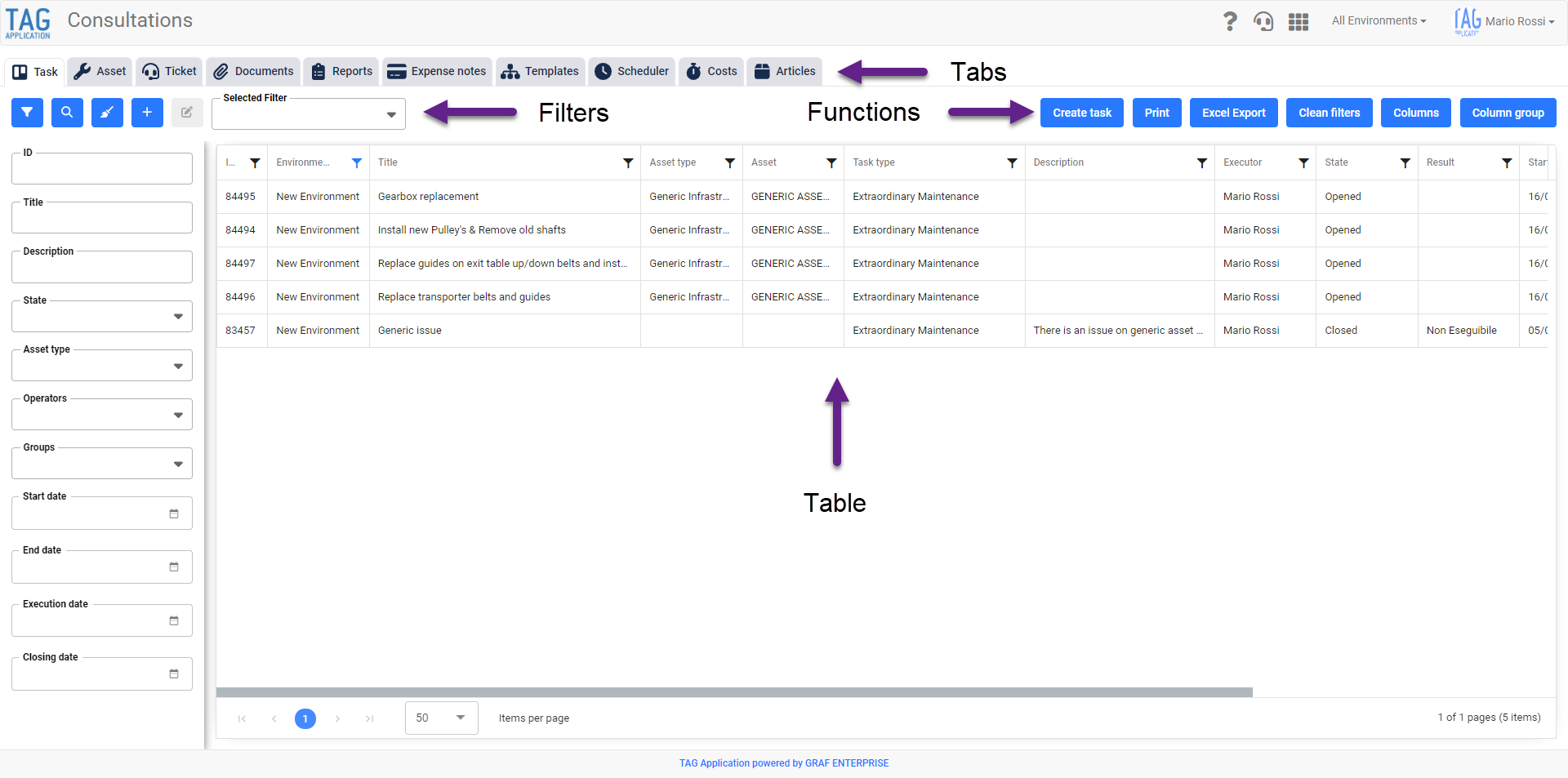
Upon entering Consultations, one will immediately notice a major graphical overhaul:
at the top, always in evidence, “tabs” have been placed representing the sections dedicated to the specific entities to be searched.
Here, also at the logical level, a fundamental change has been made: in fact, to search for planned and closed activities, it will no longer be necessary to navigate between the old “Planned Task” and “Task History” sections, but it will be enough to access the generic “Task”.
This significant change will undoubtedly result in greater speed and flexibility for users in using the system, avoiding unnecessary clicks and allowing combined searches between activities of any status.
Moreover, still regarding the sections from which to search for entities, compared to the previous version, the “Items” tab has been built:
from here it thus becomes possible to find all the items in the system, filter them and eventually export/print the results via dedicated buttons.
Immediately below, on the left, are the custom filters manageable via the classic blue buttons.
From this section it is possible to perform a simple search (via the magnifying glass icon) or a detailed search with the help of the filters (which can be created, edited and deleted via the other dedicated icons).
The range of search fields, precociously located above the table, has been moved, expanded and enhanced according to the users’ needs:
this will make it much easier to always have in evidence the filters set, modify them and save new ones.
On the right side, on the other hand, buttons have been placed to pilot the information searched and displayed in the table.
Finally, in the center of the page is the actual table in which the searched information is displayed.
(fig 1.0)

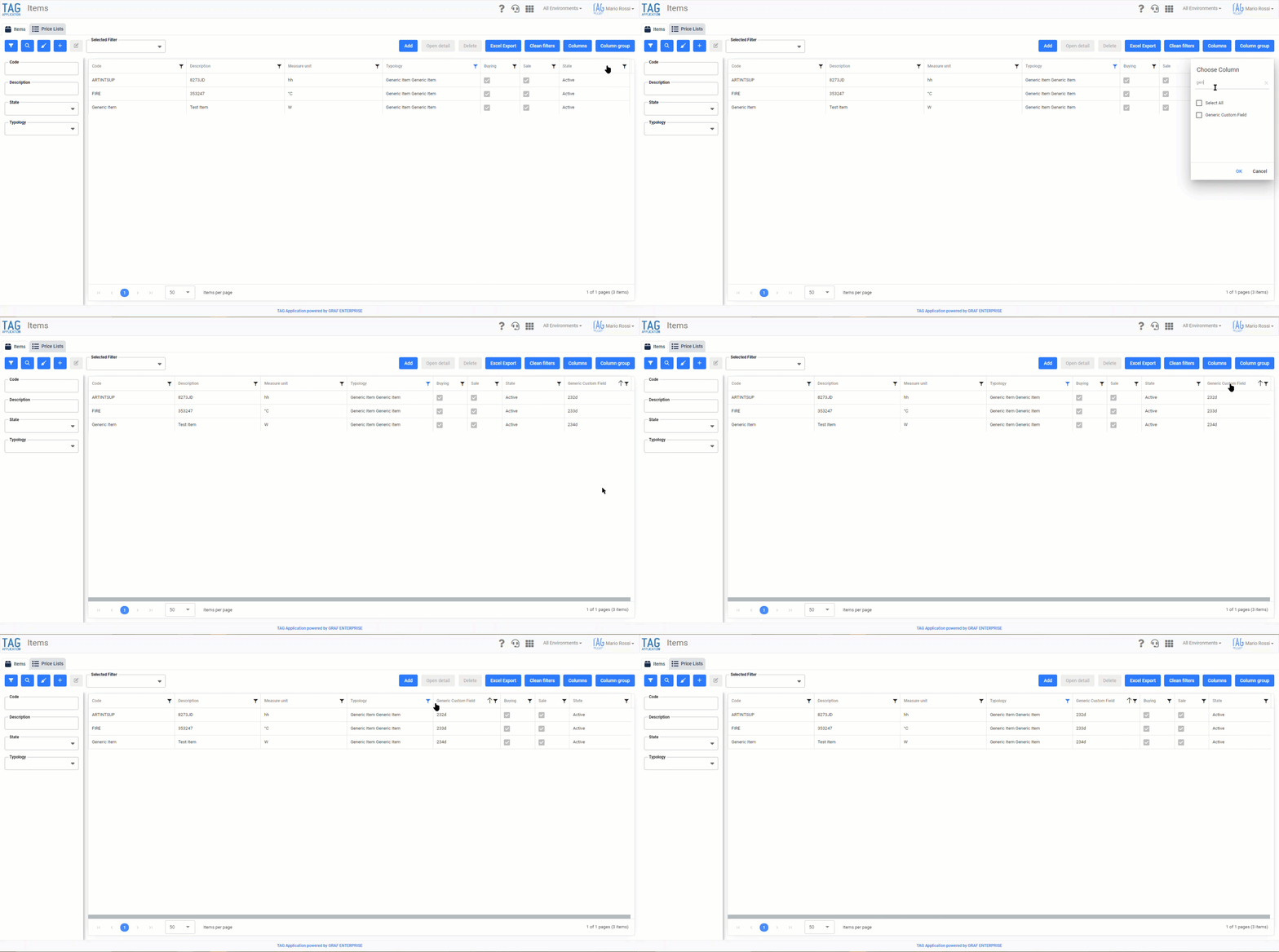
Items – New custom data in table
Having all the information about a specific entity at hand is important for any user browsing the system; being able to derive this information quickly and efficiently at any time is even more so.
It is precisely for this reason that the Items module has undergone a major enhancement. In fact, with the new version it becomes possible to:
– Consult any custom data associated with a specific items using column filters.
– Sort the information according to one’s needs via convenient column “Drag&Drop” function and export it when needed
– Save any search via custom filter panel.
(fig 2.0)

Dashboard – New Clickable IDs
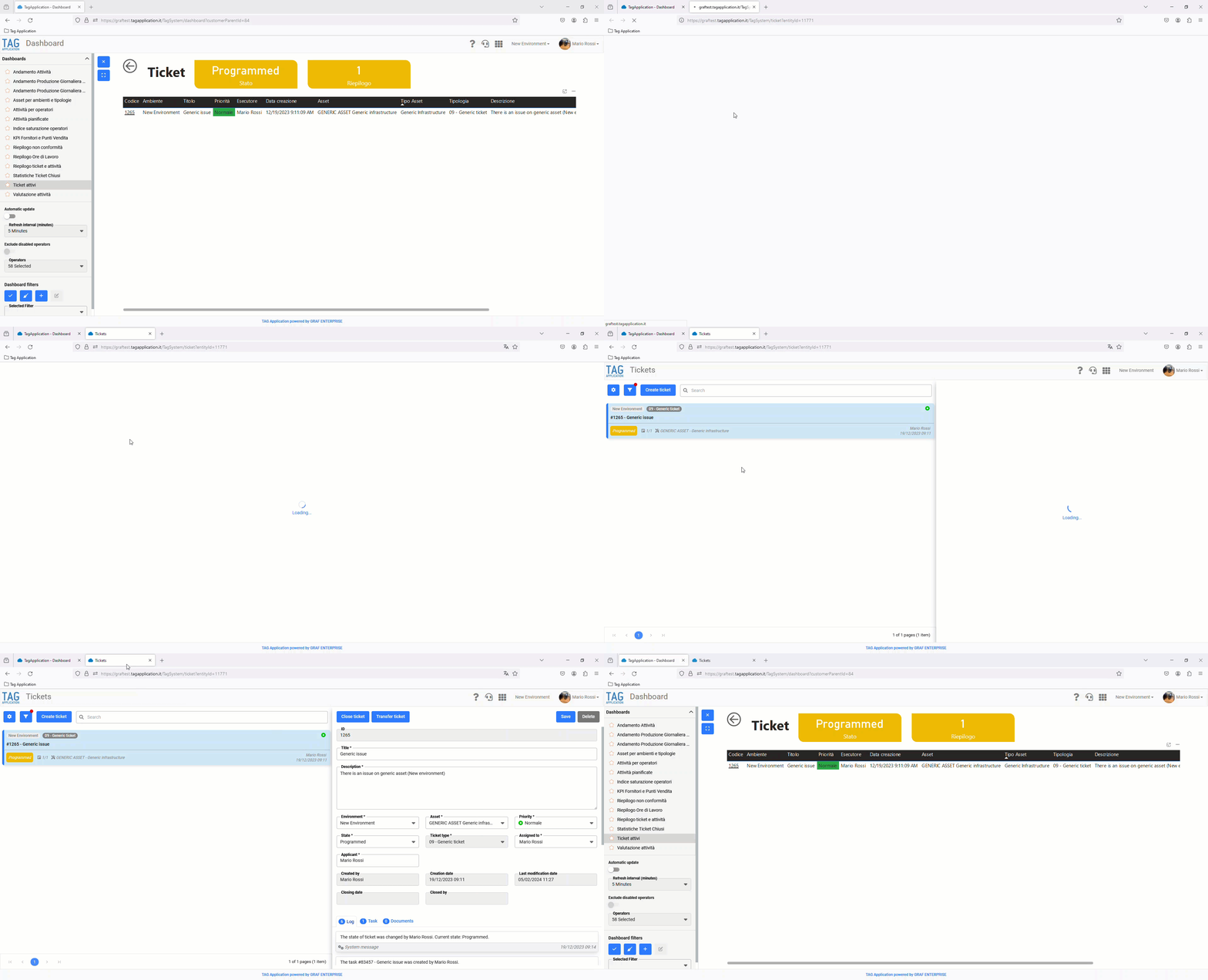
TAG Application dashboards are essential to have a summary, either graphical or tabular, to consult at any time regarding whatever information you need to monitor.
The generic summary, however, is sometimes not enough: sometimes it is necessary to verticalize one’s search, access a specific entity and consult it individually.
For this reason, starting with the new version, it becomes possible to access the detail of specific entities directly from the dashboards with just one click.
Wherever there is a unique identifier (ID), in fact, it will be possible to click on it and access the detail of the specific selected entity in a new dedicated window.
All this, of course, without losing the search in progress and allowing the user to move quickly and efficiently among all the information they need.
(fig 3.0)

Task – New checklists “Required reading” and “Required reading and outcome”
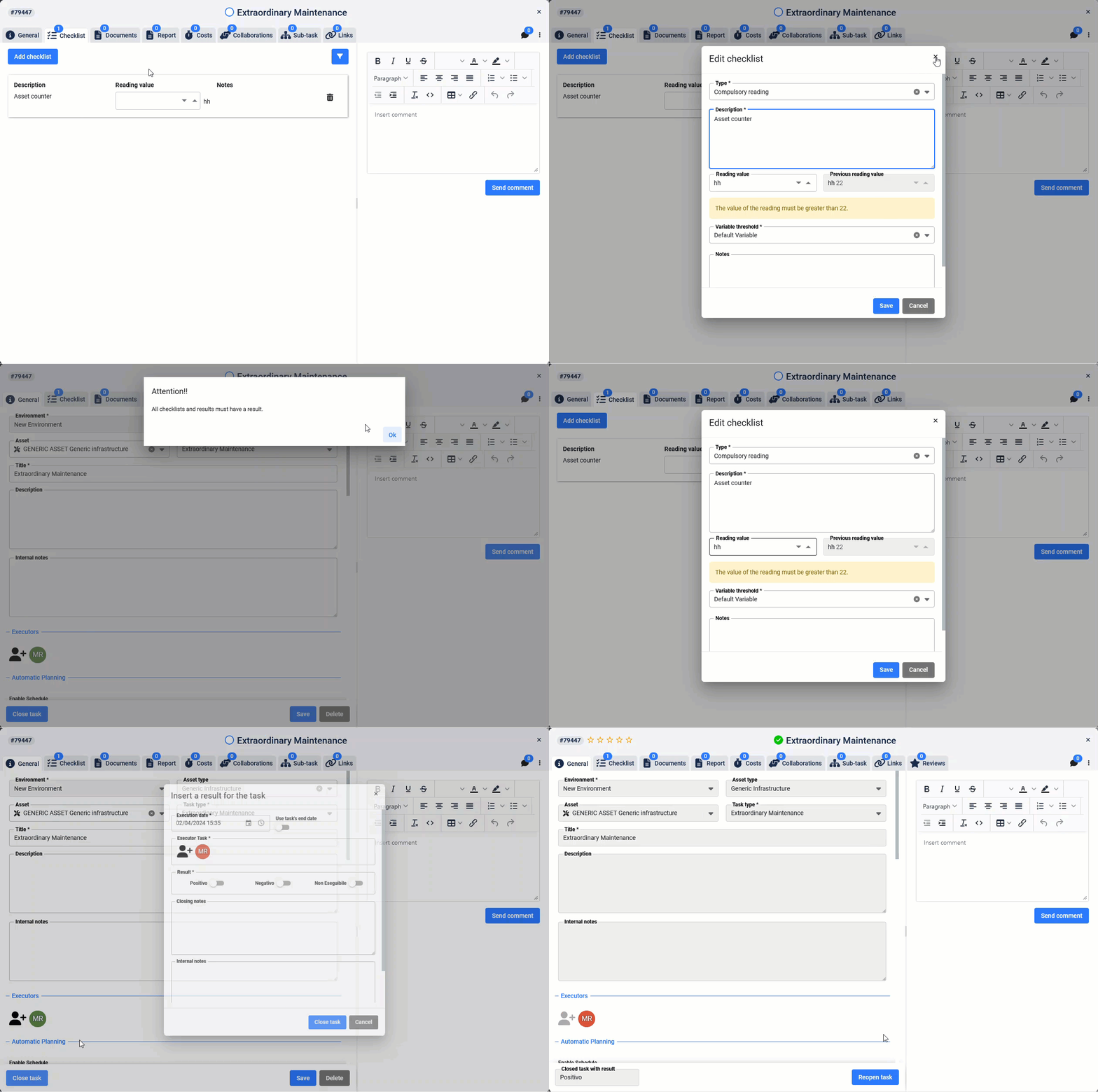
Supervising one’s business assets and monitoring their performance through specific variables is one of the strengths of TAG Application. In case the manual monitoring mode is chosen, operators can enter readings within specially configured checklists.
The only flaw in this mode is that, in the hectic pace of the many tasks to be completed during the day, operators may forget to enter all readings…so TAG Application thought of and immediately developed the solution!
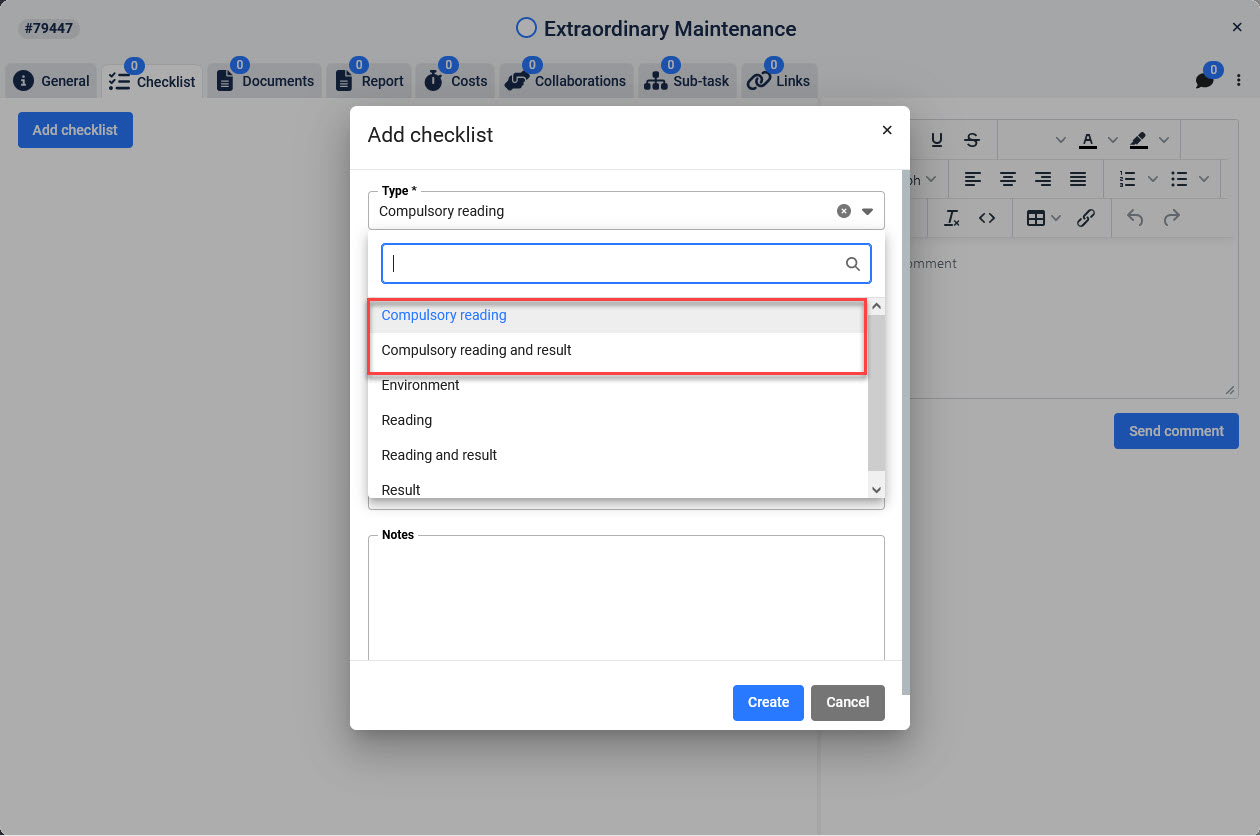
New types of checklists…that strictly require the entry of a specific value within them!
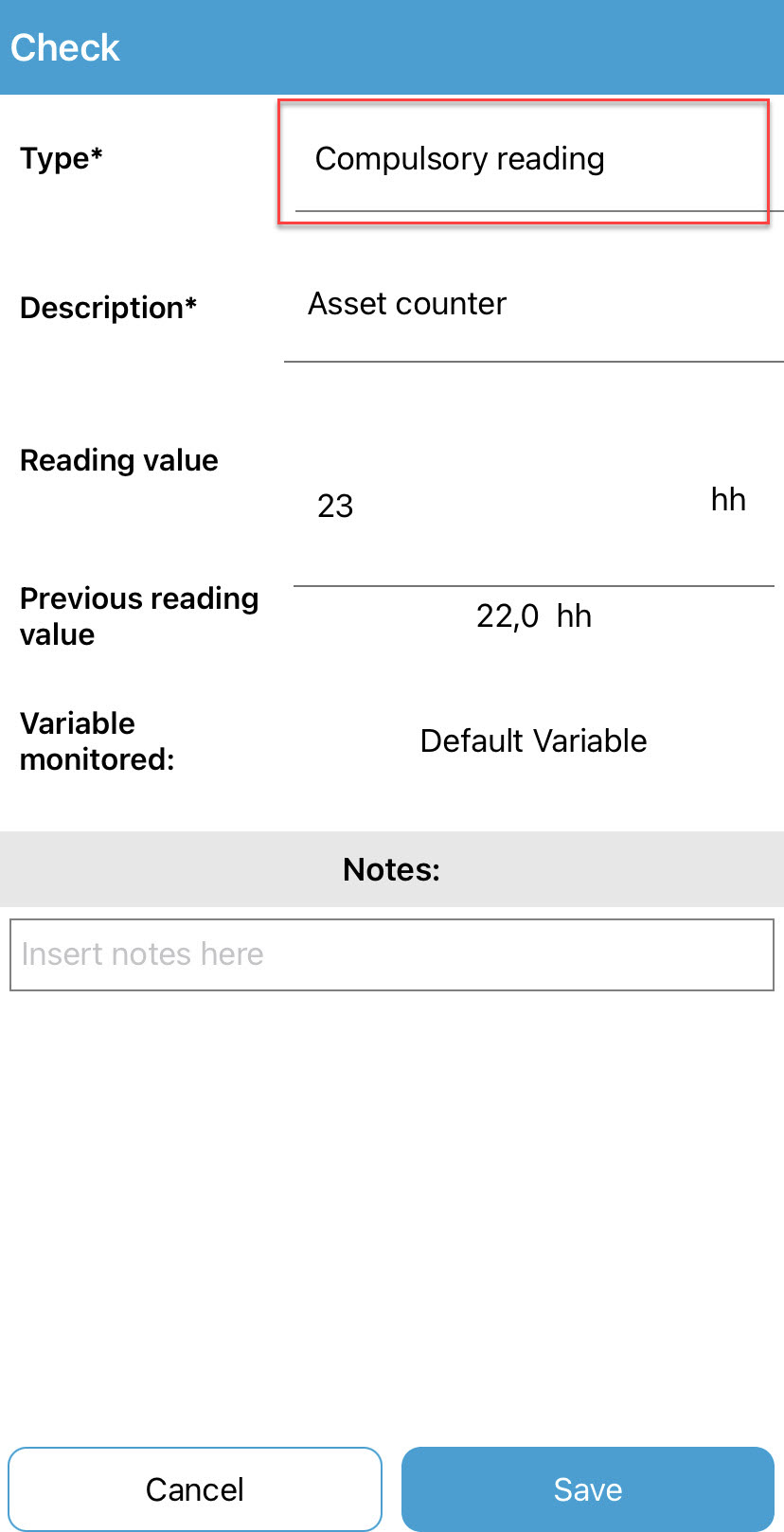
As of this version, in fact, it will be possible to choose the new checklists “Mandatory Readings” and “Mandatory Readings and Outcome” from the “Type” dropdown in the checklist section within the activity detail.
Once these types of checklists have been created, the system will prevent the closure of the activity on which they are configured until they are filled in with read and, if applicable, also with a specific outcome. No more forgetting, with TAG Application you reduce human error to a minimum!
(fig. 4.0 – 4.1)

Monitoring – Editing readings from gateway
The automatic monitoring mode is the best option for those who want to monitor their assets with maximum accuracy and timeliness.
Even the fully automatic transmission of data, however, especially due to human errors, can be incorrect: in borderline cases TAG Application may receive untrue data and, precisely for this reason, a review and correction activity must be carried out as soon as possible.
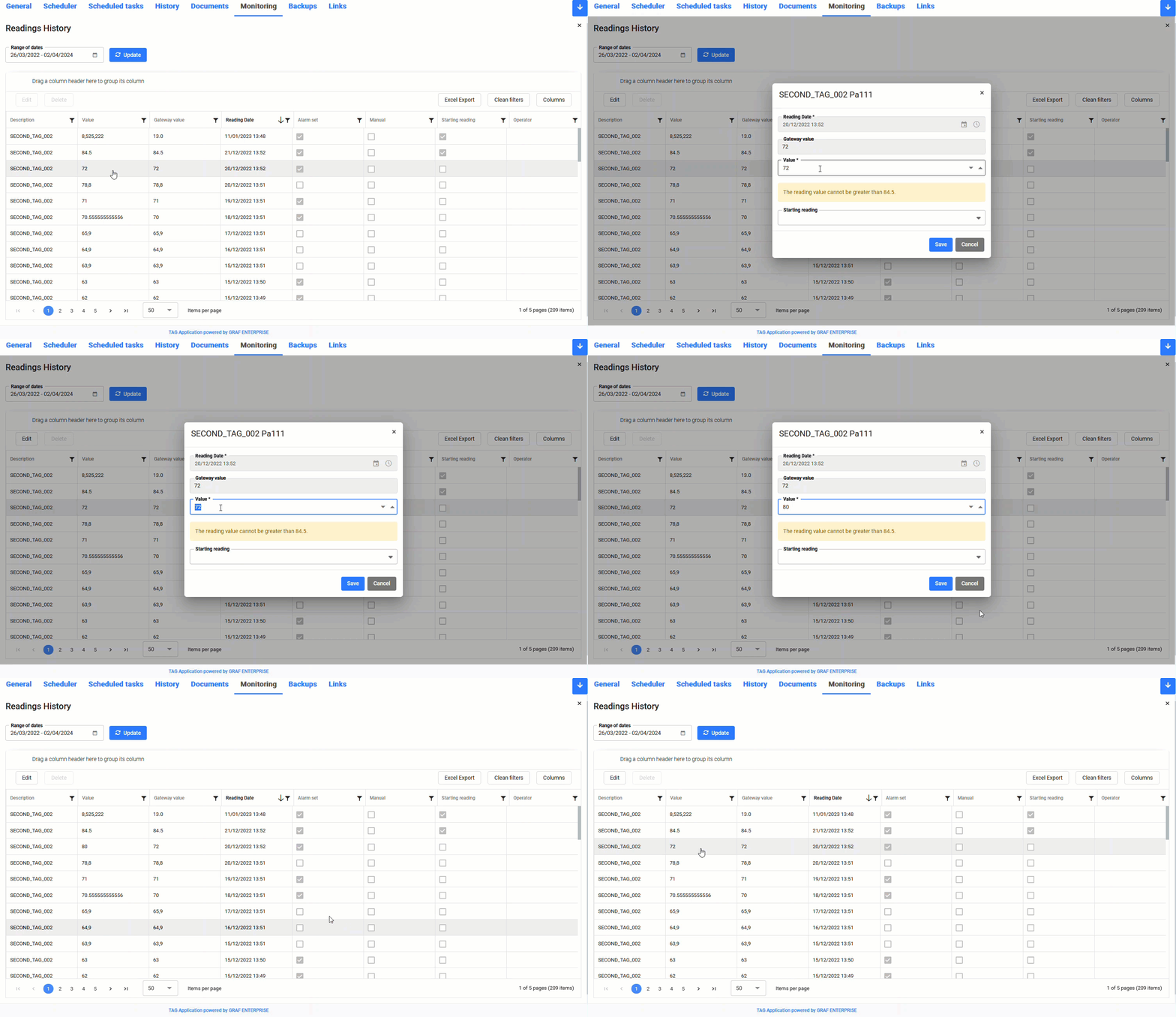
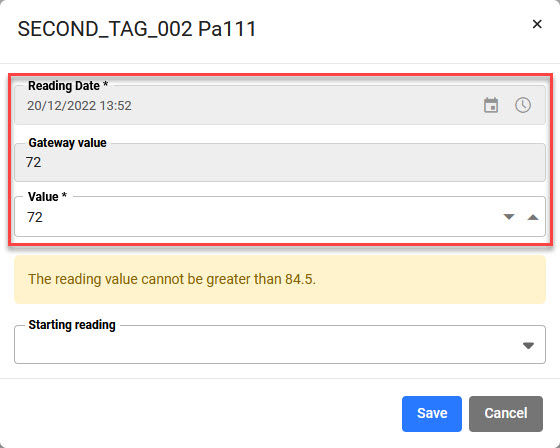
As of this version, all readings received from gateways will show the original “Read Date” and “Gateway Value” fields as locked, but they will always have the ability to be modified should the need arise.
The “Value” field, by default filled with the value received from the gateway, will therefore be displayed as unlocked and can be corrected at any time, by any operator with permission to do so.
(fig 5.0 – 5.1)
Settings – Dedicated Counters for Reports and Expense Notes
Flexibility and the possibility of customization are fundamental features for any high-level CMMS software, which is precisely why TAG Application aims to strengthen itself every day from this point of view, leaving the user with more and more freedom and possibility to meet their needs independently.
With the new version to gain even more flexibility in the configuration phase is the section dedicated to counters!
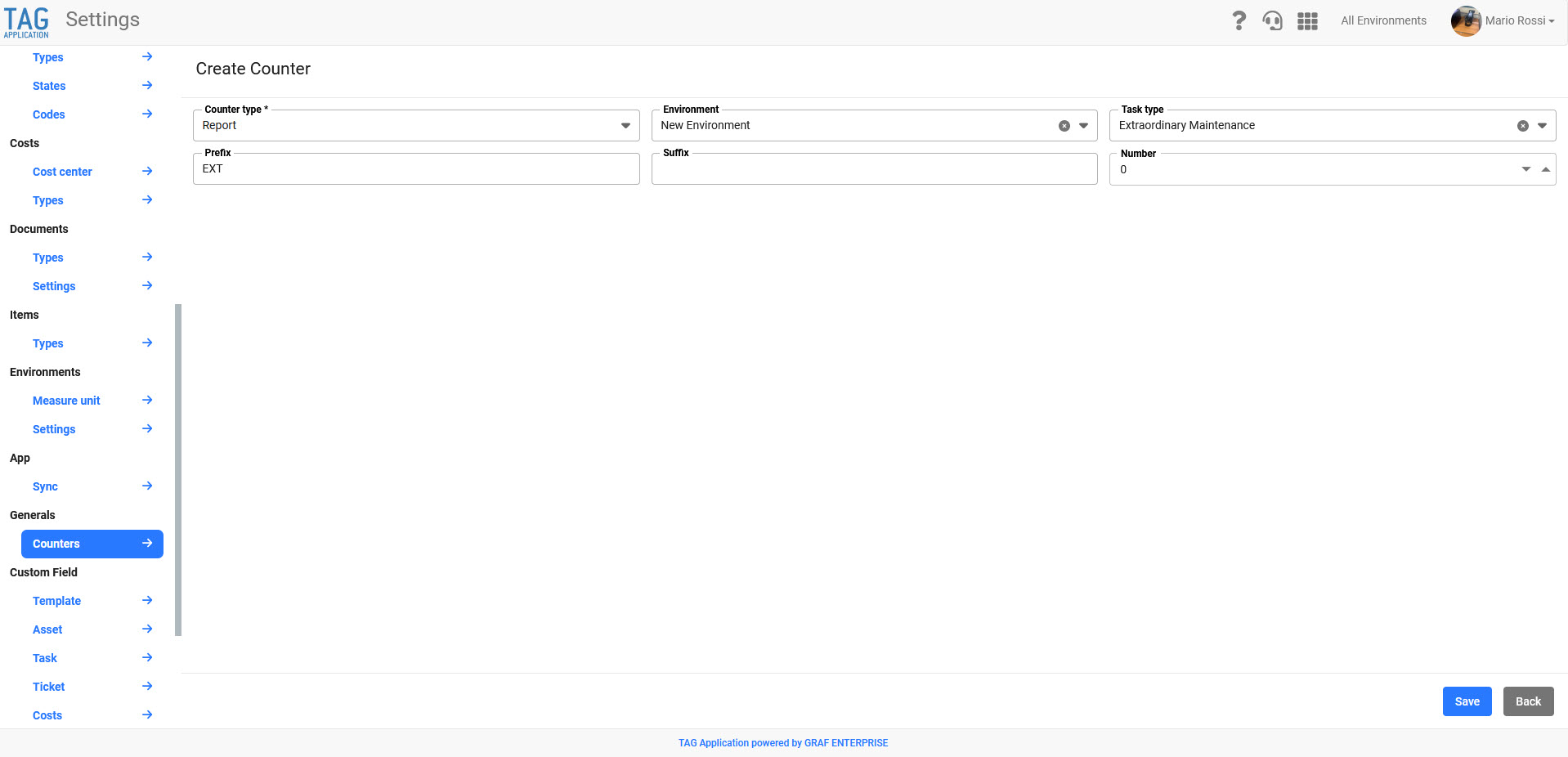
In the settings, in fact, it will now be possible to configure specific counters for reports and expense reports.
From the section “General-Counters” you will be able to choose the entity for which you want to configure the counter (Counter Type), and for which environment and type of activity this counter should apply.
In this way based on the fields entered, each time a report/expense note is created on a specific environment for a specific activity type, the system will number the created entity with specially configured prefix, incremental number and suffix.
(fig 6.0)

Schedules – Automatically Advance/Postpone Activities
Automating and speeding up user operations is one of the main goals of TAG Application.
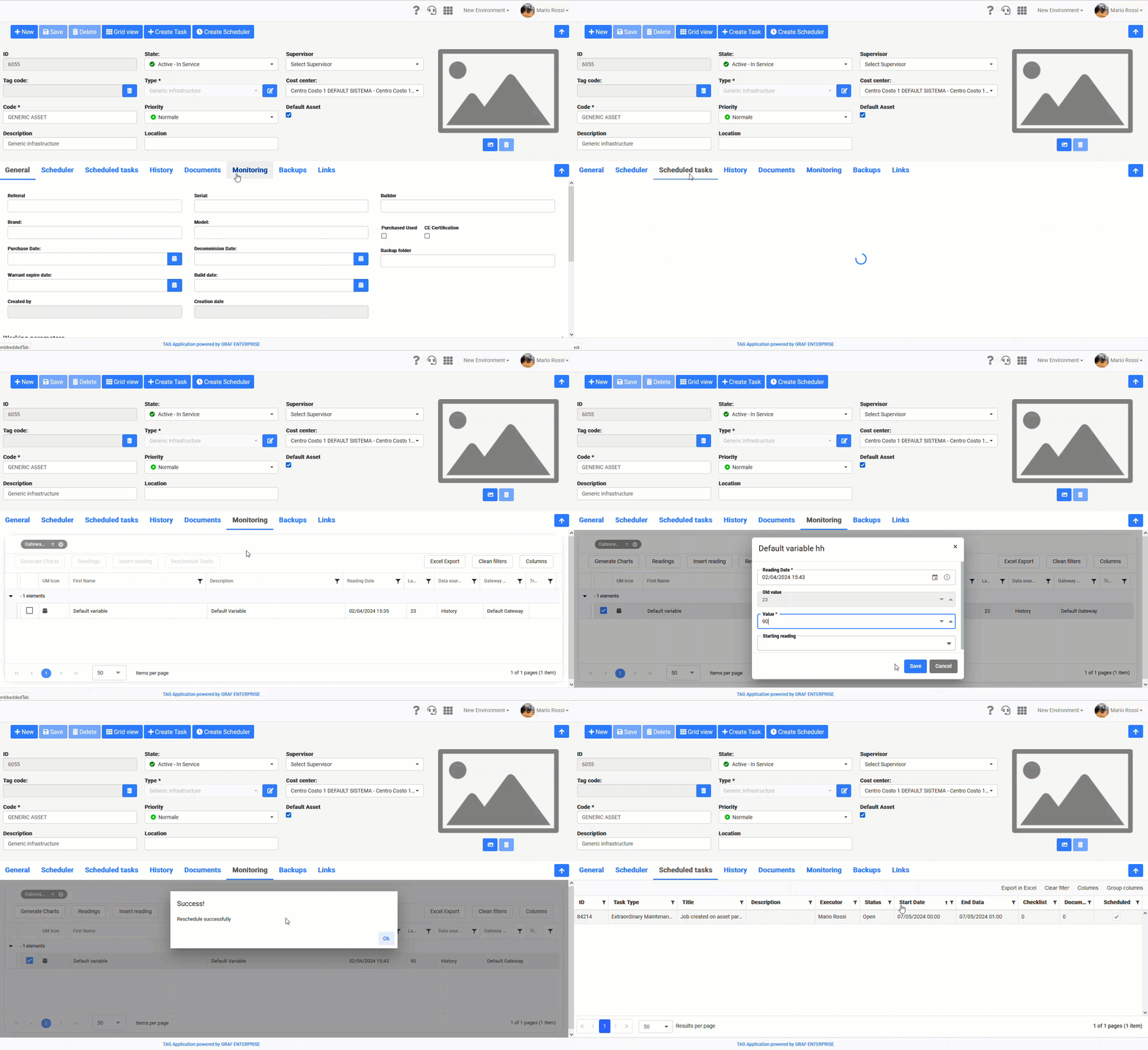
Precisely for this purpose, with the new update, the “Re-schedule Task” feature is coming: a button that precisely allows the re-scheduling of all task of the schedules related to the default variable of each asset.
In the event that specific operating parameters were configured on an asset based on which to schedule periodic task, after reconfiguring the daily operation (or changing/inserting a new reading),
simply by pressing the “Re-schedule Task” button the system will recalculate the schedule and automatically move the scheduled activities based on the new time estimate.
(fig 7.0 – 7.1)

App – Monitoring – New checklists “Required Reading” and “Required Reading and Outcome”
Monitoring – New checklists “Mandatory Reading” and “Mandatory Reading and Outcome”
As with the web counterpart, new checklists “Required Reading” and “Required Reading and Outcome” are coming to the application.
From the “Type” dropdown in the checklist section within the activity detail, you will therefore be able to choose the types of checklists that require mandatory reading to be entered.
Once these types of checklists have been created, the system will prevent the closure of the activity on which they are configured until they are filled in with a read and, if applicable, also with a specific outcome.
With this new feature the operator will be warned and guided even when closing the activity…this means no more forgetting, with TAG Application you reduce human error as much as possible!
(fig 8.0)