Here are the news in version 1.81.0
Would you like to find out more about TAG Application and have more information?

Asset – complete revision of the module
Are you ready to enjoy a experience entirely sped, optimized and enhanced?
With the new version you will have a Asset module completely revised! From the point of view graphic, functional and performance!
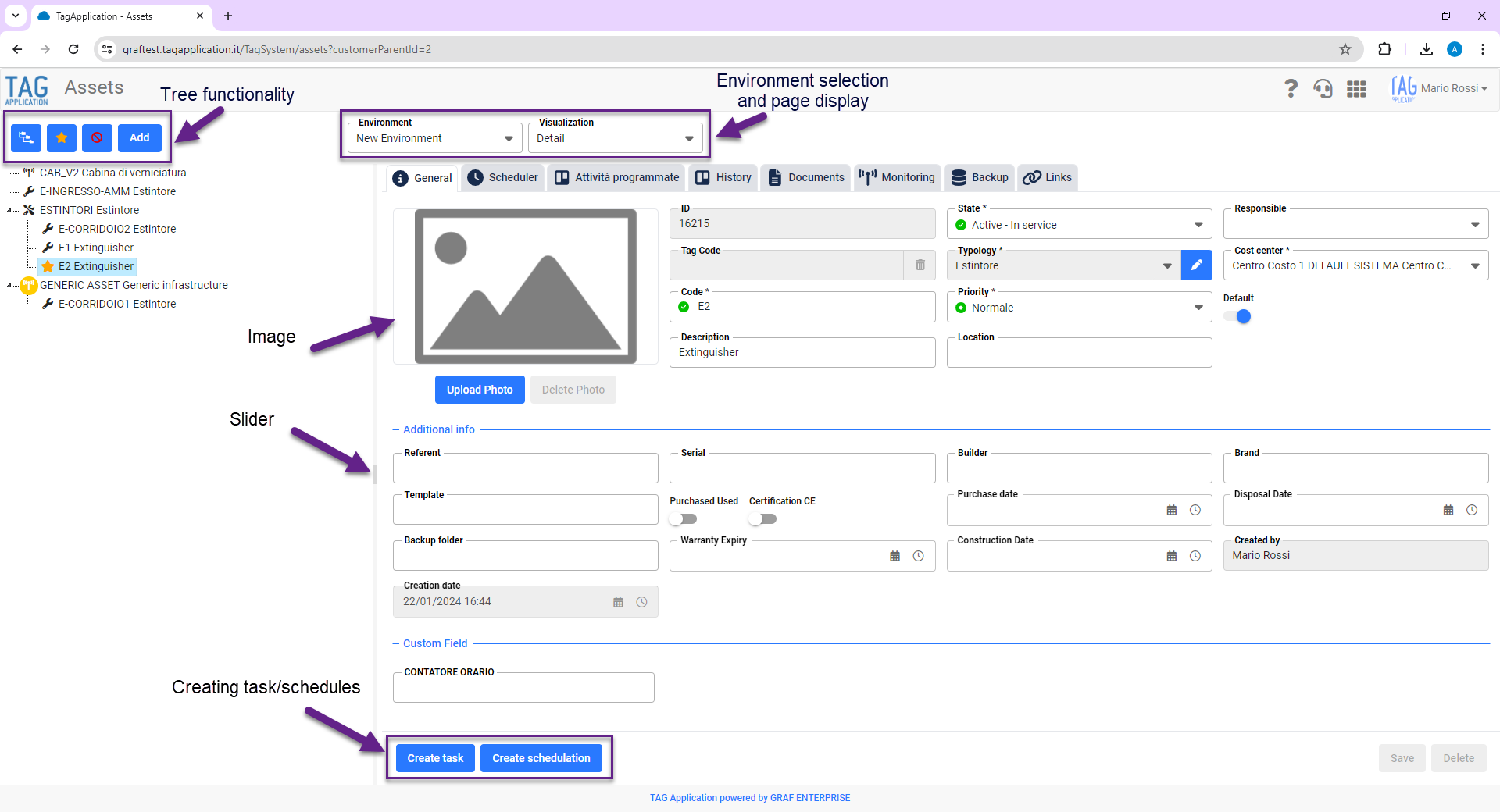
The page dedicated to assets, therefore, will change radically, starting from its interface:
– The tree background and detail of the individual assets (previously gray-blue and white respectively) will be standardized: for greater readability and aesthetic enjoyment the background of the new module will be all white.
– The “Function” buttons used to perform operations on the asset tree will go from 5 to 4. To facilitate handling at the top left you will find:
• Expand/Compact tree
• Find the default asset
• Show disused assets
• Add
In addition, also for greater control ease, the buttons previously used to resize the width of the tree will be replaced by a slider dedicated (to drive the size of the tree by convenient drag and drop).
– The drop down boxes that allow you to choose environment and view of assets will be placed side by side and placed at the top right of the page, exactly above the detail of the infrastructure you are viewing.
– The Task Creation, Scheduling Creation, Asset Saving and Asset Deletion buttons will be moved to give the user an enhanced user experience. Now the buttons dedicated to creation will be located in the upper right (next to “View” and “Environment”), while those dedicated to saving and deleting in the lower right, just like for the other points of the system.
– The information sections of the selected asset will be repositioned: for a more immediate reading and management will now be immediately at the top, always in evidence.
– The operating parameters will occupy a new position, in a more appropriate context: they will no longer be within the “General” section, but in the “Monitoring” section, within a dedicated space.
– The asset identification cover image will be relocated to the left of the asset detail (it used to be on the right).
At functional, however, among the major innovations stand out:
– The new control of the asset identification code: the field “Code” will be subjected to a real-time check, in order to ensure its uniqueness. The green icon will represent the goodness of the inserted code, on the contrary the red one will mean that an equal code already exists (in this case the saving will be prevented).
– The quick switch from “Grid” view to “Detail”: you can switch from one view to another by using a convenient double mouse click. If you double-click on a specific asset from the “Grid” view, it will automatically open in “Detail” view and you can quickly view all the information. In addition, being in “Grid” view, if you select an asset from the tree, the corresponding row in the grid will now be highlighted and any filters applied previously cleaned.
– The “Select/Deselect with children” and “Deselect all”: you can perform operations from the tree including/excluding child assets in a convenient and intuitive way. By positioning on an asset and pressing the right button, if the selected asset is a parent, it will be possible to select/deselect also all children through a special “Select/Deselect with children”. In addition, with the new “Uncheck All”, it will be possible to deselect all the assets previously included in the selection, regardless of their “kinship” link.
– Creating Assets directly at the desired nodes: it will finally become possible to create assets and place them in a specific node thanks to a single operation. By selecting an asset within any node, in fact, by pressing “Add”, the new asset will be created and placed at exactly the same level as the one previously selected.
Finally, even level performance, the module has been greatly enhanced, thus ensuring the user a much more experience fluid, fast and enjoyable, under all points of view.
(fig 1.0)

Task – New reopening
With TAG App operators complete dozens of tasks every day from their smartphone, online or offline, synchronizing immediately or doing so later.
To fail to compile some data in the process of completion, or find yourself getting your hands on a task marked as already “closed”, is normal practice for the majority of technicians working in the field. Reopening the task, therefore, becomes as important as closing them!
In this regard, with the new update of the application, the possibility of reopening closed tasks will be extended:
Previously, it was possible to reopen from the app only closed tasks still not synced, while, from now, you can do it with all.
The only two cases in which it will not be allowed to reopen a task (but still in which messages are shown to guide the user to understand the reasons for not reopening) are:
– When you try to reopen a synchronized task, but you are offline.
In this case will be shown on screen a timely warning for the user and, after any synchronization, you can proceed with the reopening.
– When trying to reopen a task that has already been reopened.
This case history refers to when you have already reopened a web task, but, having not synchronized, you try to reopen it from the app. Also in this case a timely warning will be shown to the user and, after any synchronization, the task will be automatically reopened (in paused state).
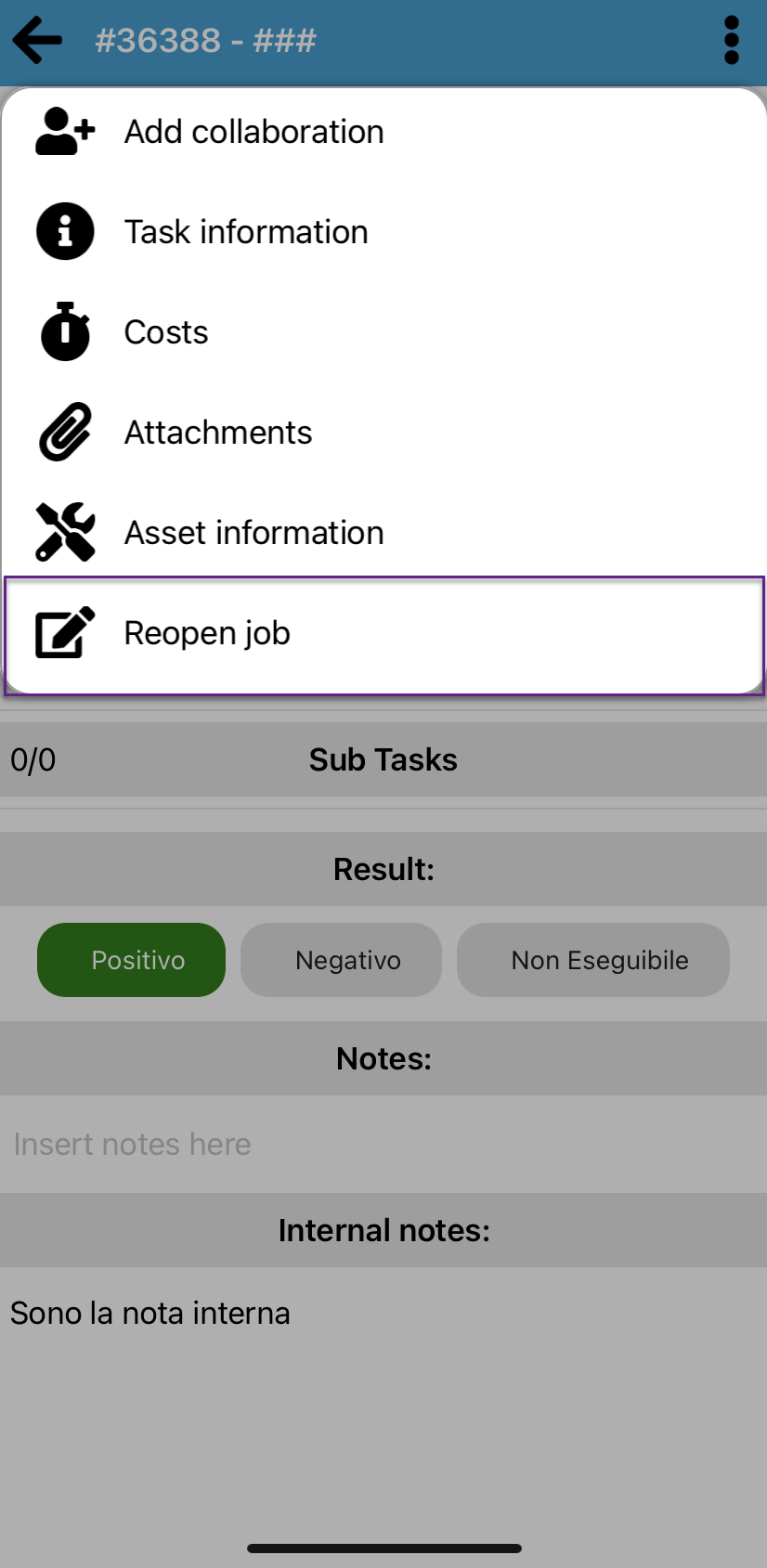
So, to reopen a closed task, just find the desired task in one of the modules where reopening is allowed (Task and Ticket), access the context menu and confirm the reopening by clicking on the dedicated icon “Reopen task”.
(fig 2.0)