Here are the new features in version 1.75.0
Would you like to find out more about TAG Application and have more information?

Settings – Custom data enhancement
Is there a need to enter particular data into the system?
With custom data, TAG Application allows you to customize the software according to the needs of each organization in a simple, fast and autonomous.
Just to meet the needs of users, the section dedicated to personalized data has been the protagonist of an important refactoring in terms of speed, usability and graphics.
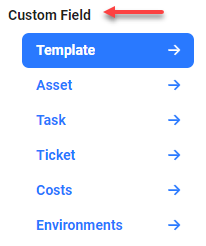
With the new update, going to the settings, under the heading “Custom data” you can immediately start to enjoy the enhanced implemented:(fig 1.0)
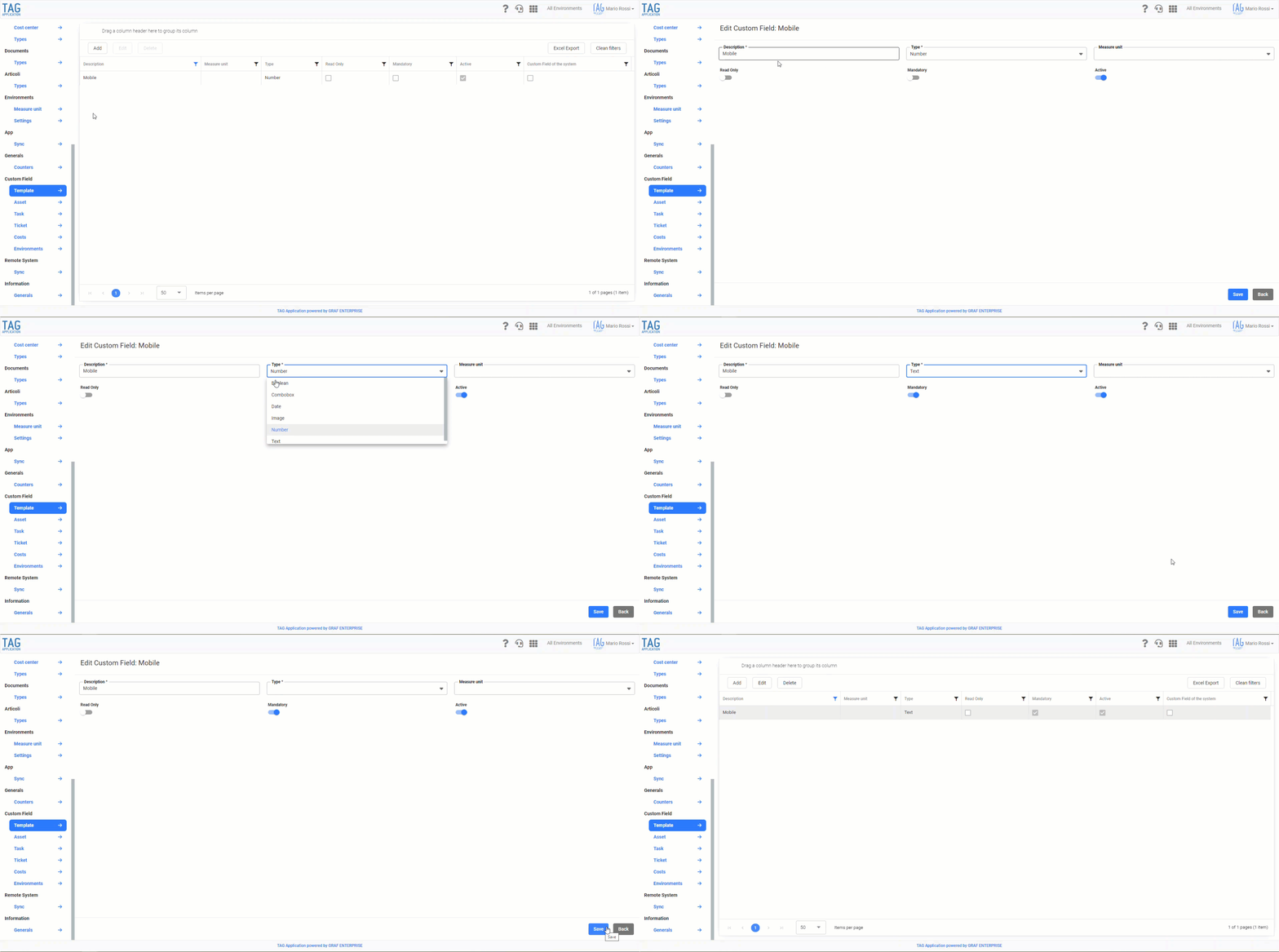
from “Template” you can access the section dedicated to the personal data. From here you can create, view, edit and delete any type of custom data.(fig 1.1)
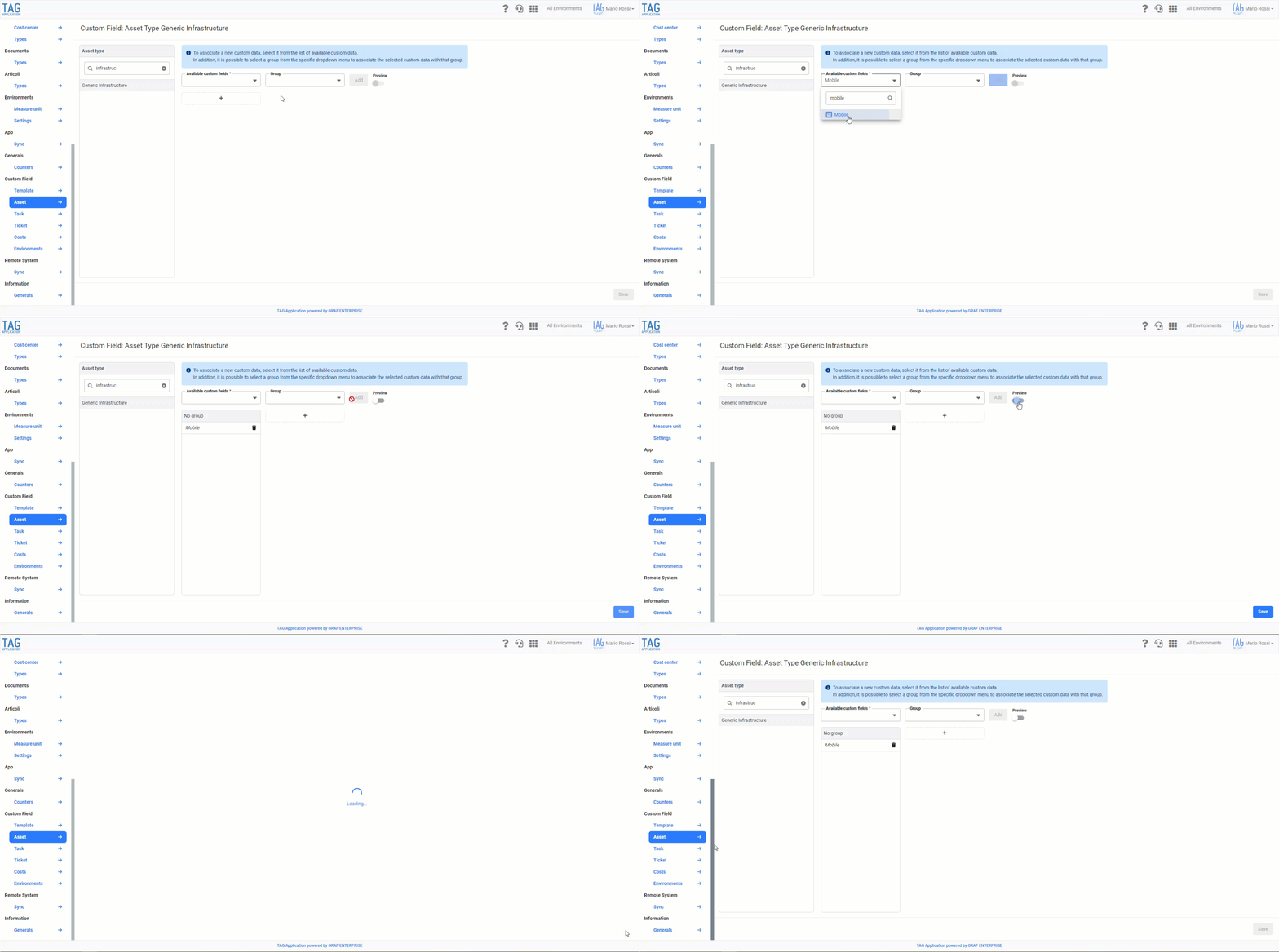
From “Assets”, “Assets”, “Tickets”, “Costs” and “Environments” it will be possible to associate the custom data previously created to all entities of the system. In these sections on the left it will be possible to search and select the specific types of entities, while on the right will be associated with the custom data through a convenient dedicated interface.(fig 1.2)
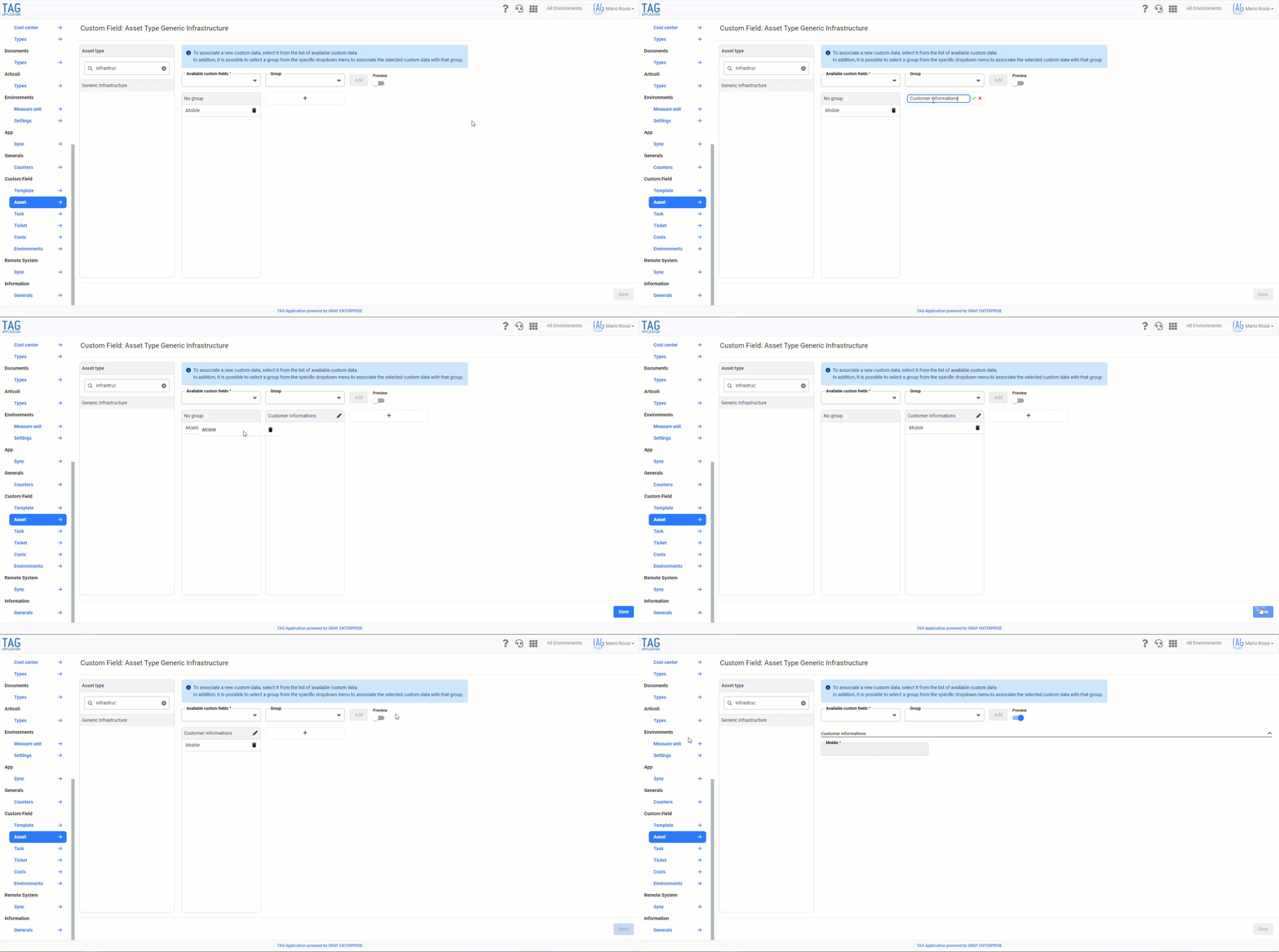
In addition to associating the custom data and being able to preview them through a special selector, just below you can also create and manage custom data groups.
The management of custom data groups is completely guided and allows the user to quickly rename the dedicated containers and easily reorder them at will via convenient “drag&drop” function.
Another useful possibility is to move, always easily and intuitively by dragging with the mouse, the personalized data from one group to another.
In this way, the system allows, thus, to group custom data under a common heading, ensuring users a management further enhanced and fully customizable. (fig 1.3)

Ticket – New view
Managing reports is a fundamental aspect in any company… TAG Application knows it well!
To allow ticket operators to work quickly, easily and efficiently every single detail must be taken care of in detail.
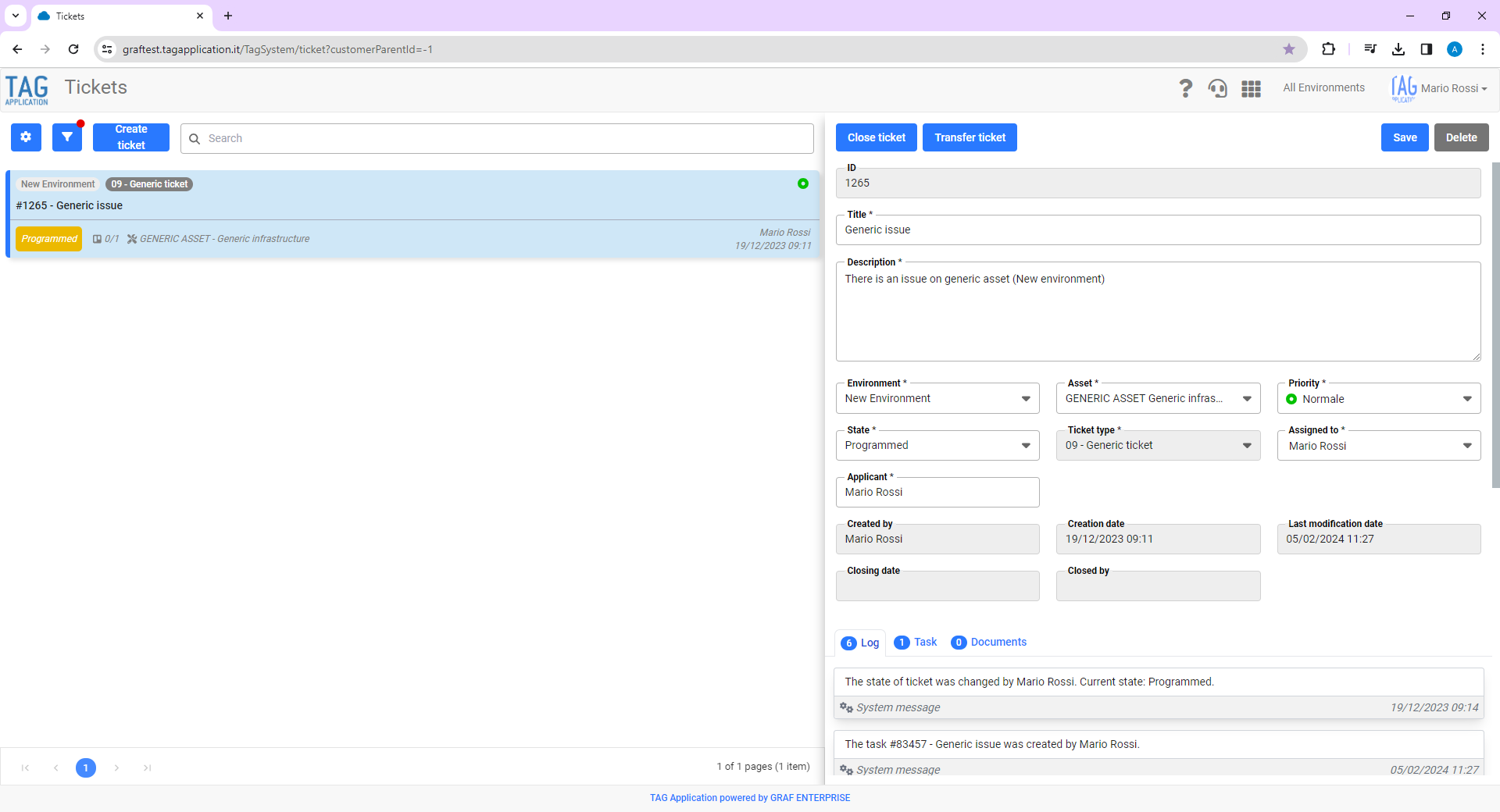
This is why the display of individual tickets in the dedicated module has been revisited and adapted to the user’s needs.
Starting from this version the tiles dedicated to the tickets (placed to the left of the screen) will be composed of:
– Environment, type and priority of ticket in the first line
– Ticket ID and title in the second line
– All remaining details in the third line
In this way the display will be much more readable and those who manage the reports can operate even faster.
(fig 2.0)

Costs – Mandatory description
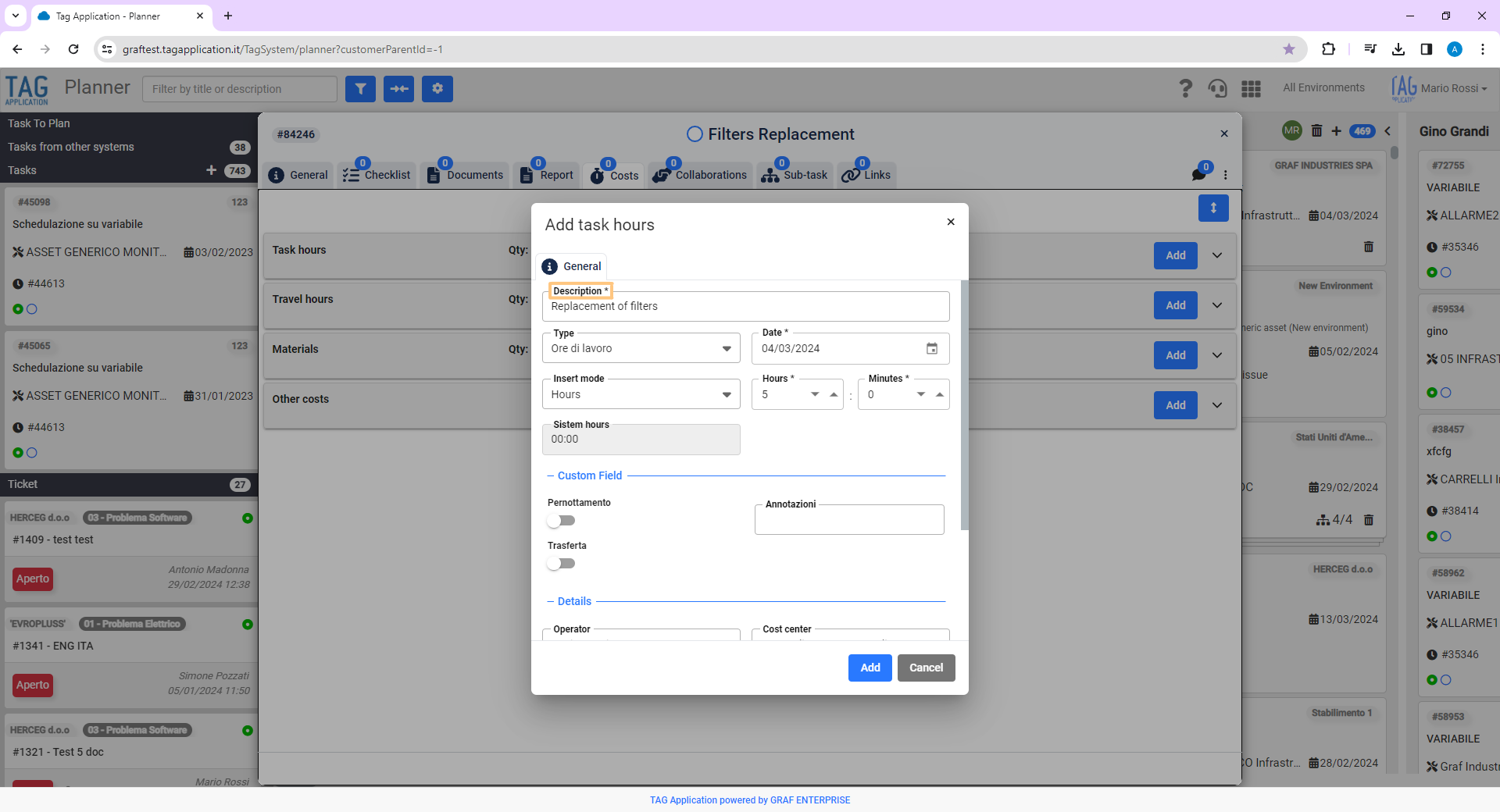
Do you ever enter a cost forgetting to enrich it with a specific description?
It is normal! In the daily frenzy it happens that the rush plays tricks and that, when you go to consult a specific cost, maybe even after a long time, you notice the forgetfulness and you can not remember what was done that day.
With the new update is the system that reminds you of forgetfulness! At any cost, in fact, the description will always be mandatory… it will then become impossible to create a cost without having enriched it appropriately.
(fig 3.0)

Notifications – Mass reading and deletion
Do you ever forget to “clean” notifications and find yourself hundreds of old and useless?
It is normal! in the fast-paced digital world in which we live today more and more often we are inundated with large scores of notifications: reading and deleting them all individually can become a problem!
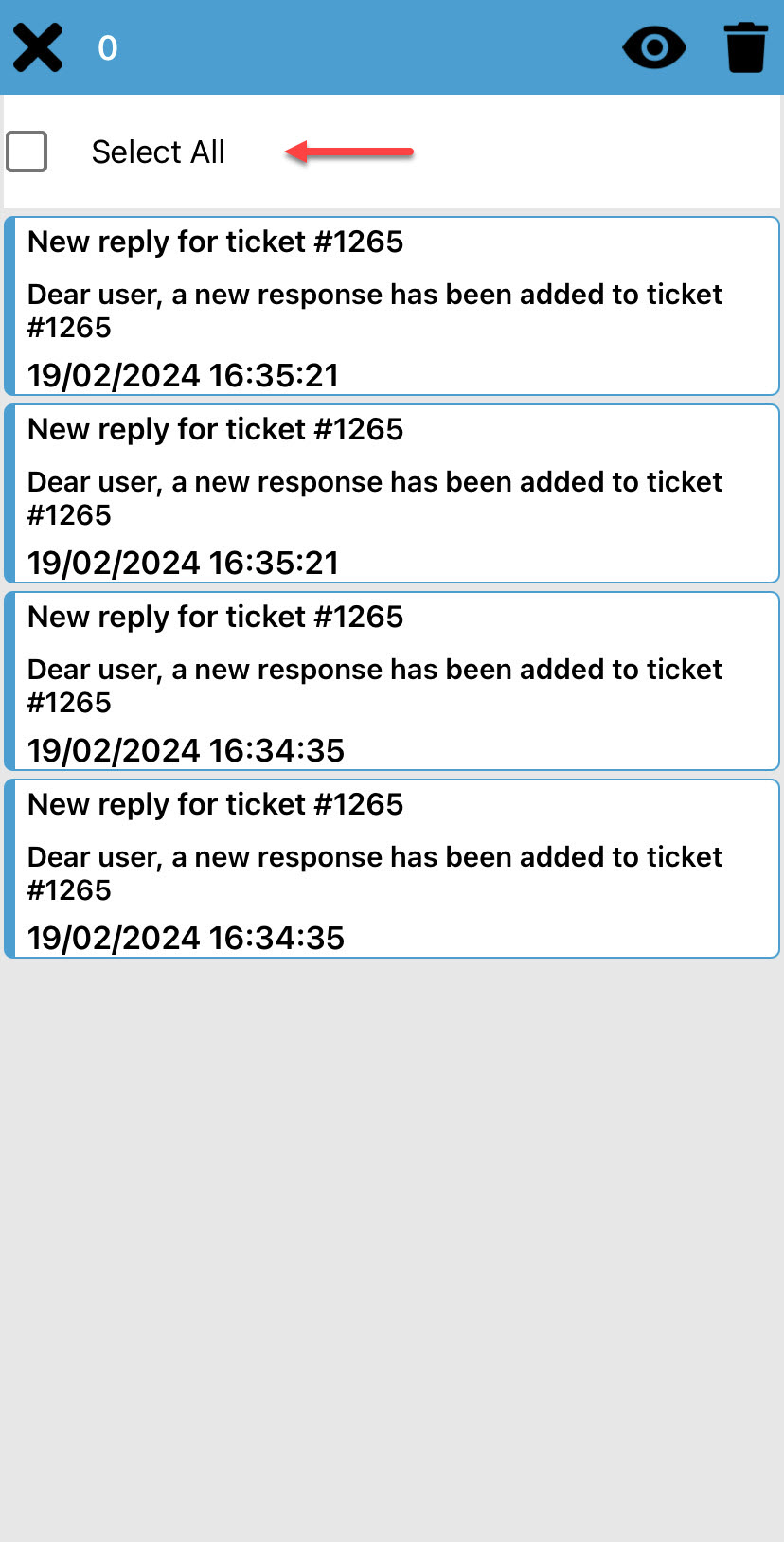
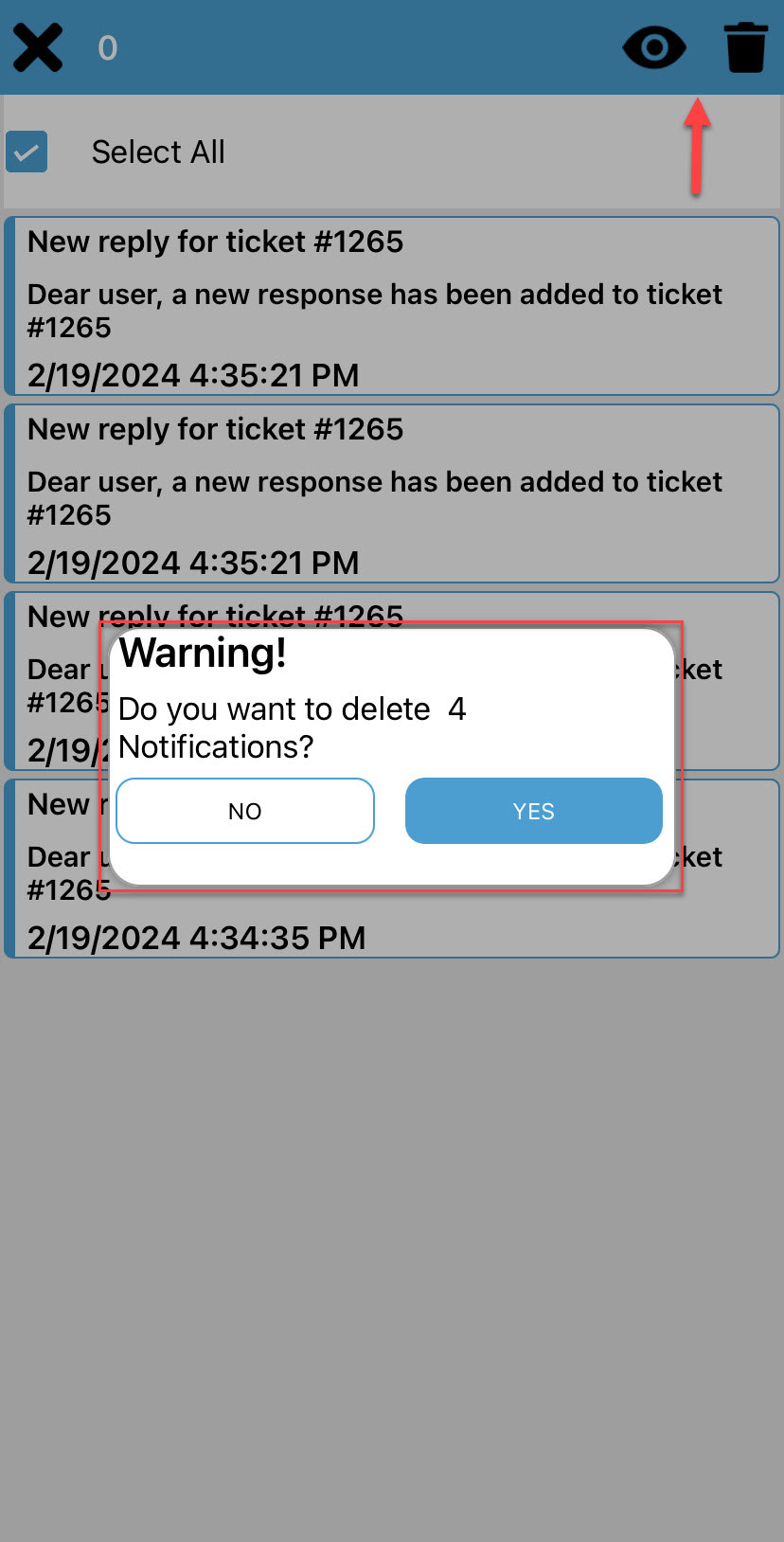
For this reason TAG Application has thought about the solution: through the application, starting from the new version, it will be possible to mark as “already read” or delete all notifications received with a single click.
Going to the section containing the notifications, easily recognizable by the black bell in the home, you can enter the edit and choose to read or delete all the notifications via special buttons located at the top right of the screen.(fig 3.0 – 3.1)